
Features
Everything Elder Guard does, and its limits
One app, two roles. The Guardian sets up protection from their phone. The Elder agrees on theirs and gets help with scam calls, texts, emails and risky links.
On the Elder’s phone
The Elder sets up Elder Guard on their own phone and agrees first. Apple limits what apps can do on iPhone, so Elder Guard works in different ways there.
-
Scam calls
Android screens calls and blocks likely scam calls or reports them to Guardians. iPhone blocks the numbers you list and helps turn on Silence Unknown Callers.
Limit: iPhone can’t screen calls one by one.
-
Scam-number blocking
Turn it on and numbers many people have reported to the FTC don’t ring. The phone downloads the list itself and checks calls on the phone. The list check sends nothing about calls to us.
Limit: A Guardian’s choice, off by default. On iPhone it runs on iOS 18 or later; earlier versions need access to contacts.
-
Only trusted numbers ring
On Android, a Guardian can let only trusted numbers through.
Limit: Not available on iPhone; Silence Unknown Callers is similar.
-
Scam texts
Android warns about likely scam texts and reports them to Guardians. iPhone sorts likely scam texts from unknown senders into Junk.
Limit: On iPhone the app never reads texts, so it can’t report them.
-
Email
Checks a connected email account for likely scams in the background on Android. On iPhone it checks when opened, and sometimes in the background when iOS allows.
Limit: One connected account.
-
Risky links
Android warns about dangerous links in texts and email. On iPhone, Elder Guard’s Safari blocker stops known dangerous websites.
Limit: Only known dangerous sites are stopped.
-
Check a message or link
Paste or share any text, email or link and see the red flags Elder Guard finds.
-
Ask “Is this safe?”
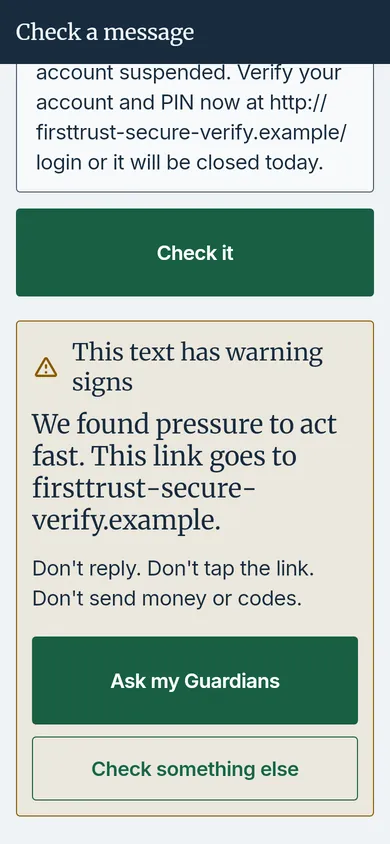
A button sends what they saw to their Guardians, who answer “It’s safe”, “It’s a scam” or “I’ll call you”.
Limit: The Elder chooses what to send.
-
Always-on protection
On Android, protection keeps running, with a notification that shows it’s on.
Limit: Not available on iPhone.
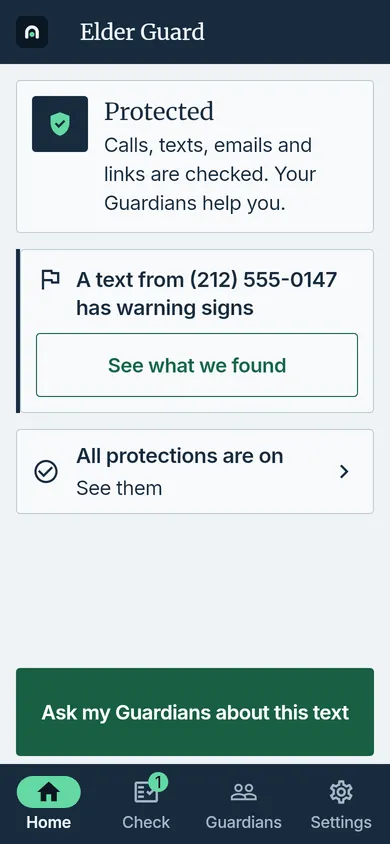
What checking looks like
The verdict, the red flags it found, and the Ask button, on one screen.
| Feature | Android | iPhone |
|---|---|---|
| Scam calls | Screens calls, and blocks likely scam calls or reports them to Guardians | Helps turn on Apple’s Silence Unknown Callers (Screen Unknown Callers on newer iPhones) |
| Numbers Guardians block | Blocked | Blocked |
| Numbers many people reported to the FTC (a Guardian’s choice, off by default) | Blocked when a Guardian turns it on | Blocked when a Guardian turns it on, on iOS 18 or later; earlier versions need access to contacts |
| Only trusted numbers ring (a Guardian’s choice) | Yes | Not available; Silence Unknown Callers is similar |
| Scam texts | Warns about likely scam texts and reports them to Guardians | Sorts likely scam texts from unknown senders into Junk. The app never reads texts or sends them anywhere |
| Checks a connected email account in the background | Checks a connected email account when Elder Guard is opened, and sometimes in the background when iOS allows | |
| Dangerous links | Warns about dangerous links in texts and email | Elder Guard’s Safari blocker stops known dangerous websites |
| Check a message or link | Yes | Yes |
| Ask “Is this safe?” | Yes | Yes |
| Red flags in checked messages | Yes | Yes |
| If you’ve been scammed: who to call | Yes | Yes |
| Always-on protection | Yes, with a notification that shows it’s on | Not available on iPhone |
On iPad, scam text filtering isn’t available, and call blocking needs iPadOS 26 or later.
On the Guardian’s phone
Guardians use Elder Guard on Android or iPhone.
-
Connect in person
Scan the setup code on your loved one’s phone, in person.
Limit: In person only: the Elder shows a setup code and a Guardian scans it.
-
Choose the protection
Pick what Elder Guard looks for (texts, calls and email). Keep blocked and trusted numbers. Add words to flag, and mark websites as trusted or to warn about.
-
Get alerts
End-to-end encrypted reports when something looks like a scam, and a notification when your loved one asks “Is this safe?”
Limit: Guardians get likely scams by default. Getting every text is a separate choice, on Android only, and the Elder is told.
-
Answer “Is this safe?”
See what your loved one saw and answer “It’s safe”, “It’s a scam” or “I’ll call you”, with a note.
-
Weekly digest
An optional weekly summary: how many reports arrived and how many looked like scams. Counts only, no message text.
Limit: Off unless the Guardian turns it on.
-
Share the job
Up to three Guardians per person. Invite family in person: they scan a code on your phone. Invited Guardians never pay.
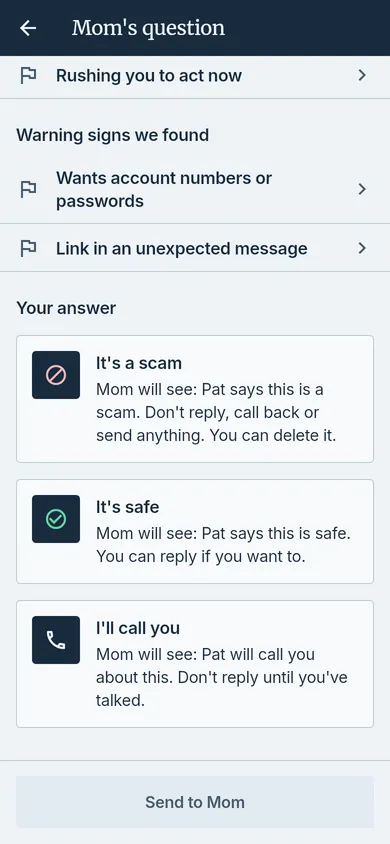
Red flags and a who-to-call list, in the app
-
Red flags, explained
When your loved one checks a message, Elder Guard shows the warning signs it spotted, such as “Wants gift cards” or “Rushing you to act now.” Each of its 50 red flags comes from the FTC, the FBI or another U.S. agency, and links to its source.
-
Say what worries you
When your loved one asks “Is this safe?”, they can mark what worries them. You see it with the question and can point out red flags in your answer.
-
If you’ve been scammed
A list in the app of where to call and report, most urgent first, with what to do for each way of paying. Every number comes from the organization’s own website.
Privacy in brief
Nothing starts without a yes
Elder Guard explains in plain words what will be shared and with whom. Nothing is shared until the Elder agrees.
End-to-end encrypted
Reports travel locked through our relay. Only the Guardian’s phone can open them; we can’t.
No ads. Nothing sold.
No advertising, and personal information is never sold.