Use both phones to set up Elder Guard together, in person. Your loved one reads the sharing choices on their own phone. Choose a guide below for checks, reports or questions. Android and iPhone steps are marked.
Start here
With both phones in hand, follow these steps in order. Each link opens its guide below.
Set up Elder Guard, start to finish
Recorded with version 1.0.0+2
Transcript
A text arrives. Elder Guard shows a warning. The Elder can send you this text. Your phone then shows the text. Elder Guard flags it. You decide.
Your account setup steps are outlined. Your phone, email and store login. Install. Tap Help someone in my family stay safe. Create an account, or sign in. Tap Set up a family member's phone. Choose. Tap Review plan.
What Elder Guard does, and does not do. Elder Guard checks for warning signs. The Elder can ask the family. You see what the Elder shares. Elder Guard shares only the Elder's chosen messages. Elder Guard can miss a scam, so keep talking.
The setup code is ready. Use the Elder's Android phone. Install from Google Play. Tap Protect my phone. Sign in with the Elder's email. Read; tap Use these choices. Guardian: scan this code. Next, link their phone.
Both phones are linked. Both phones, side by side. Guardian: tap Continue. Camera: tap While using the app. Show the setup code. Scan it. Compare safety codes. Tap Yes, it matches. Elder: tap They match. Tap Add Mom. Tap Done. Elder: tap Continue. First Elder: Continue. Tap Allow.
The Elder's phone shows Protected. Use the Elder's linked Android phone. Allow notifications. Allow contacts. With Elder Guard selected, tap Set as default. Turn on Allow notification access. Return to Elder Guard. Look for Protected on Home. Next, read an alert about your parent.
The Elder shared an item with you. Start with the Elder's linked phone. Tap Send to Pat. Tap the notification. Tap the shared text. Read Details. Block, remove, leave unchanged. Verify before trusting. In People, tap Mom. Open Items shared with you. This lists shared items. Use your phone app to call the Elder.
The Elder's sharing choice is saved. Bring both phones to change sharing. Tap Settings. Check Notifications. Turn on Always run in the background. Weekly digest is on. Tap People. Tap Mom. iPhone texts stay local. Calls has its own settings. Email settings. Ask Mom to change sharing. If Off, tap Turn off sharing. The choice is saved. Next, add a second parent.
Two Elders, both on your phone. Bring both phones and your store login. Tap Protect someone else. If your plan is full, tap Change plan. Family: two Elders, up to four devices. Tap Review plan. Tap Continue to Google Play. Google Play drawing: Continue. Tap Protect someone else. Dad's setup and safety codes. Scan Dad's code. Check both safety codes match. If they differ, stop. Then tap Yes, it matches. On Dad's phone, tap They match. On your phone, tap Add Dad. People shows both.
Account options are explained. Bring your phone and store login. Change plan is in Settings. Android: tap Manage or cancel in Google Play. Keep subscription, or begin cancellation. Account deletion won't cancel. Cancel in store first. Account options explained.
Elder Guard is now on Google Play. The iPhone app is coming soon.
Set up
On your phone, the bottom bar is People, Questions, Alerts, Digest and Settings. On their phone it is Home, Check, Guardians and Settings.
Create your Guardian account and start the free trial
You need your phone and the email address you will use.
Recorded with version 1.0.0+2
Transcript
Your account is ready, with a plan.
Your phone, email and store login.
Install Elder Guard.
Open it. On Select your role, tap Help someone in my family stay safe.
Tap Create an account, or sign in.
Return here after confirming your email. Tap I've confirmed my email.
Tap Set up a family member's phone.
Choose Individual or Family, then tap Review plan. Family covers two Elders.
Your store decides trial eligibility. Tap the trial button if offered.
On iPhone, review the App Store terms.
Confirm on the store's own screen.
In Settings, your plan shows as active.
Next, add your parent and link their phone.
Add an Elder and link their phone
You need your phone and the Elder's phone, together.
Recorded with version 1.0.0+2
Transcript
Both phones are linked.
Both phones, side by side.
Guardian's phone: tap Continue.
Android camera: tap While using the app.
Show the Elder's setup code.
Scan it.
Compare safety codes.
Tap Yes, it matches.
Elder: tap They match.
Tap Add Mom.
Tap Done.
Elder: tap Continue.
First Elder: tap Continue.
Tap Allow.
Next, answer “Is this safe?”
Add a second Elder
You need your phone; the second Elder's phone comes later.
Recorded with version 1.0.0+2
Transcript
Two Elders, both on your phone.
Bring both phones and your store login.
Tap Protect someone else.
If your plan is full, tap Change plan.
Family: two Elders, up to four devices.
Tap Review plan.
Tap Continue to Google Play.
Google Play drawing: Continue.
Tap Protect someone else.
Dad's setup and safety codes.
Scan Dad's code.
Check both safety codes match. If they differ, stop.
Then tap Yes, it matches.
On Dad's phone, tap They match.
On your phone, tap Add Dad.
People shows both.
Next, invite another Guardian.
Create your Guardian account and sign in
Guardian’s phone
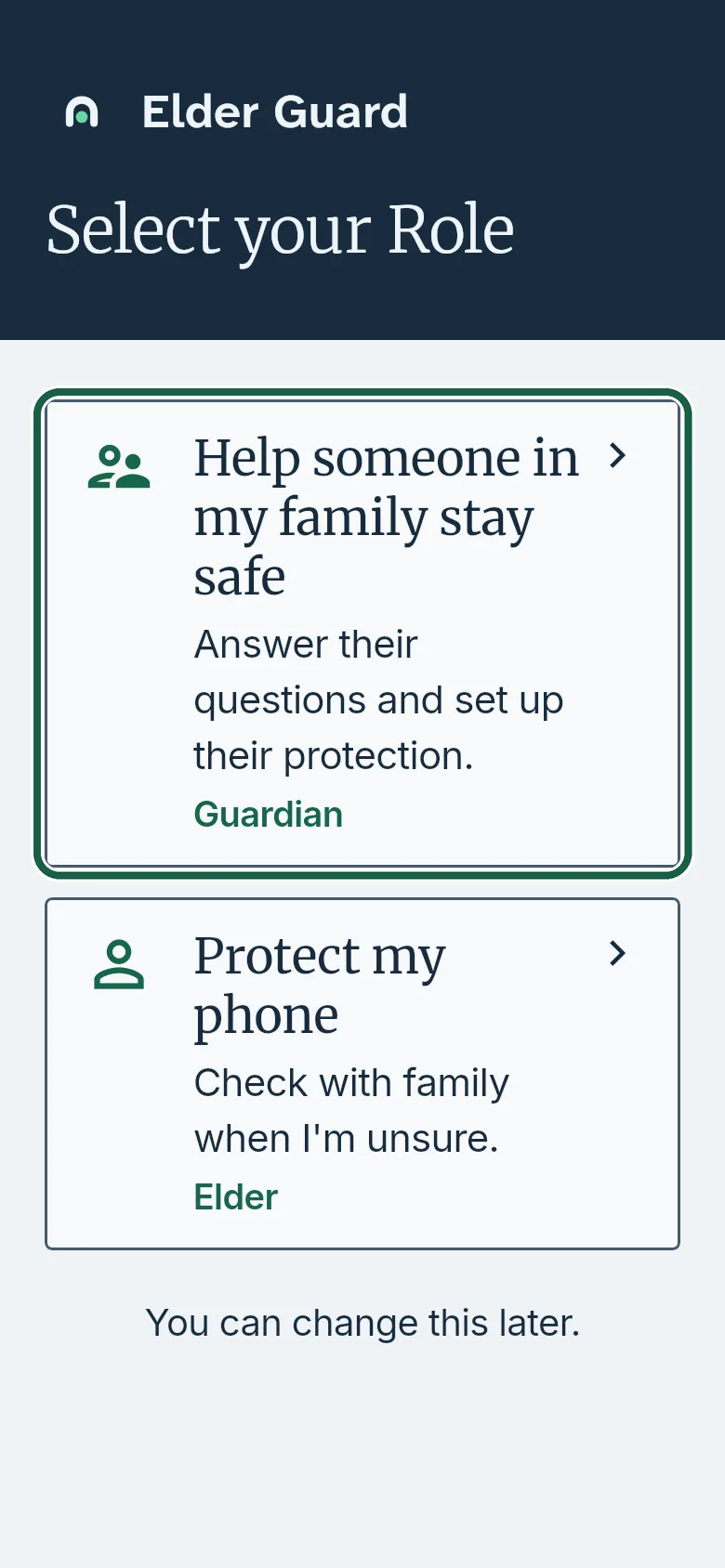
Open Elder Guard. The first time, it asks you to Select your Role: tap Guardian.
Guardian’s phone: Select your Role, with Guardian circled.Enlarge picture
Sign in with your own account.
Choose one
New to Elder Guard: tap Create an account, type your email and a password twice, then tap Create an account.
Already have an account: type your email and password, then tap Sign in.
Tap Sign in with Google. On an iPhone you can also tap Sign in with Apple.
If it doesn’t work
If the app says This account is an Elder’s account, and this phone is set up as a Guardian. tap Sign in with a different account or Switch role.
It worked whenYou see the People tab with Scan their code on the set-up card.
Good to knowTo sign out later, open Settings and tap Sign out. If you chose the wrong role for this phone, tap Switch role in Settings.
Sign in to Elder Guard on their phone
Before you startInstall Elder Guard on their phone, and have the account they will use: their own, not yours.
Elder’s phone
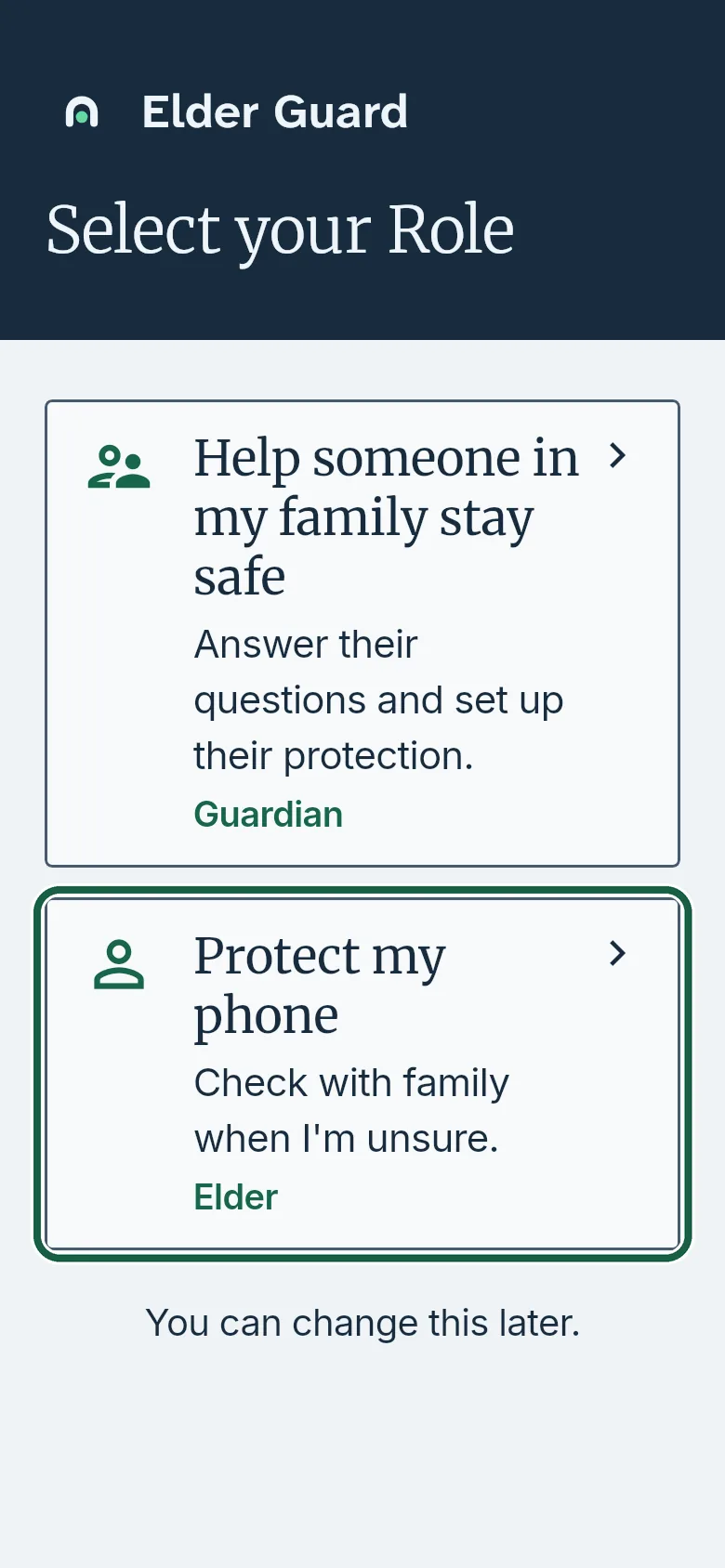
Open Elder Guard. When it asks you to Select your Role, tap Elder.
Elder’s phone: Select your Role, with Elder circled.Enlarge picture
Sign in with their account.
Choose one
New account: tap Create an account, type an email and a password twice, then tap Create an account.
Already have an account: type their email and password, then tap Sign in.
Tap Sign in with Google.
On an iPhone: tap Sign in with Apple.
If it doesn’t work
If the app says This account is a Guardian’s account, and this phone is set up as an Elder. tap Sign in with a different account or Switch role.
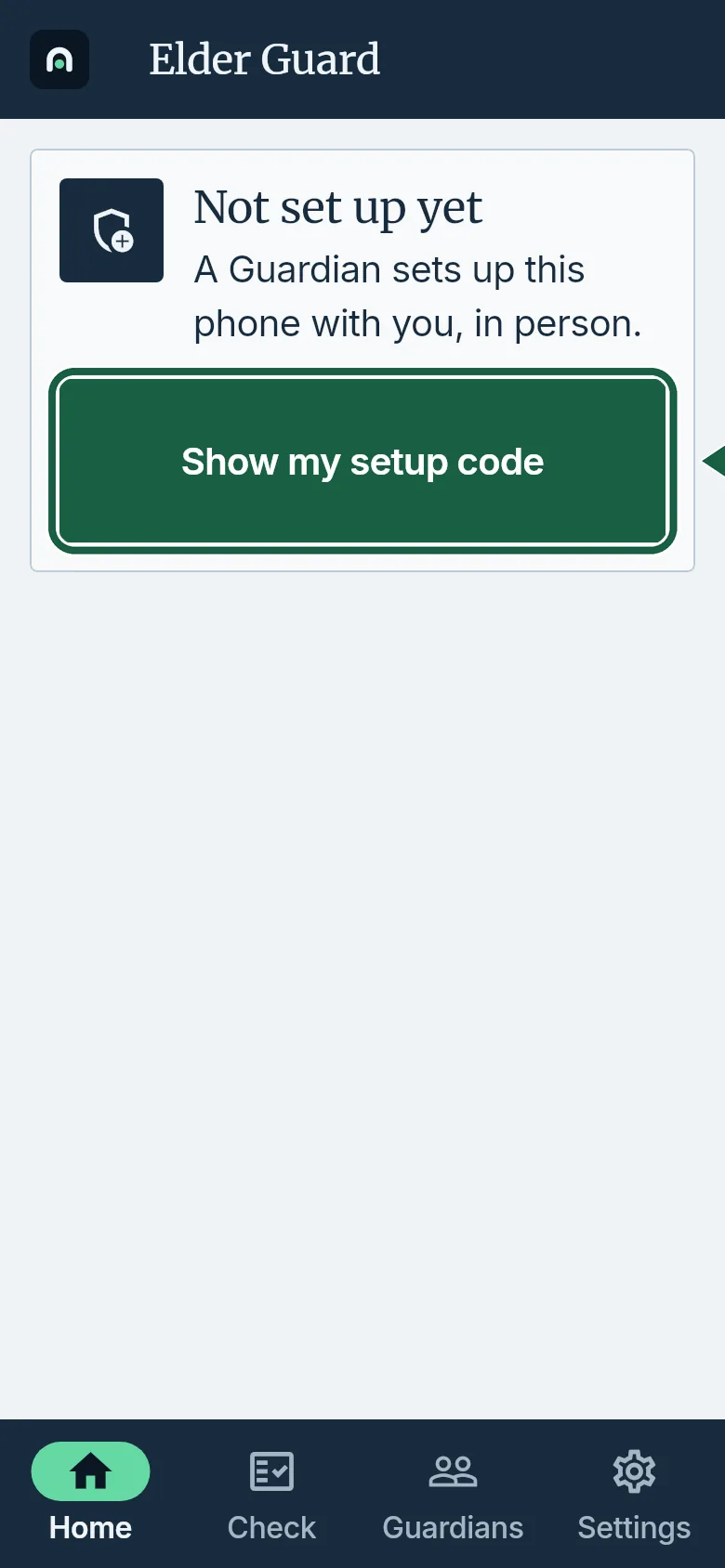
It worked whenThe Home tab shows Not set up yet and Show my setup code.
Set up their phone together
Before you start
Both phones are with you and online. Your loved one is signed in on their own phone (Sign in on their phone).
Your loved one is there to read what Elder Guard does and agree to it.
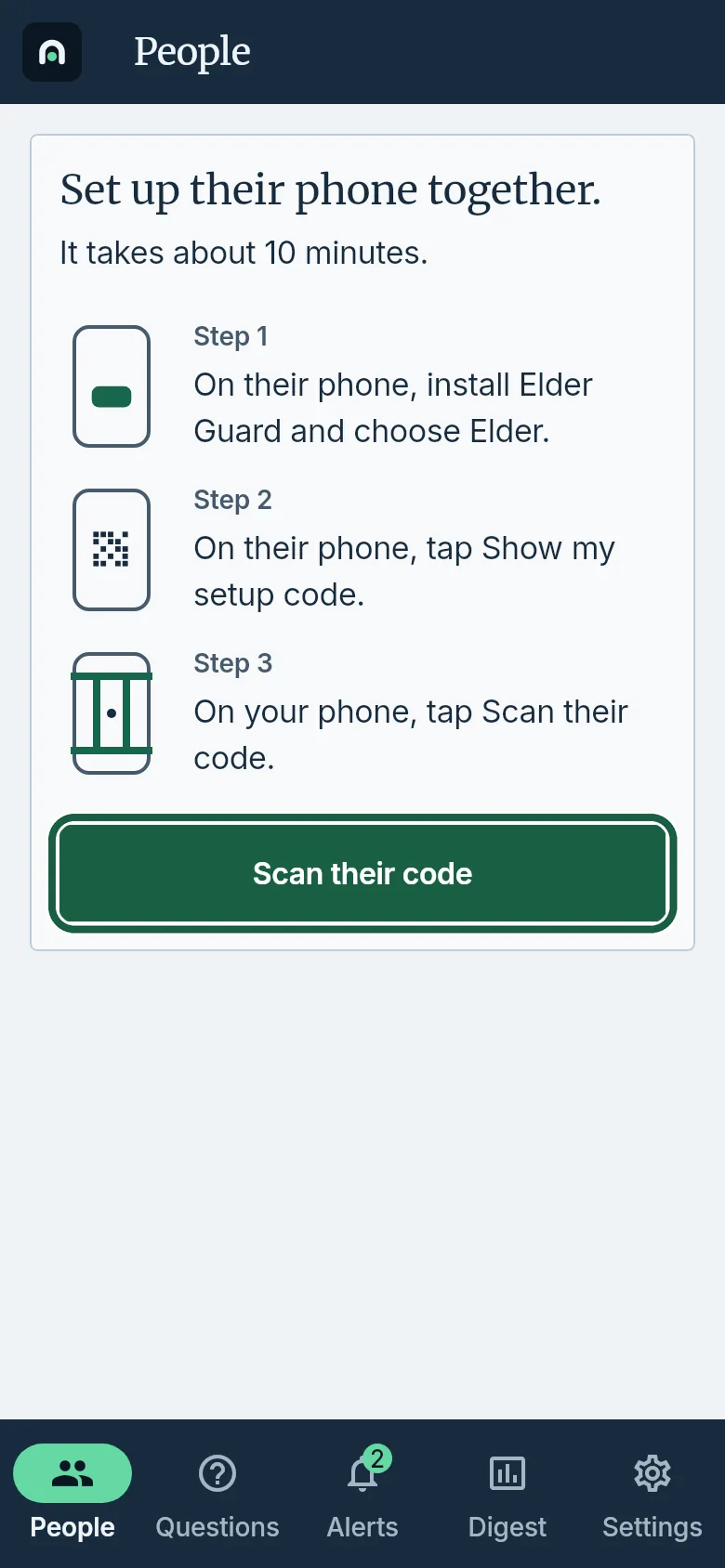
It takes about 10 minutes.
Elder’s phone
On the Home tab, tap Show my setup code.
Elder’s phone: Home, with Show my setup code circled.Enlarge picture
The first time, read How Elder Guard protects this phone, review the choices, then tap Use these choices. Allow notifications when the phone asks, and review any other permission requests. Protection reports describe what was stopped. Full items are sent only when you choose one and tap to send.
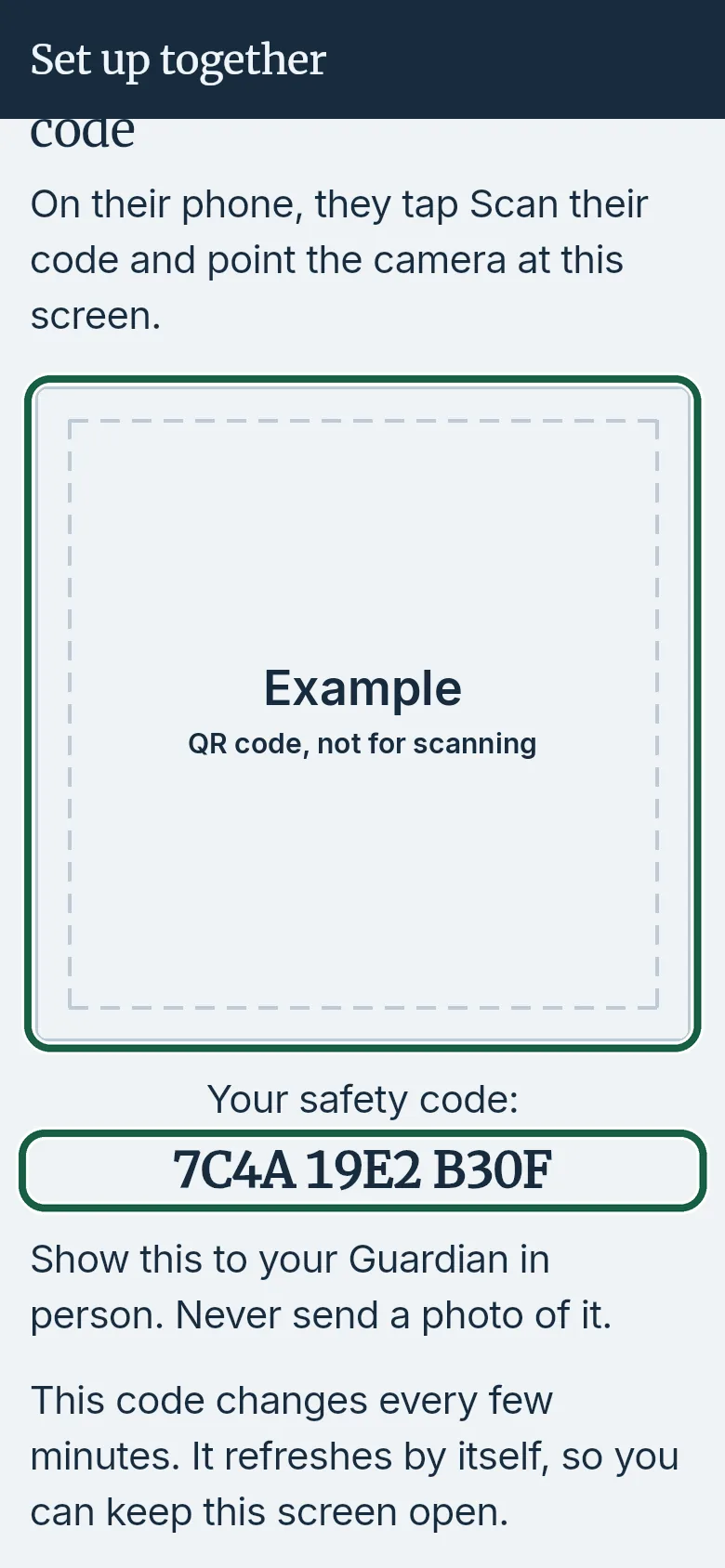
The Set up together screen shows a code. Leave it on screen.
Elder’s phone: Set up together. The setup code and safety code shown are examples.Enlarge picture
Guardian’s phone
On the People tab, tap Scan their code.
Guardian’s phone: People, with Scan their code circled.Enlarge picture
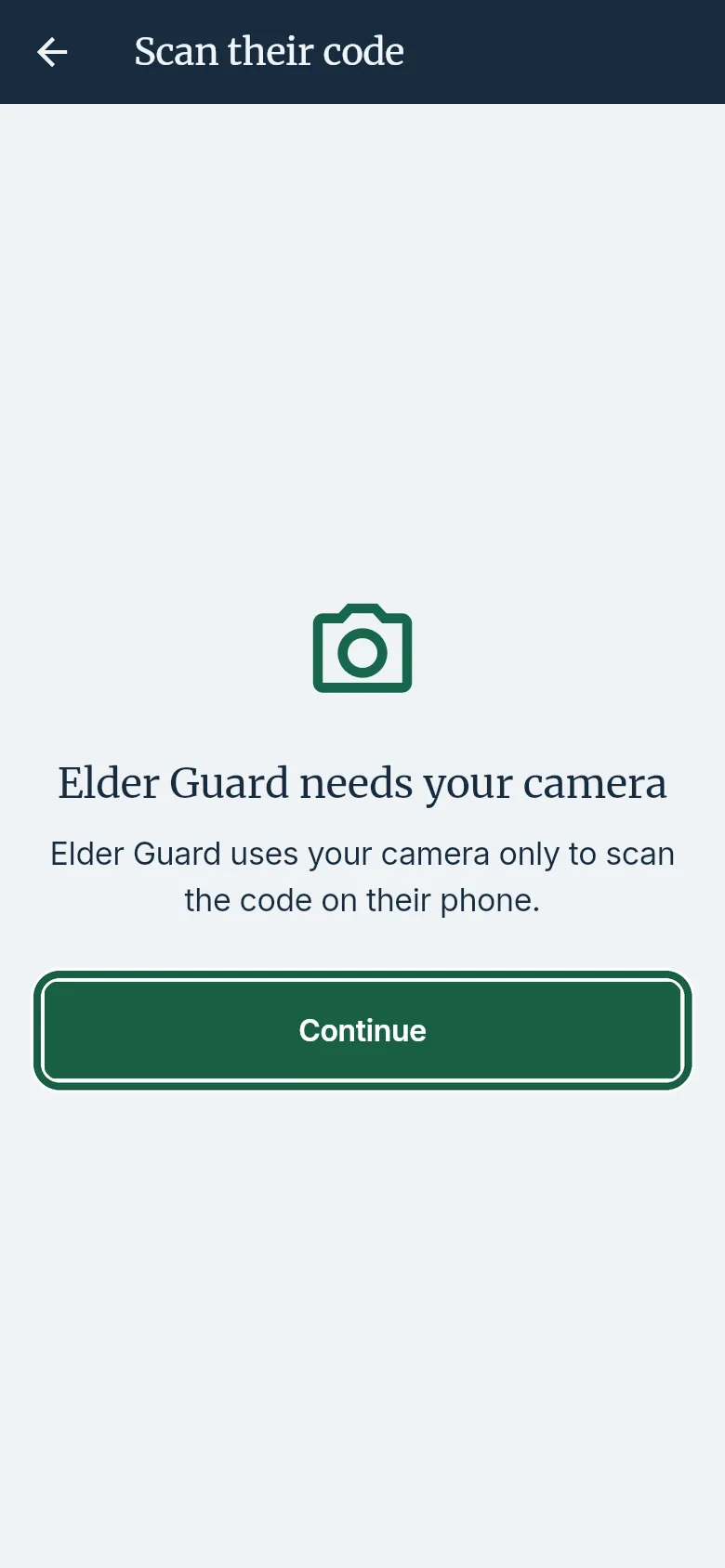
The first time, read the camera screen and tap Continue. Allow the camera when the phone asks.
Guardian’s phone: Scan their code, with Continue circled.Enlarge picture
Point the camera at the code on their phone.
If it doesn’t work
If it says That code has expired, use your loved one’s phone. Tap Show my setup code or leave Set up together open. Scan again.
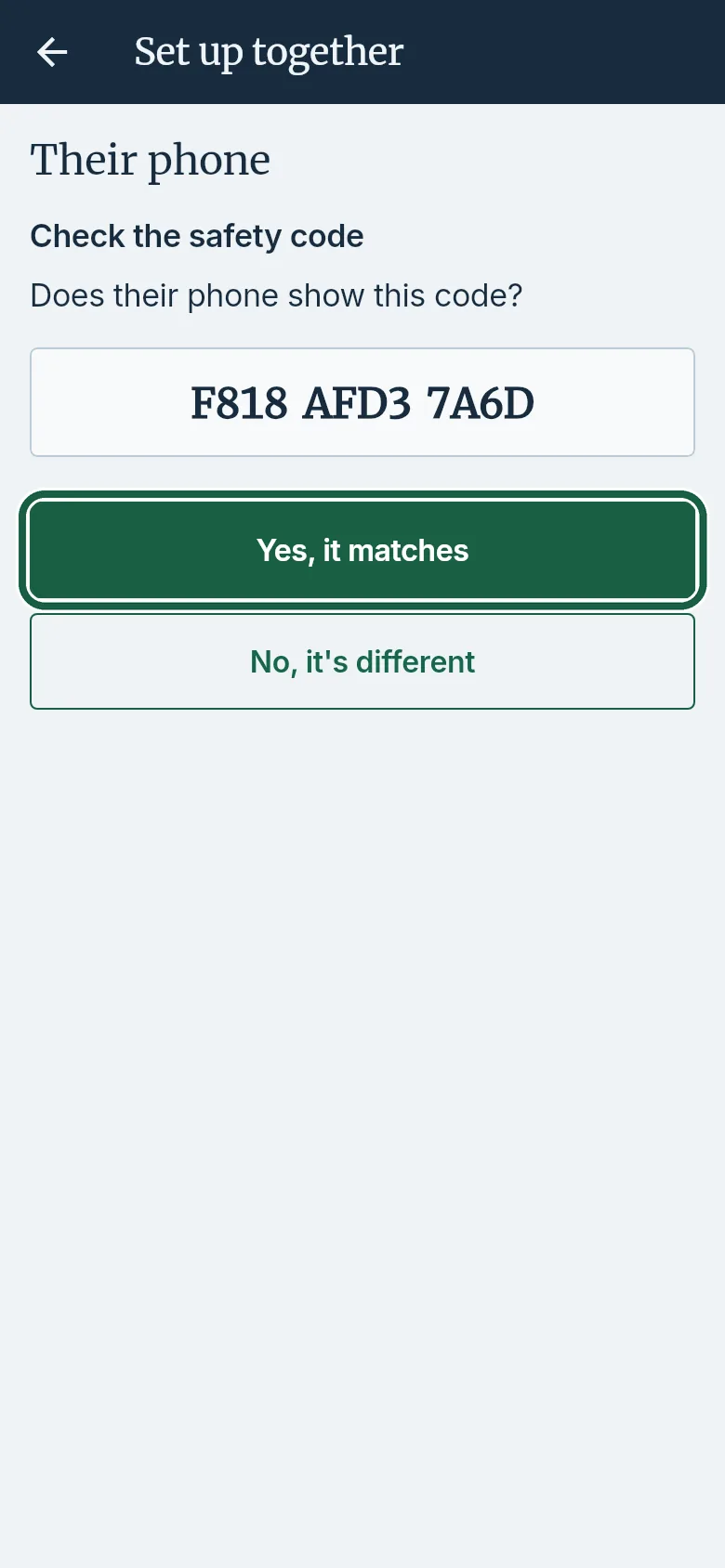
Check the safety code. Tap Yes, it matches when it matches their phone.
Guardian’s phone: Check the safety code, with Yes, it matches circled.Enlarge picture
If it doesn’t work
If the codes differ, tap No, it’s different, then Scan again. Scan their own phone, not a photo of the code.
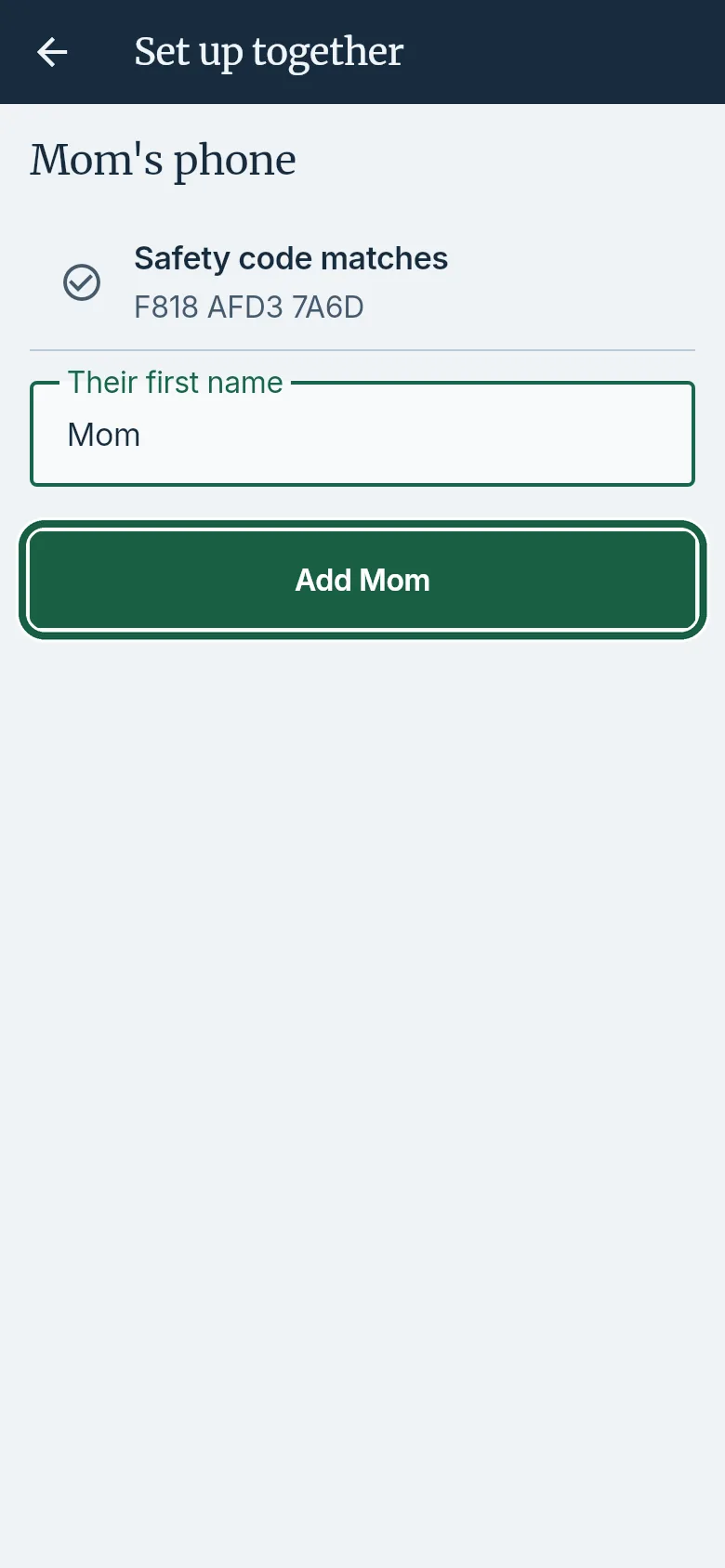
Under Their first name, type a name, for example Mom. Tap Add Mom.
Guardian’s phone: name step, with Add Mom circled.Enlarge picture
If you don’t have a subscription yet, tap Start free trial on Subscribe, then finish adding Mom.
Elder’s phone
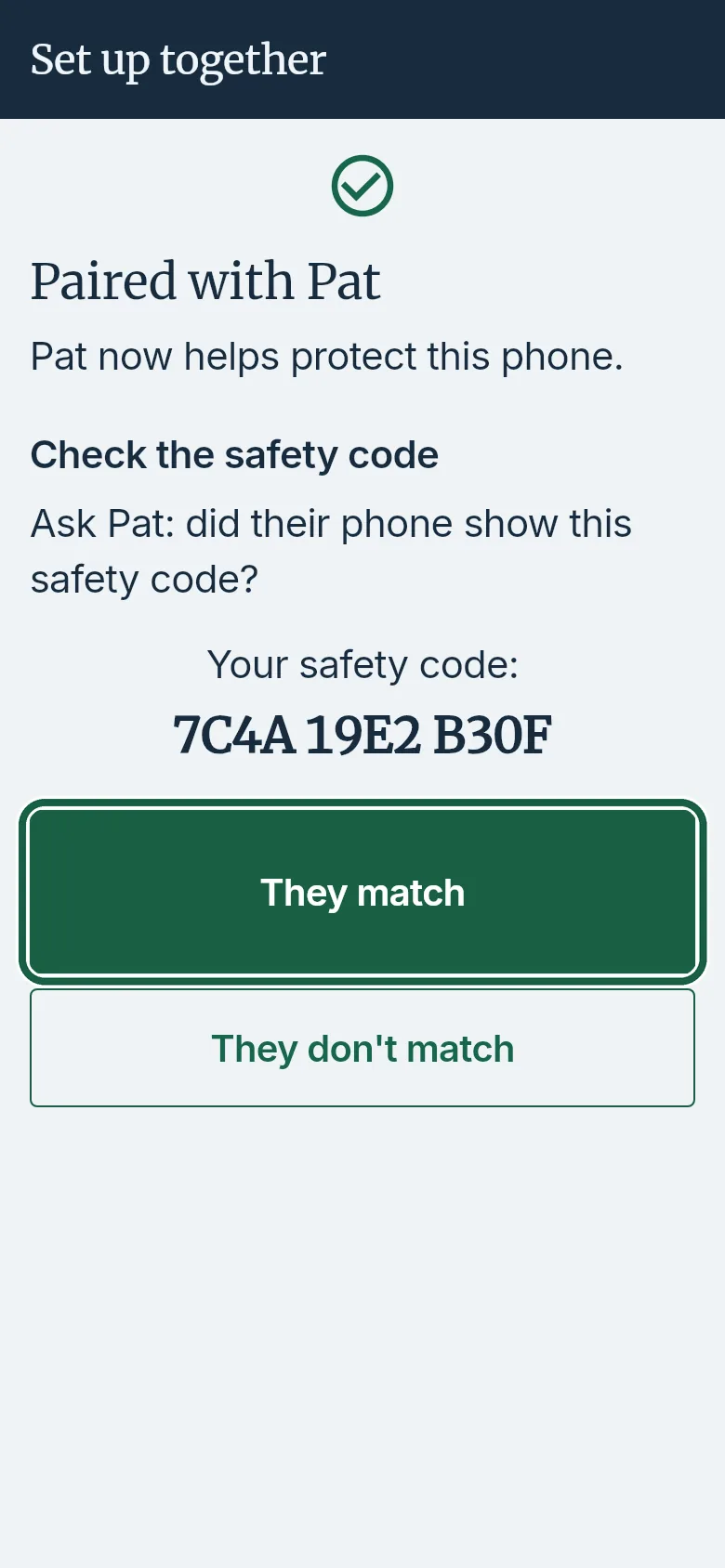
After you tap Add Mom, their phone shows Paired with Pat (or Paired with your Guardian). Check the safety code, then tap They match.
Elder’s phone: Paired with Pat, with They match circled.Enlarge picture
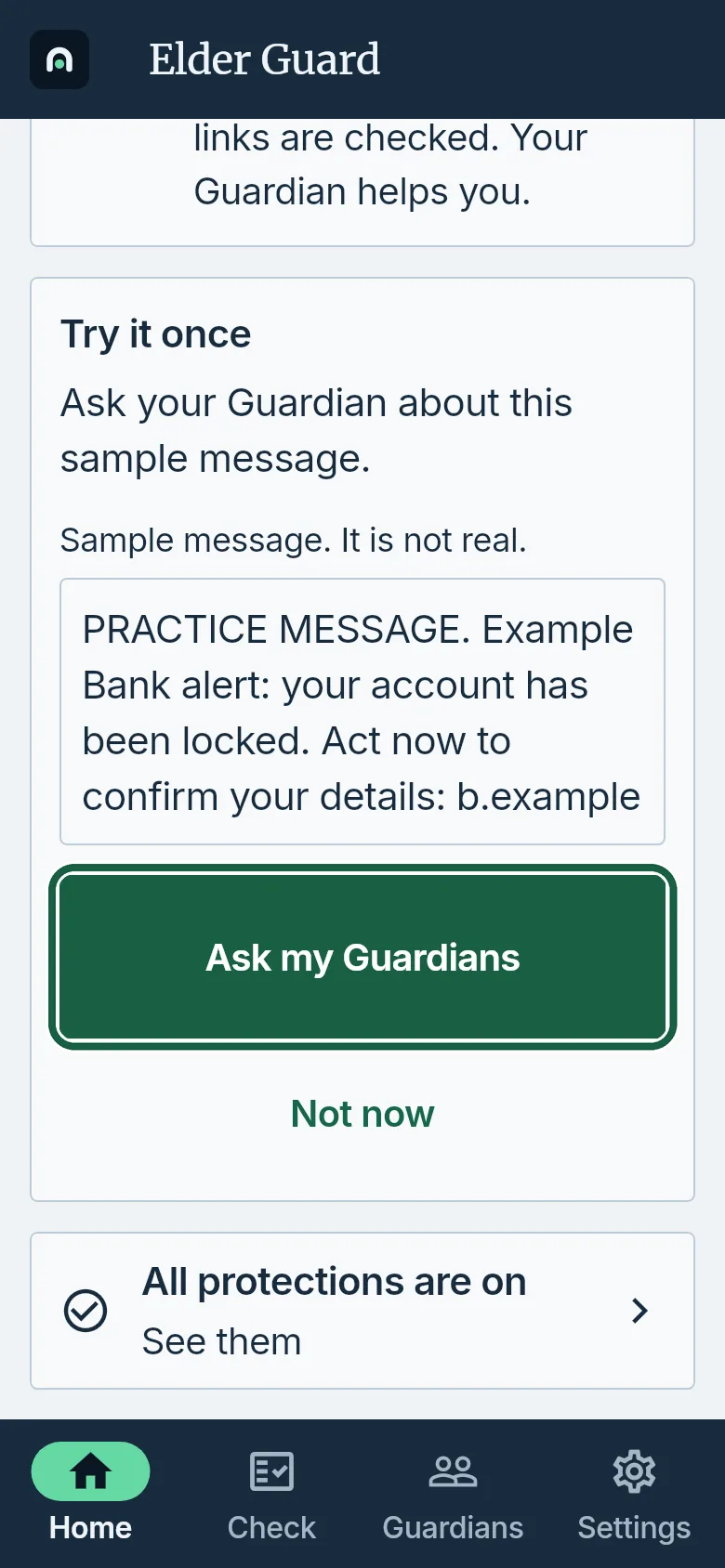
On Try it once, tap Ask my Guardians or Not now.
Guardian’s phone
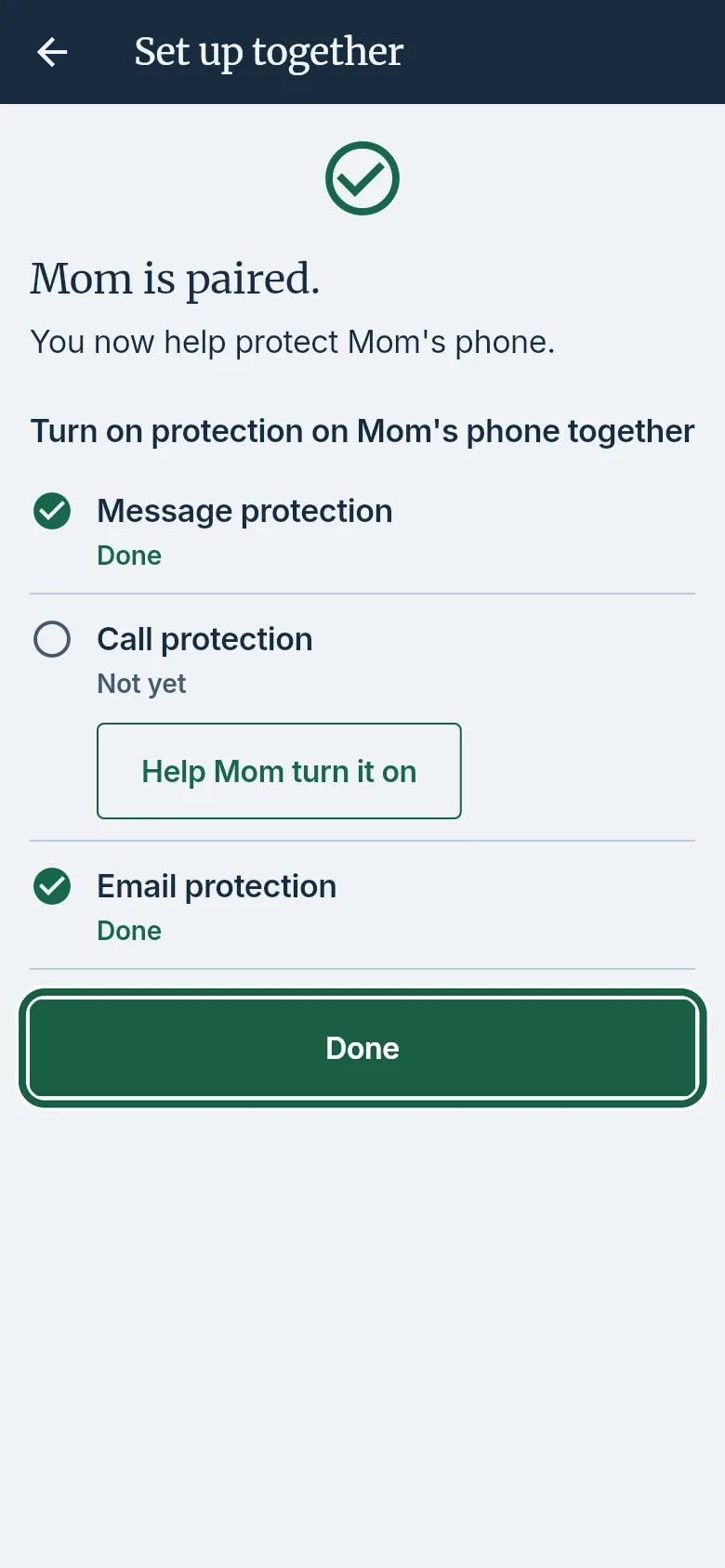
On the success screen, tap Done.
Guardian’s phone: Mom is paired, with Done circled.Enlarge picture
If this is your first person, read Get a question when Mom asks one and tap Continue.
It worked whenYour People tab shows Mom. Their Home tab no longer says Not set up yet.
Good to knowOnce they have a Guardian, their phone stops showing a setup code. To add more Guardians, a current Guardian invites them.
Open Questions to read an item your loved one chose to send and answer it.
It worked whenProtection reports appear in Alerts; questions your loved one sends appear in Questions.
Good to knowAutomatic reports contain the kind of scam, the day and any website address a link check flagged as dangerous. They never include the message, sender, phone number or time of day. Full details need your loved one’s tap. Read how reports and questions work.
Try a practice question together
Before you startFinish Set up their phone together first. The sample message is labeled practice and is not real.
Elder’s phone
Right after setup, on Try it once, tap Ask my Guardians. Or open Settings and tap Try a practice question.
Elder’s phone: Try it once, with Ask my Guardians circled.Enlarge picture
Guardian’s phone
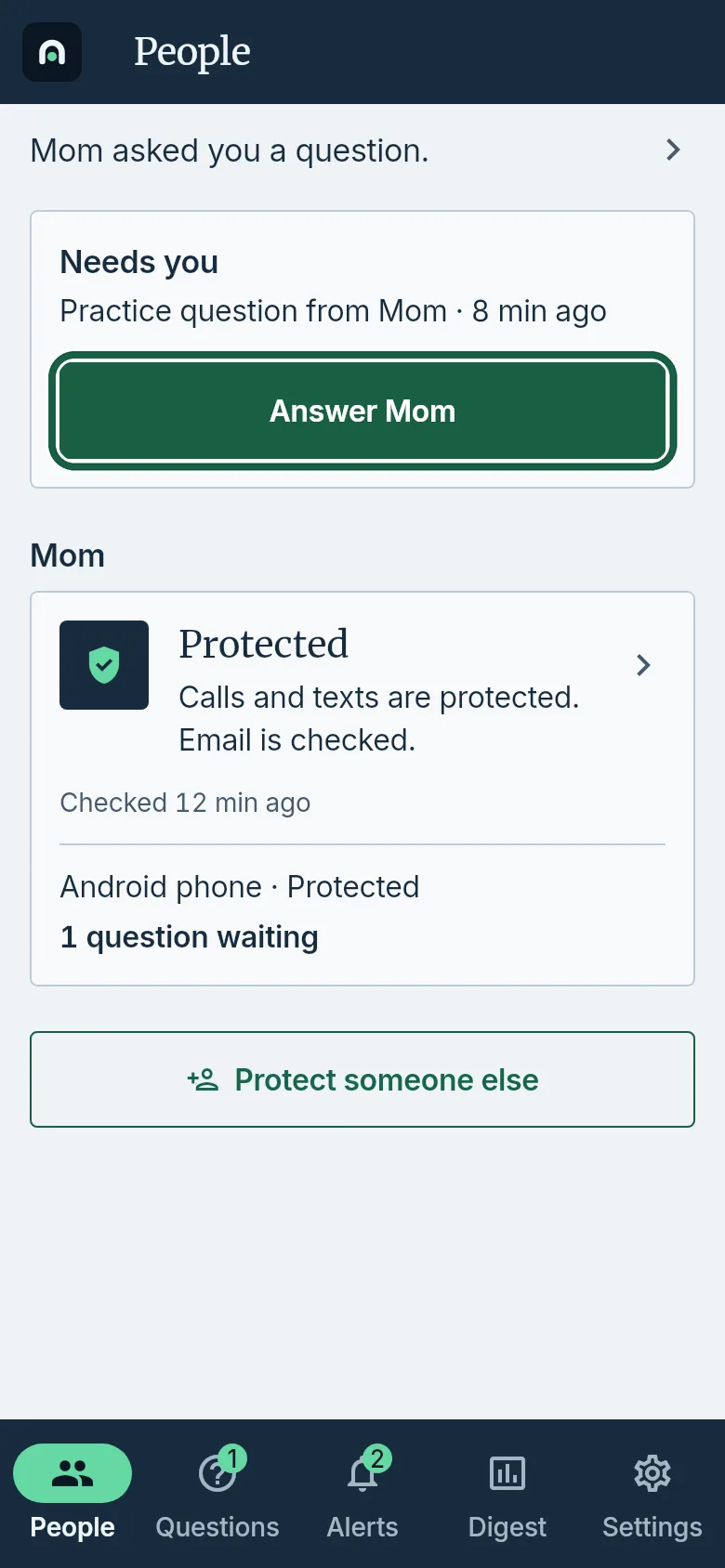
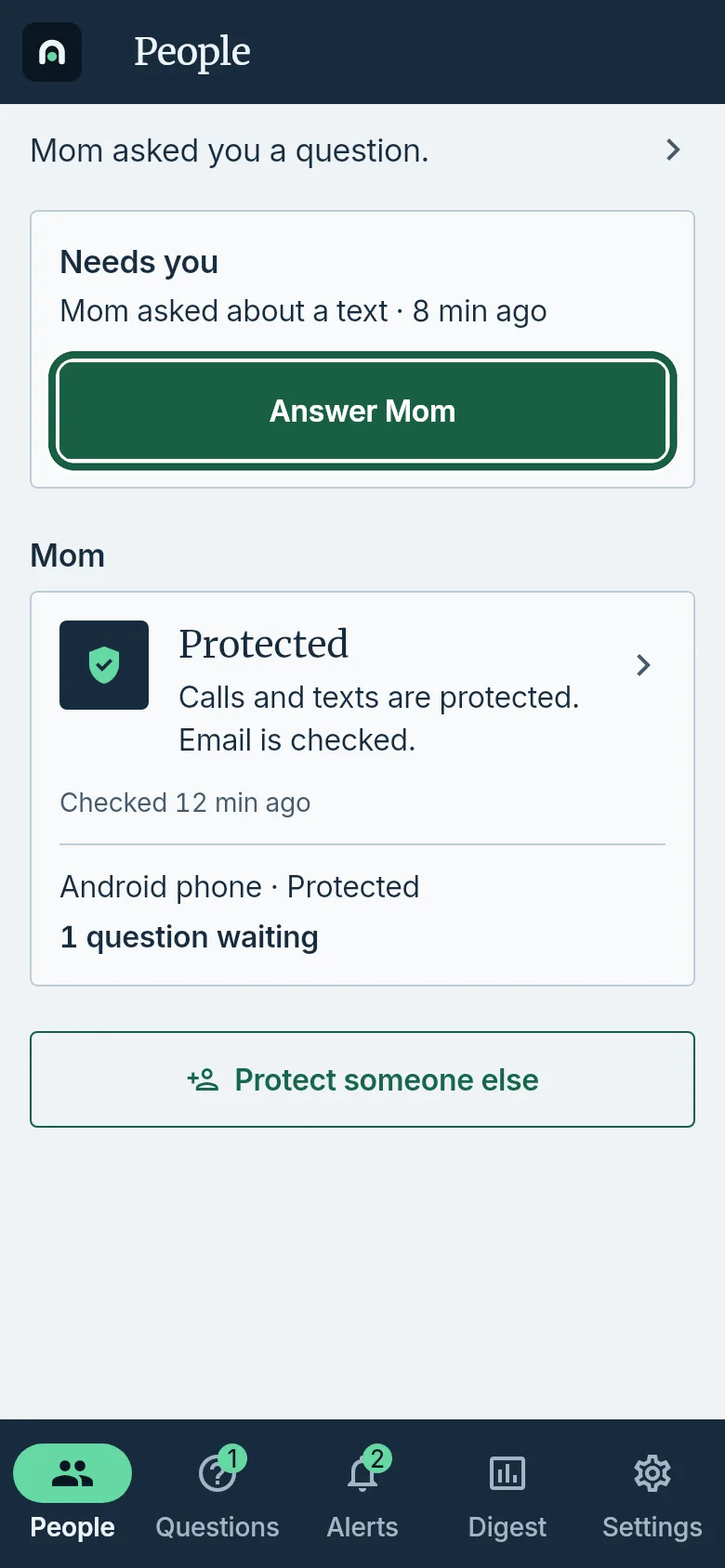
On the People tab, open the Needs you card and tap Answer Mom. The heading says it is a practice question.
Guardian’s phone: People, with Answer Mom circled.Enlarge picture
Tap It’s a scam, then tap Send to Mom.
Elder’s phone
On Home, tap See the answer. Under Pat’s answer it says You’re all set.
It worked whenHome shows the card Pat answered your practice question.
Good to knowIf you skipped it, start it from Settings. The row is hidden while protection is off. It’s also hidden while a practice question is waiting or under Recent answers on Check.
On their phone
On their phone, the bottom bar is Home, Check, Guardians and Settings. When protection is on, Ask my Guardians sits just above it on Home, Check and Guardians. You can read these guides aloud to them over a call.
Set up the Elder's Android phone and allow call and text access
Android
You need the Elder's Android phone and its unlock code.
Recorded with version 1.0.0+2
Transcript
The Elder's phone shows Protected.
Use the Elder's Android phone.
Install Elder Guard from Google Play.
Open it. Tap Protect my phone.
Use the Elder's email. Tap Sign in.
Read, then tap Use these choices.
Your Guardian scans this code.
Allow notifications.
Allow contacts.
With Elder Guard selected, tap Set as default.
Turn on Allow notification access. Return to Elder Guard.
Look for Protected on Home.
Next, read an alert about your parent.
Elder Guard is now on Google Play. The iPhone app is coming soon.
Set up the Elder's iPhone and turn on call and text filtering
iPhone
You need the Elder's iPhone and its passcode.
Recorded with version 1.0.0+2
Transcript
Text filtering is on.
Use the Elder's iPhone.
Tap Get in the App Store.
Open it and tap Protect my phone.
The Elder signs in with their own email.
Read the choices, then tap Use these choices.
Allow notifications when the iPhone asks.
A code appears. Show it to your Guardian in person.
Home lists the iPhone protections. Under Text filtering, tap See how.
Follow this guide. Open the Messages app.
Tap Filters at the top.
Tap Manage Filtering.
Turn on Screen Unknown Senders.
Tap Text Message Filter.
Turn on Text Message Filter.
Then turn on Elder Guard.
Return and tap I've turned it on.
Do the same for the other rows. Each one has its own guide.
Next, answer “Is this safe?”
Turn on the money-app reminder on your parent's Android phone
Android
You need the Elder's Android phone.
Recorded with version 1.0.0+2
Transcript
The money-app reminder is on.
You need the Elder's Android phone.
In the Elder's Settings, find Money and call checks. Tap it.
Find Money-app reminder.
Tap Turn on.
Read about usage access. Tap Choose apps to pick money apps.
Choose only the installed money apps you want checked. Leave other apps unselected.
Check your selection, then tap Use these apps.
Choose whether to tell your Guardians. This example uses No, thanks.
Turn on Permit usage access. Then return to Elder Guard.
Under Who to call, enter a Guardian's number. The reminder offers to call that Guardian.
After entering a Guardian's number, tap Save this number.
Return to Money and call checks. Check that Money-app reminder is on for the apps you chose.
Next, turn on the flagged-call check.
Turn on the flagged-call check on your parent's Android phone
Android
You need the Elder's Android phone.
Recorded with version 1.0.0+2
Transcript
The flagged-call check is on.
You need the Elder's Android phone.
In the Elder's Settings, find Money and call checks. Tap it.
Find Check before calling a flagged number.
Tap Turn on.
Tap Choose in Android.
With Elder Guard selected, tap Set as default.
This number came from a message with warning signs. Elder Guard asks before the Elder calls that number.
Look for On under Check before calling a flagged number.
Next, connect your parent's email.
Set up email protection on their phone
Recorded with version 1.0.0+2
Transcript
Email protection is on.
Have the Elder's email account signed in.
On Home, find Email protection and tap Set up.
For Gmail, tap Sign in with Google.
The Elder signs in to their own email.
The Elder reviews email access. Then return to Elder Guard.
It says Email protection is on, with the address.
On iPhone, tap OK to allow contacts. This helps identify known senders.
Enter the Elder's email details. Tap Save.
Next, change alert settings.
Turn on message protection Android
Before you startThe Message protection row on Home shows once a Guardian has set up the phone.
Elder’s phone
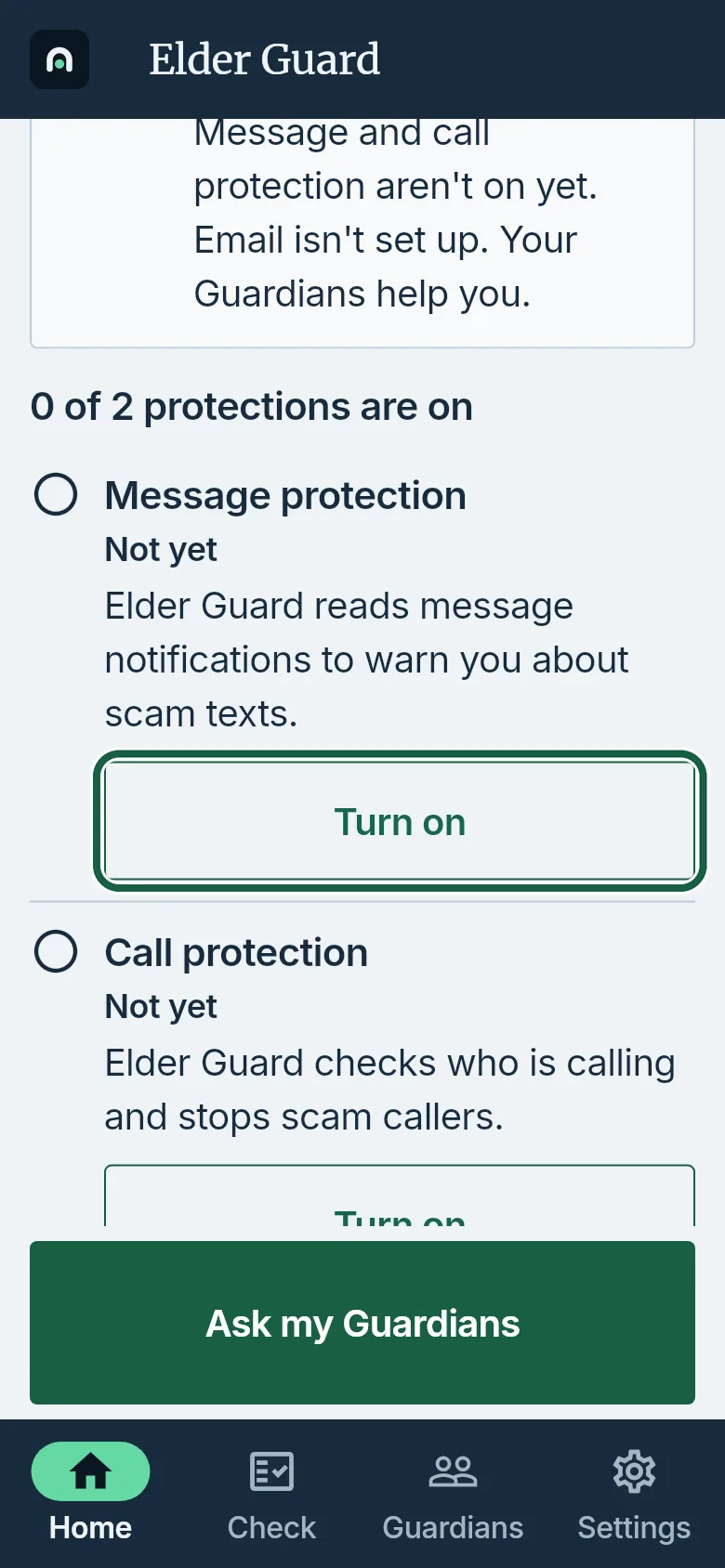
Tap Home on the bottom bar. In the Message protection row, tap Turn on.
Elder’s phone: Home, Message protection row with Turn on circled.Enlarge picture
On Android’s Notification access page, find Elder Guard, turn it on and confirm.
Go back to Elder Guard.
It worked whenThe Message protection row shows Done, and Home says “Texts and links are checked.”
Good to knowElder Guard checks the sender and preview shown in text-message notifications on this phone. Automatic reports describe what was stopped, without the message or sender. A full item goes only when you choose it and tap to send.
Turn on call protection Android
Before you startCall protection needs Android 10 or later. To check: Settings › About phone › Android version.
Elder’s phone
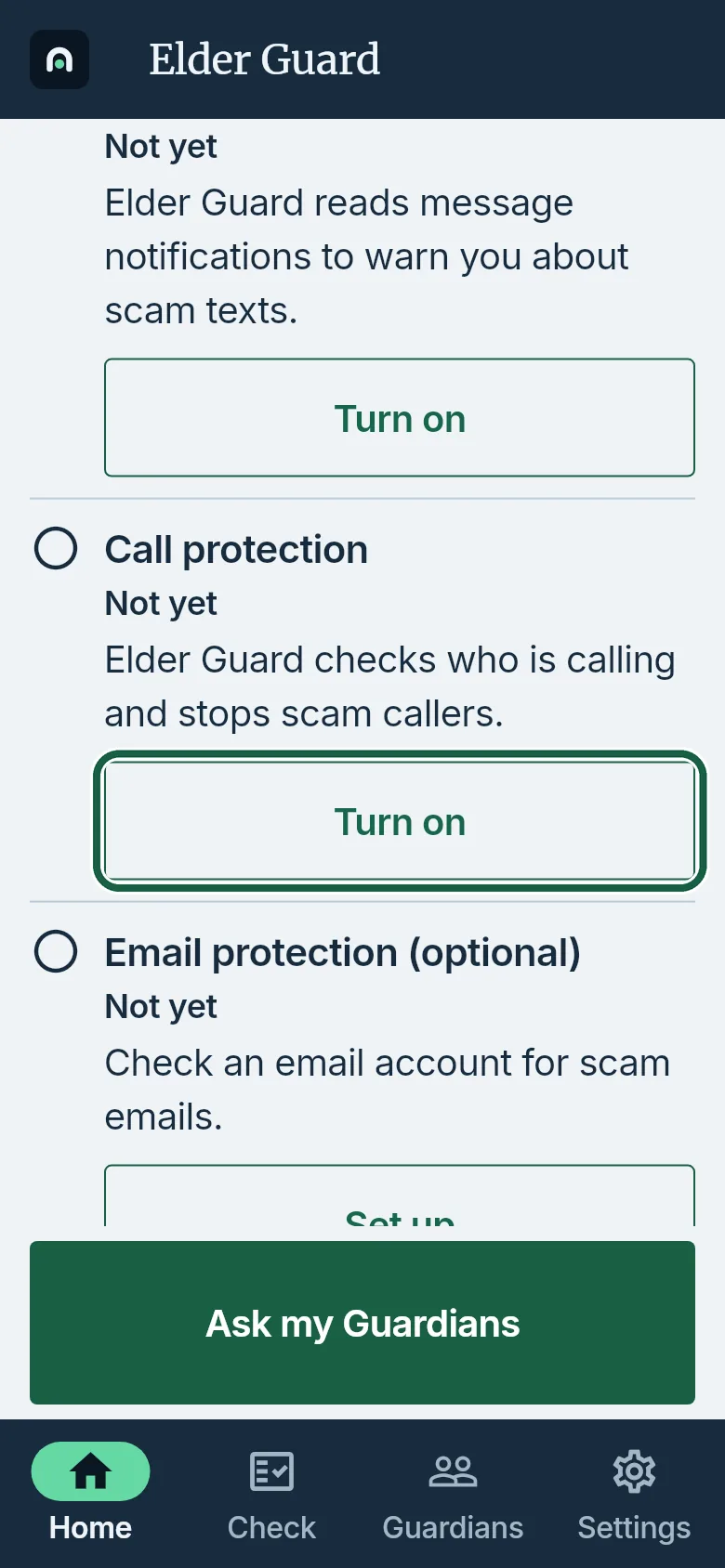
Tap Home on the bottom bar. In the Call protection row, tap Turn on.
Elder’s phone: Home, Call protection row with Turn on circled.Enlarge picture
When Android asks, choose Elder Guard as your caller ID & spam app and confirm. Wording can differ on some phones.
It worked whenThe Call protection row shows Done, and Home says “Calls and links are checked.”
Good to knowCall blocking runs on this phone. Reports say that a call was blocked and why, with the day. They leave out the caller’s number and the time of day. A number goes only if you choose to send that item. Nothing said on a call is recorded.
Turn on scam text filtering iPhone
Before you startThe steps depend on the iPhone’s iOS version. To check: Settings › General › About.
Elder’s phone
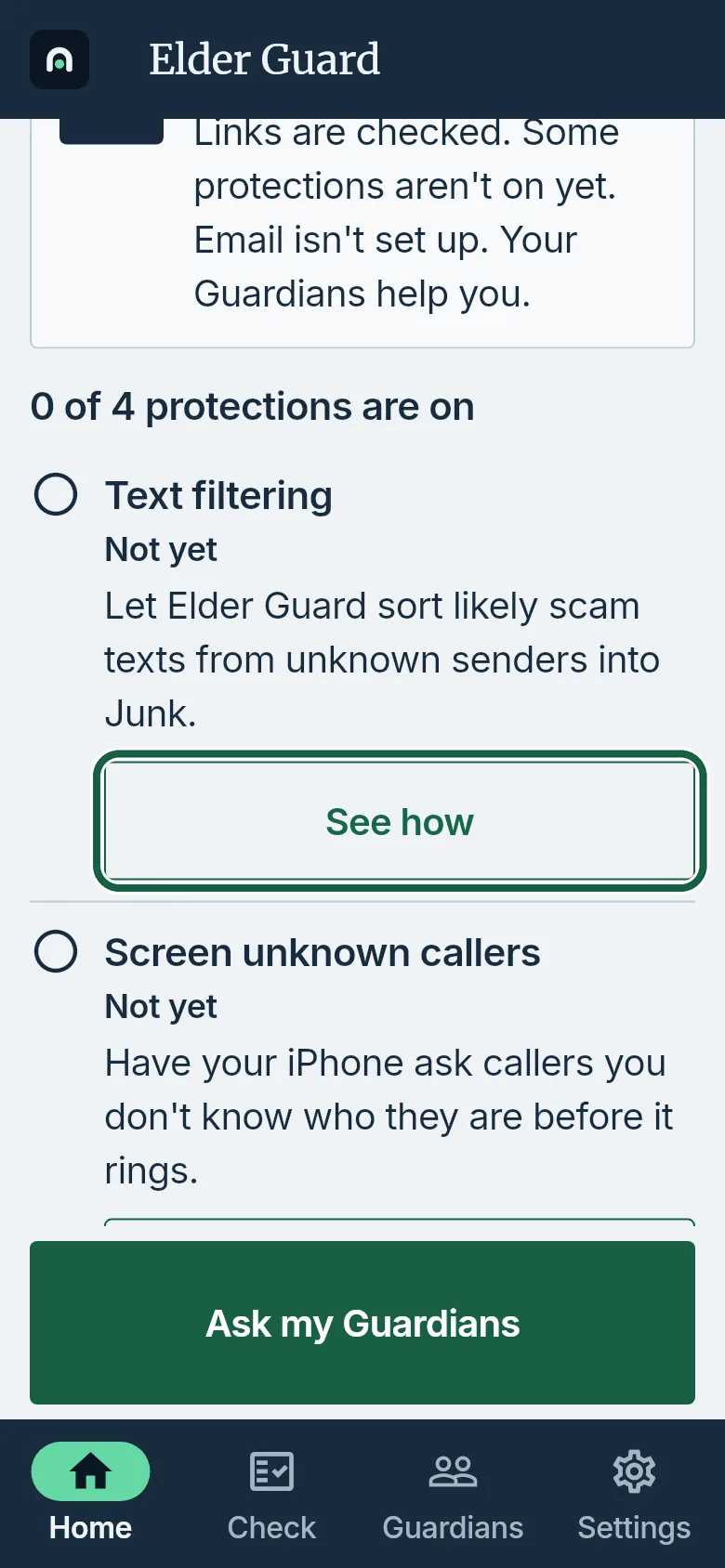
Tap Home on the bottom bar. In the Text filtering row, tap See how. Elder Guard shows the steps for your iPhone.
Elder’s phone: Home, Text filtering row with See how circled.Enlarge picture
Turn the filter on in iOS.
If you have iOS 26 or later
Open Messages, tap the Filters button at the top, then Manage Filtering.
Under Unknown Senders, turn on Screen Unknown Senders.
Tap Text Message Filter, turn on Text Message Filter, then turn on Elder Guard.
If you have iOS 18 or earlier
Open Settings, tap Apps, then Messages. On iOS 17 or earlier, tap Messages.
Tap Unknown & Spam and turn on Filter Unknown Senders.
Under SMS Filtering, choose Elder Guard.
Back in Elder Guard, tap I’ve turned it on.
It worked whenThe Text filtering row says “You turned this on.”
Good to knowLikely scam texts from people who aren’t in your contacts go to the Junk list in Messages. iMessages aren’t filtered. Texts are sorted on the iPhone and never kept or sent anywhere. The iPhone doesn’t tell Elder Guard whether this is on, so you tap I’ve turned it on yourself.
Screen or silence unknown callers iPhone
Before you startThe setting’s name depends on the iPhone’s iOS version. To check: Settings › General › About.
Elder’s phone
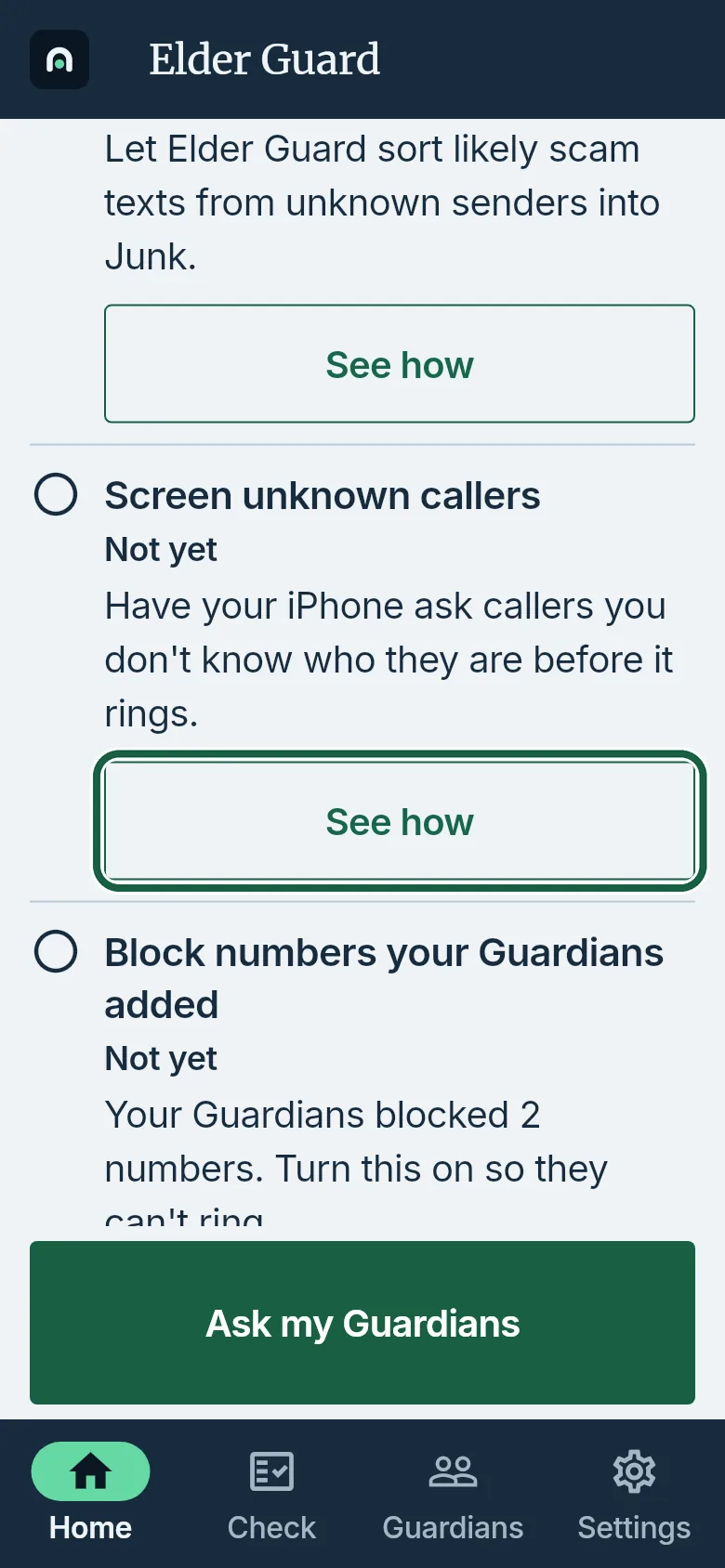
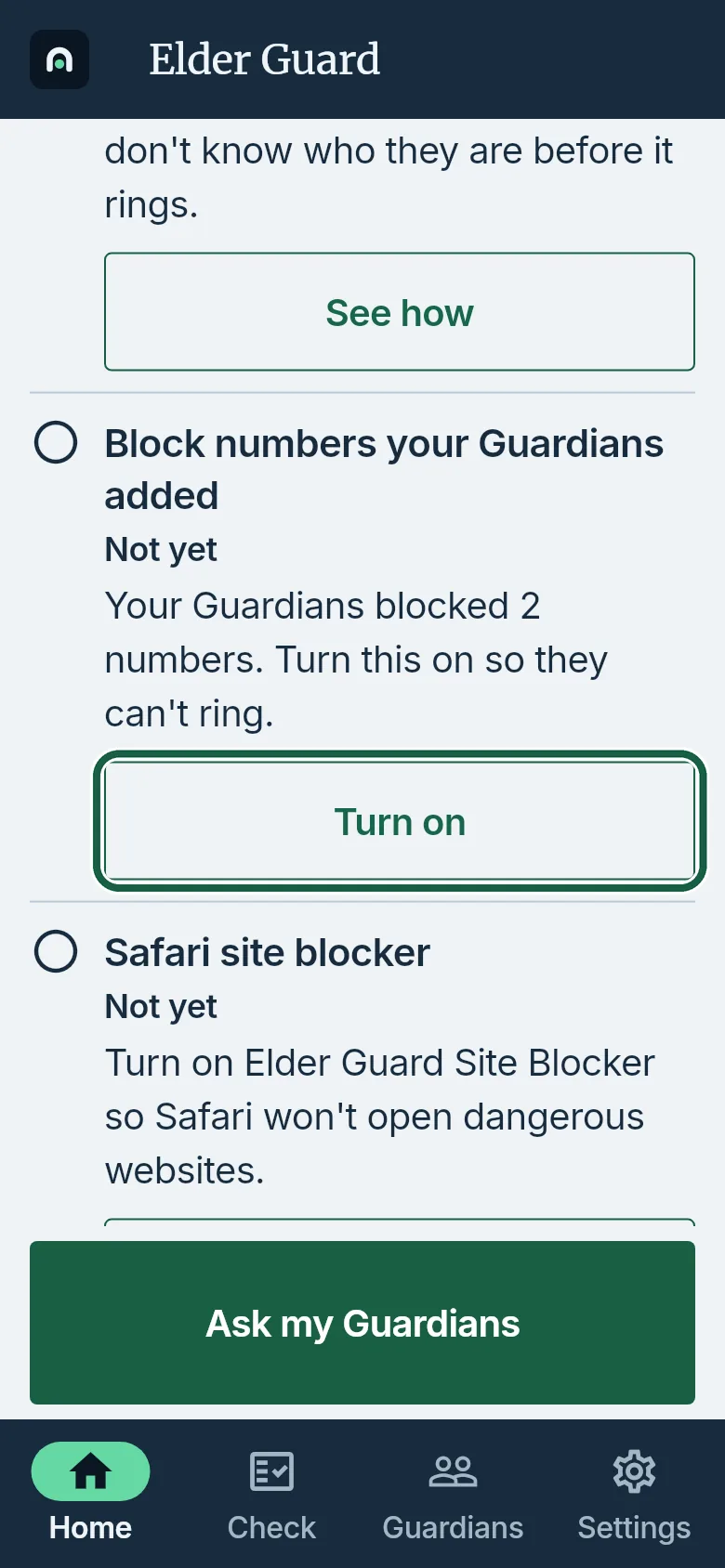
Tap Home on the bottom bar. In the Screen unknown callers row (on older iPhones, Silence unknown callers), tap See how.
Elder’s phone: Home, Screen unknown callers row with See how circled.Enlarge picture
Turn it on in iOS.
If you have iOS 26 or later
Open Settings, tap Apps, then Phone.
Under Screen Unknown Callers, choose Ask Reason for Calling (or Silence).
If you have iOS 18 or earlier
Open Settings, tap Apps, then Phone. On iOS 17 or earlier, tap Phone.
Tap Silence Unknown Callers and turn it on.
Back in Elder Guard, tap Done.
It worked whenPeople in your contacts still ring as usual. Ask Reason for Calling asks unknown callers who they are first. Silence sends them to voicemail.
Block numbers your Guardians added iPhone
Elder’s phone
Tap Home on the bottom bar. In the Block numbers your Guardians added row, tap Turn on.
Elder’s phone: Home, Block numbers your Guardians added row with Turn on circled.Enlarge picture
Tap Open call blocking settings.
If it doesn’t work
If Settings doesn’t open there, open Settings. Tap Apps, then Phone (on iOS 17 or earlier, tap Phone). Then tap Call Blocking & Identification.
Turn on Elder Guard, then go back to Elder Guard.
It worked whenThe Block numbers your Guardians added row starts with “On.” and says how many numbers are blocked.
Good to knowCalls from numbers your Guardians added won’t ring, and Elder Guard never learns about these calls. Outside the US and Canada, your Guardians need to add blocked numbers with the country code (like +44). The iPhone can’t block them without it.
Block dangerous websites in Safari iPhone
Elder’s phone
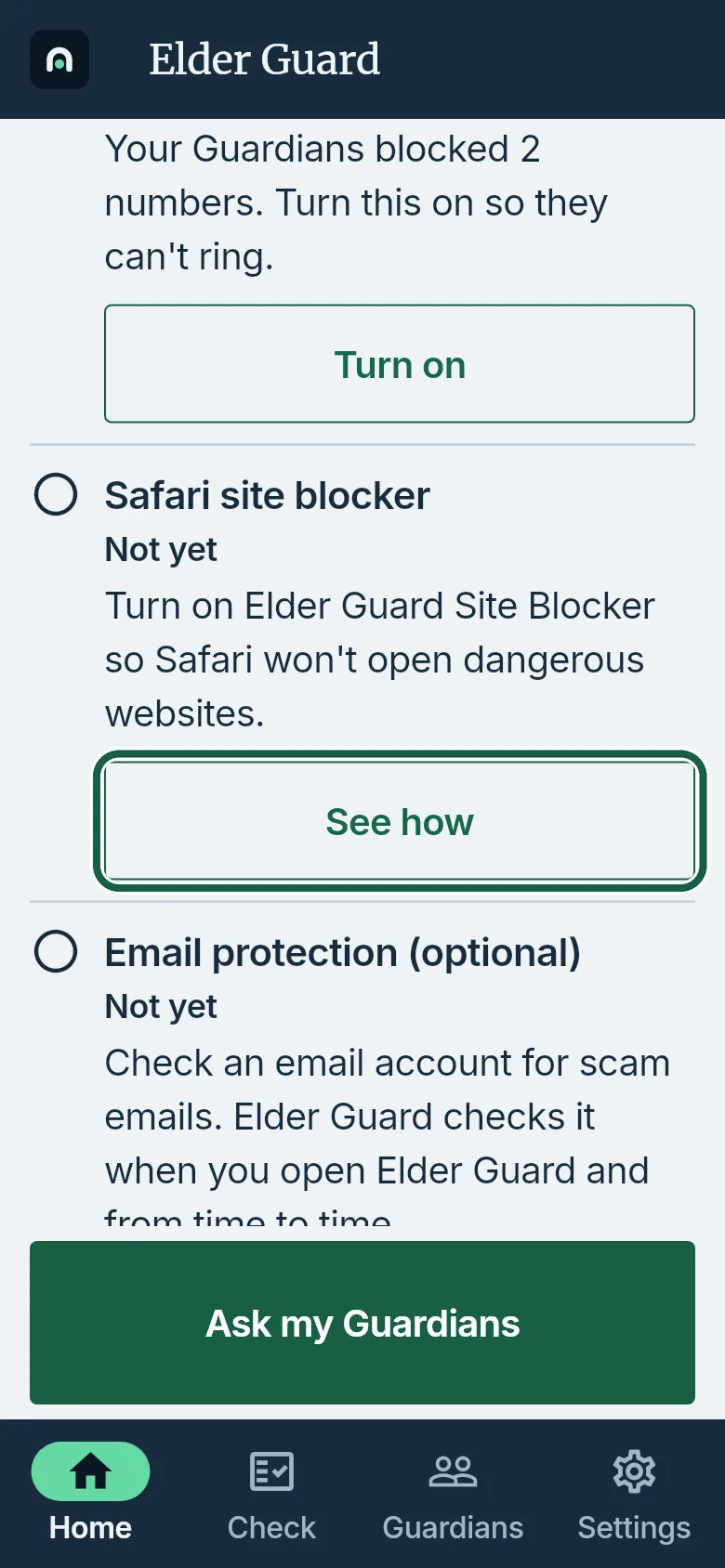
Tap Home on the bottom bar. In the Safari site blocker row, tap See how. Elder Guard shows the steps for your iPhone.
Elder’s phone: Home, Safari site blocker row with See how circled.Enlarge picture
Open Settings, tap Apps, then Safari. On iOS 17 or earlier, tap Safari.
Tap Extensions, then Elder Guard Site Blocker, and turn it on. Go back to Extensions, tap Elder Guard, and turn it on too.
Back in Elder Guard, tap Done.
It worked whenThe Safari site blocker row starts with “On.”
Good to knowSafari then won’t open websites known to be dangerous, or ones your Guardians warned about. Elder Guard only gives Safari a list of websites to stop; it never sees the websites you visit. With Elder Guard turned on under Extensions, you can also check a link in Safari before opening it.
Set up email protection on their phone
Before you start
Gmail can use Sign in with Google, or an app password through Other ways to connect.
Outlook, Hotmail, Live and MSN addresses use Sign in with Microsoft when Elder Guard offers it.
Yahoo Mail, iCloud Mail and AOL Mail use an app password. Other providers need a Mail server and App password.
Elder’s phone
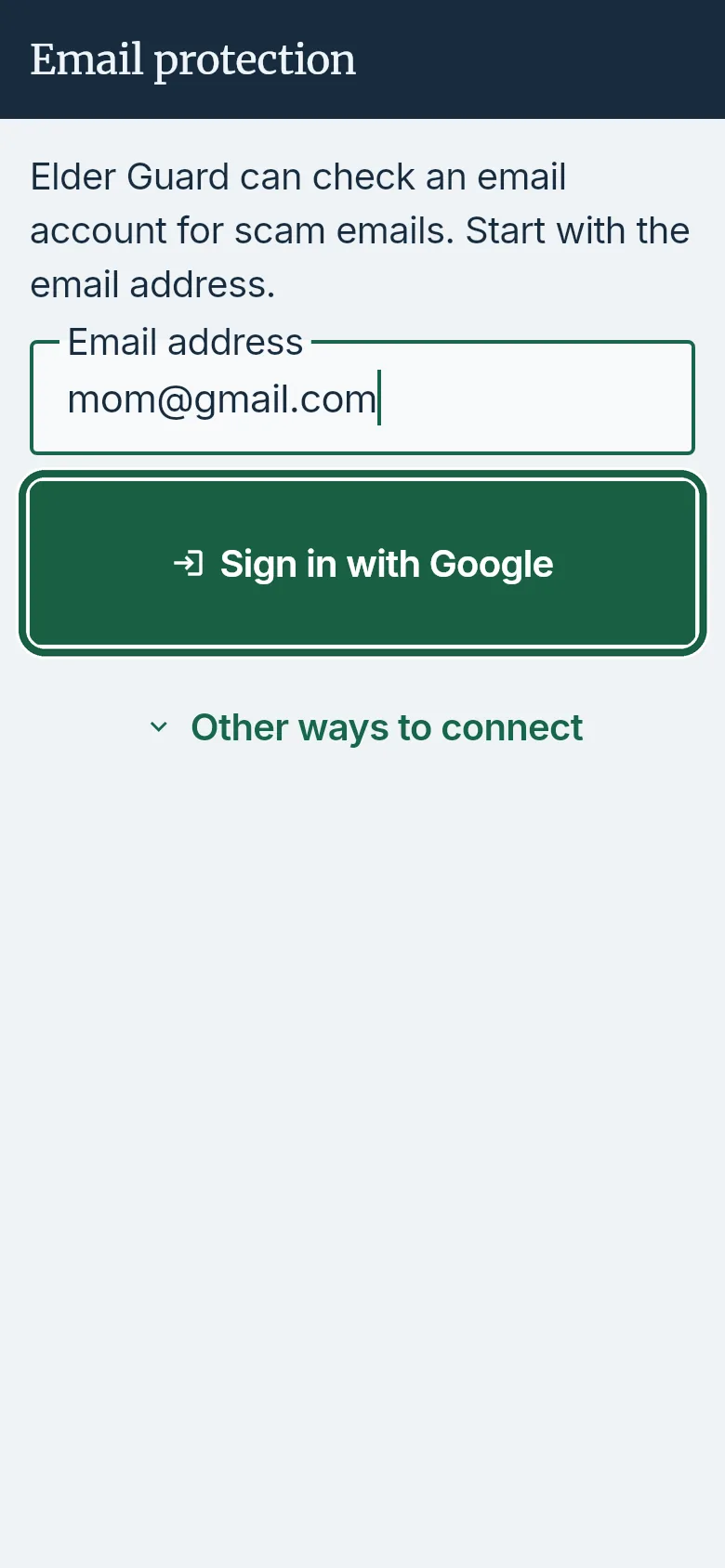
Tap Home on the bottom bar. In Email protection (optional), tap Set up. Or tap Settings, then Email protection.
Under Email address, type the address.
For a Gmail address, tap Sign in with Google and finish sign-in in the browser.
Elder’s phone: Email protection, with Sign in with Google circled.Enlarge picture
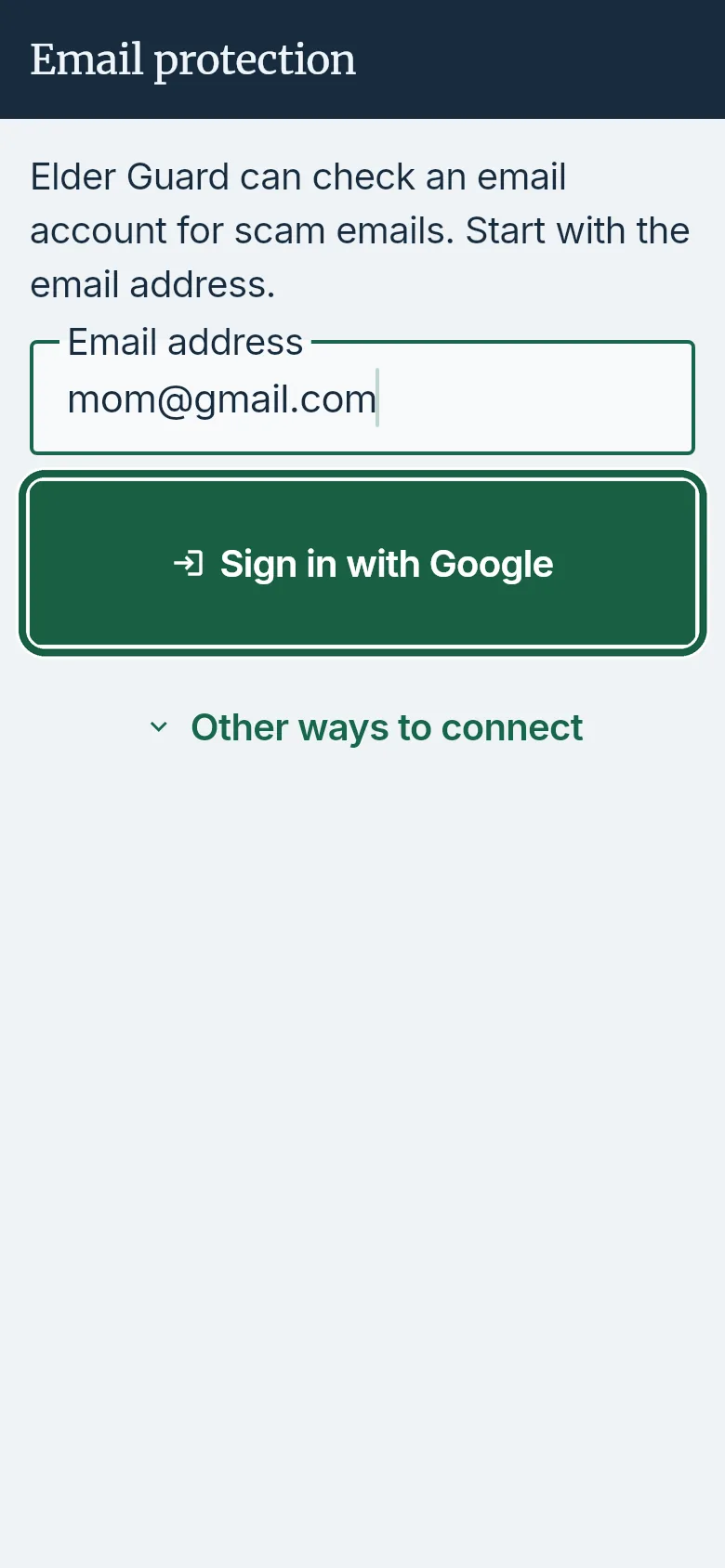
On an iPhone
Elder’s phone: Email protection, with Sign in with Google circled.Enlarge picture
For Outlook, Hotmail, Live or MSN, tap Sign in with Microsoft and finish sign-in in the browser.
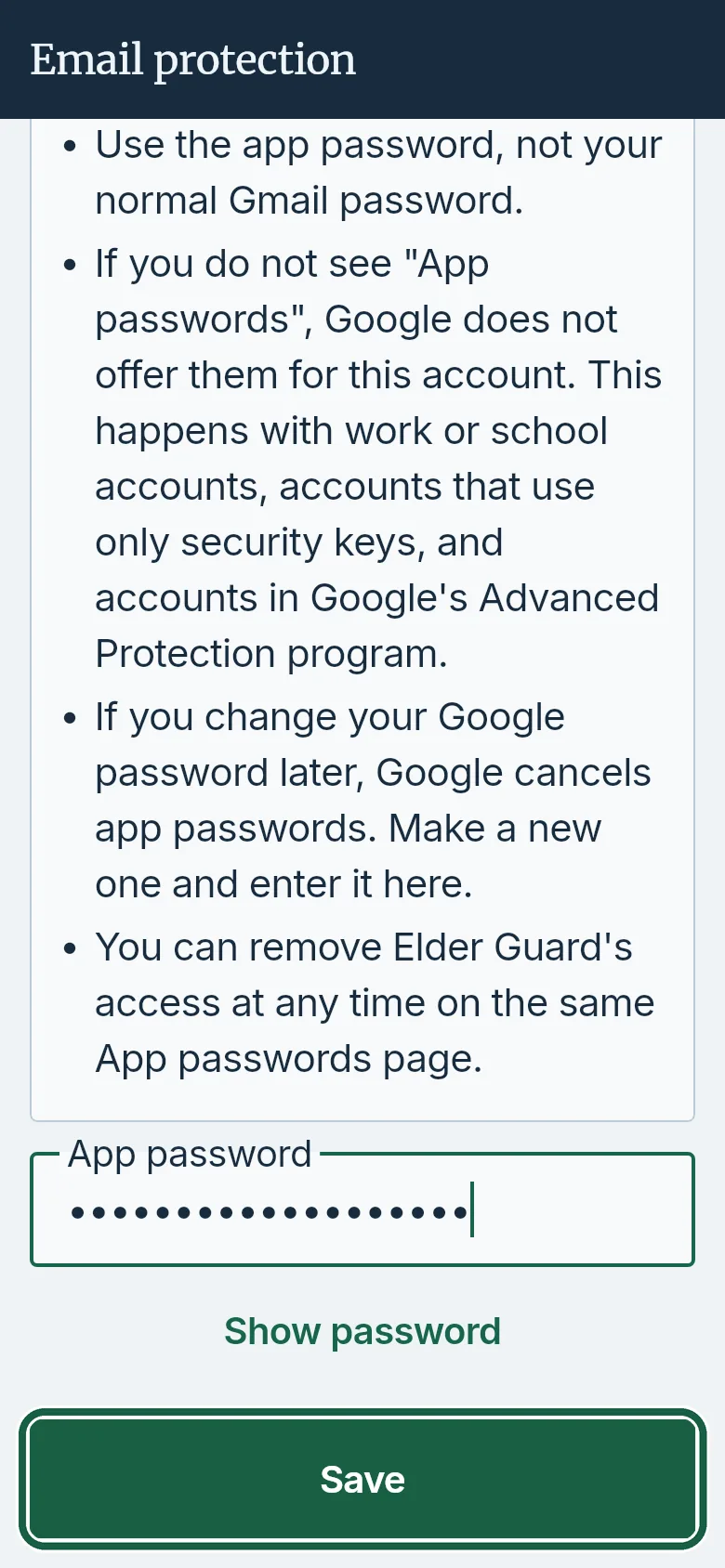
For Yahoo Mail, iCloud Mail or AOL Mail, follow the steps on screen, type the App password, then tap Save.
For any other provider, type the Mail server and App password, then tap Save.
Elder’s phone: Email protection, with Save circled.Enlarge picture
On an iPhone
Email checks run on this phone. Reports show the kind of scam, the day and any website address flagged as dangerous. The email and sender stay on your phone unless you choose that item and tap to send it. Read What I share.
On Gmail, to use an app password instead, tap Other ways to connect, follow the steps, then tap Save.
It worked whenThe heading starts with “Email protection is on for” and names the address. The Email protection (optional) row shows Done.
Good to knowOn Android, Elder Guard checks email in the background. On iPhone, checks run when you open Elder Guard. Checks between openings run only when iOS allows. To stop, open Email protection again and tap Turn off email protection. Connecting email doesn’t send full emails to Guardians. A full email goes only when you choose to send that item.
Check a message or link on their phone
Elder’s phone
Tap Check on the bottom bar.
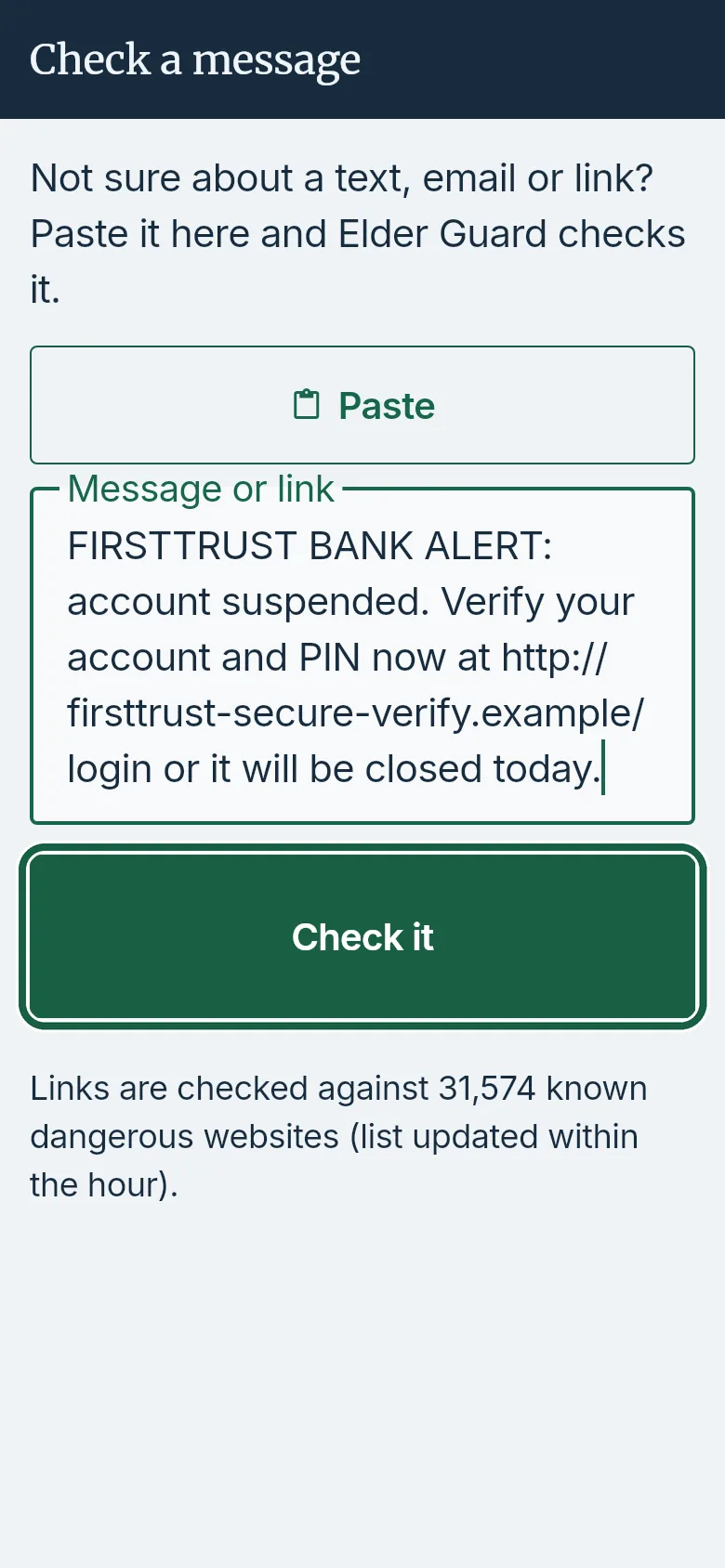
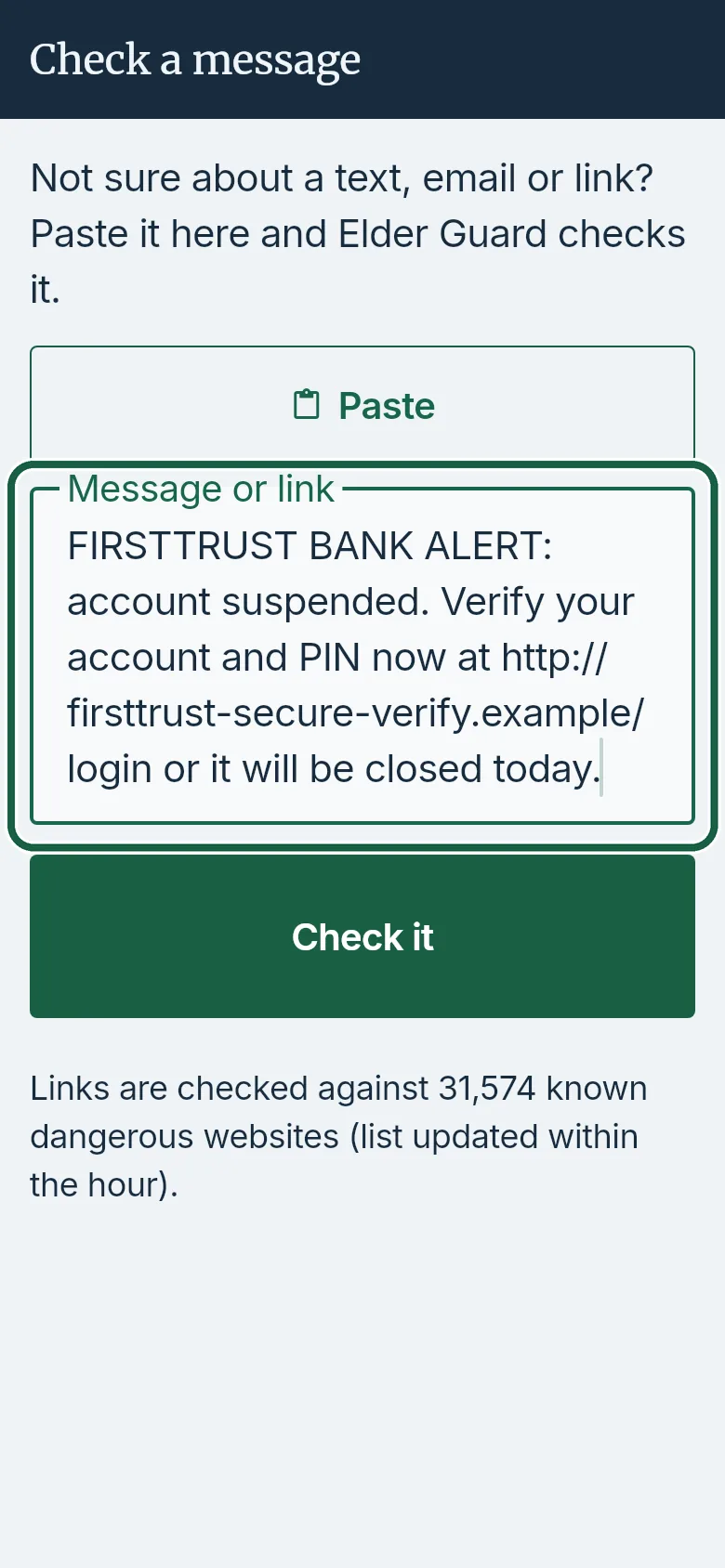
Paste the text, email or link in the Message or link box, then tap Check it.
Elder’s phone: Check tab, with Check it circled.Enlarge picture
On an iPhone
Copy the text first. Touch and hold in the box and tap Paste.
Elder’s phone: Check tab, with Message or link circled.Enlarge picture
Read the result. To learn more, tap a sign under Warning signs we found and read Why this matters. If the heading is This text has warning signs, tap Ask my Guardians.
On the next screen, under What worries you? (optional), change the warning signs if you want. Choose the Guardians to send it to, then tap the Send to button, which names them.
It worked whenYou see a result, such as This text has warning signs. After you send it, Home shows Sent · waiting for Pat.
Good to knowFrom another app, tap Share, then Check with Elder Guard. This check runs on your phone. To send the full item, review it, choose your Guardians and tap Send to.
Ask your Guardians about a message
Elder’s phone
Tap Ask my Guardians above the bottom bar. Or on Home, tap a row that says Has warning signs.
If you opened Ask my Guardians, paste the message or link into the box. If you opened a waiting item, tap Ask my Guardians first.
Under What worries you? (optional), change the warning signs if you want.
Choose the Guardians to send it to. Review the names, then tap the Send to button.
It worked whenIt says Sent to your Guardians. When a Guardian answers, Home shows their answer. Tap Done.
Good to knowAsking sends that one item in full. It never enables automatic sending of messages. You can ask about a message from anyone, even someone in your contacts. On Android, the answer also arrives as a notification. On iPhone, open Elder Guard to see the answer.
Remove protection and its data from their phone
Elder’s phone
Tap Settings on the bottom bar, then Remove protection & delete data.
Read what will be removed. Select Also delete my account only if you want to delete the account too.
Complete the acknowledgement and the final confirmation.
If Confirm it’s you appears, confirm with your password, Google or Apple using the same Elder Guard account.
Good to knowDelete the account only if no other device needs it: deleting it affects every device that uses it. If the app says Account not deleted yet, follow its steps to try again. Clearing the phone alone doesn’t delete the account. Copies Guardians already received stay on their phones. Subscriptions are canceled separately, in the store.
Everyday use
Steps for every day, once you have set up together.
Read an alert and decide what to do
You need your phone, with the Elder already linked.
Recorded with version 1.0.0+2
Transcript
The Elder shared an item with you.
Start with the Elder's linked phone.
Tap Send to Pat.
Tap the notification.
Tap the shared text.
Read Details.
Block, remove, leave unchanged. Verify before trusting.
In People, tap Mom.
Open Items shared with you.
This lists shared items.
Use your phone app to call the Elder.
Next, answer “Is this safe?”
Answer a question
Recorded with version 1.0.0+2
Transcript
Your answer is on the Elder's phone.
Use both linked phones with text copied.
With text copied, open Check. Tap Paste.
Tap Check it. The phone shows what it found.
Tap Ask my Guardians.
The Elder taps Send to Pat and Sam.
On your phone, tap the question notification.
In Questions, tap Answer Mom.
Read the text. Your answers are It's a scam, It's safe, or I'll call you.
Choose an answer. This example uses It's a scam.
Tap Send to Mom.
Check the answer on the Elder's phone. If you chose I'll call you, call them.
Next, change alert settings.
Change who gets alerts and how
You need your phone.
Recorded with version 1.0.0+2
Transcript
The Elder's sharing choice is saved.
Bring both phones to change sharing.
Tap Settings.
Check Notifications. Turn on Always run in the background.
Weekly digest is on.
Tap People.
Tap Mom.
iPhone texts stay local.
Calls has its own settings.
Email settings.
Ask Mom to change sharing.
If Off, tap Turn off sharing.
The choice is saved.
Next, add a second parent.
Read What I share
Elder’s phone
Open Settings, then What I share.
Review your sharing choices for texts, calls and emails. Reports show the kind of scam, the day and any website address a link check flagged as dangerous.
To send one full item, open Ask my Guardians, review it, choose who gets it and tap Send to. Follow the question steps.
Good to knowNo setting sends messages, senders or phone numbers automatically. Reports describe what was blocked or flagged; full details go only when you choose that item and tap to send. Protection keeps working when you choose not to send an item. Copies already sent are not erased.
Use Practice
Elder’s phone
Open Settings, then Practice.
Choose a topic. The examples are made up. A topic a Guardian suggests is optional.
When a round finishes, choose whether to offer repeats on this phone.
To send a summary, choose Share a practice summary, review the two counts, select recipients and choose Send this summary.
Good to knowThe summary never includes answers. Otherwise, results stay on this phone; Clear practice and setup records removes them. Practice doesn’t guarantee that a real message is safe.
Use Protection setup
Elder’s phone
Open Settings, then Protection setup.
Read the optional steps for this phone and mark the ones you’ve done.
Good to knowElder Guard can’t check whether the phone’s settings changed. The checklist is different on Android and iPhone.
Use Money and call checks Android
Elder’s phone
On the Elder’s Android phone, open Settings, then Money and call checks.
Choose which optional checks to turn on: Money-app reminder, Check before calling a flagged number or Remote-access app notices.
Read what access each one needs. The reminder needs Usage access and the money apps you pick. The outgoing-call check needs Android’s call role.
Use Who to call to choose the person the reminder and call check suggest calling.
Good to knowAll three start off. The reminder appears after a chosen app opens. It can miss a moment. It never reads or stops anything in the app. The call check can stop a call to a flagged number; Call anyway opens the phone app to call again. Remote-access notices cover Elder Guard’s list of apps. Guardians are told only if you choose: with Tell a Guardian, or automatically if you turn that on. They learn only that a remote-access app was added or a money-app reminder came up.
Use Saved numbers
Elder’s phone
Open Settings, then Saved numbers.
Tap Add a number. Choose what kind it is and give it a name. Type the number or tap Choose from contacts, then tap Save number.
To call one, open Call back on a saved number and choose it. The phone app opens with the number filled in. You press Call.
Good to knowNumbers stay on this phone, encrypted. Elder Guard doesn’t end a call already in progress and doesn’t check who owns a number. This needs a phone that can make calls.
Check it’s really your Guardian
Elder’s phone
On the Guardians tab, open a Guardian’s card and choose Check it’s really followed by their name.
Review the question, “Did you just call or message me?”, and who it goes to. Tap Send check.
Guardian’s phone
Open the notification, read the question and tap Yes, it’s me or No, that isn’t me.
Good to knowA check ends after 10 minutes. No reply doesn’t mean “No”, and a reply doesn’t prove who is on another call. Both phones need a current version of the app.
See what was stopped
Guardian’s phone
Open the Alerts tab.
Read the kind of scam, the day and any website address a link check flagged as dangerous.
For a full item your loved one sent, open Questions and choose an answer.
Good to knowAutomatic reports never include the message, sender, phone number or time of day. Full details arrive only in items your loved one chooses to send. Protection status is shown separately. On iPhone, text filtering, call blocking and Safari blocking stay local; these reports cover email only.
Answer a question
Guardian’s phone
Tap the People tab and Answer Mom, or tap Questions and the waiting question.
Guardian’s phone: People, with Answer Mom circled.Enlarge picture
Read the item your loved one chose to send with their question.
If you see What worries Mom or Warning signs we found, tap a row to read what it means.
Under Your answer, tap It’s a scam, It’s safe, or I’ll call you.
Optional: under Point out red flags, select or clear flags.
Optional: type a note under A note for Mom (optional).
Tap Send to Mom.
It worked whenThe Needs you card is gone. Questions no longer lists that question, or says “No questions waiting.”
Block a phone number on their phone
Guardian’s phone
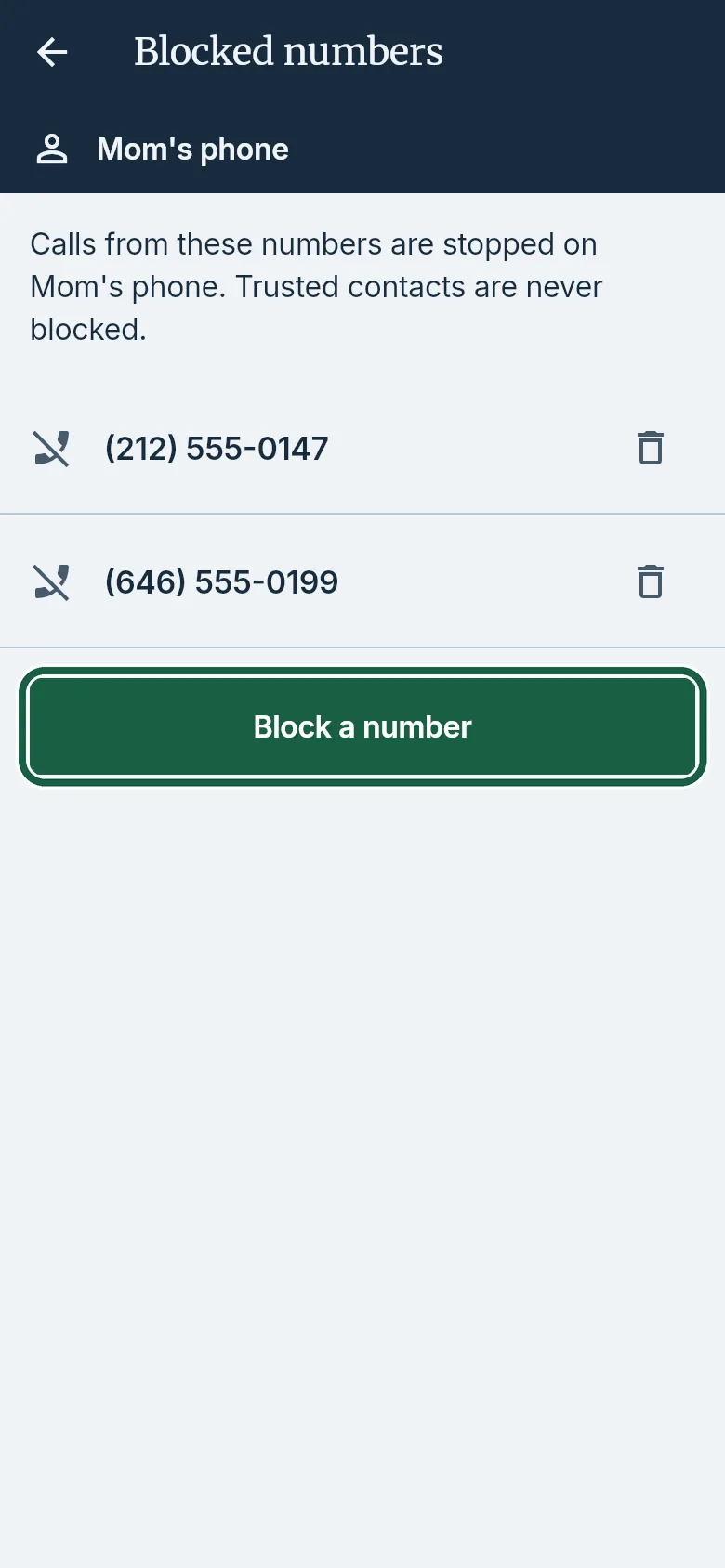
Tap the People tab, then Mom’s status card. Tap Mom’s phone: lists and settings, then Blocked numbers.
Tap Block a number, type the phone number, then tap Block.
Guardian’s phone: Blocked numbers, with Block a number circled.Enlarge picture
To unblock a number later, tap the remove icon next to it.
It worked whenThe number is in the list. Their phone gets it the next time it checks in, within a few minutes.
Good to knowOn Android, a number that is also on the trusted list still rings. Outside the US and Canada, include the country code (like +44). On an iPhone, call blocking has to be turned on once: see Block numbers your Guardians added.
Add trusted contacts, warning words and websites
Guardian’s phone
Tap the People tab, then Mom’s status card. Tap Mom’s phone: lists and settings, then Trusted contacts, Blocked numbers, Warning words, or Websites.
Tap the add action for the list you opened.
Choose one
Trusted contacts: tap Add a trusted contact.
Blocked numbers: tap Block a number.
Warning words: tap Add a warning word.
Websites: tap Add a trusted website or Add a website to warn about.
Type the contact, word or website address, then tap Add.
To take something off a list, tap the remove icon next to it.
It worked whenThe entry is in the list. Their phone gets it the next time it checks in, within a few minutes.
Good to knowMessages from trusted senders skip most scam checks. A link known to be dangerous is still caught. Android warns about it. The iPhone text filter can send the message to Junk.
Turn on the weekly digest
Guardian’s phone
Tap the Settings tab. Turn on the Weekly digest switch.
Tap the Digest tab.
Tap Last week or This week so far.
It worked whenThe Weekly digest switch is on in Settings, and Digest shows the week’s counts.
Good to knowThe digest summarises the reports your phone received as counts, including how many looked like a scam. It includes no message text, senders or phone numbers. It doesn’t cover everything that happened on their phone.
Get alerts while the app is closed (your Android phone)
Before you startThis setting is only on a Guardian’s Android phone. iPhone has no always-on setting; iOS decides when background work runs.
Guardian’s phone
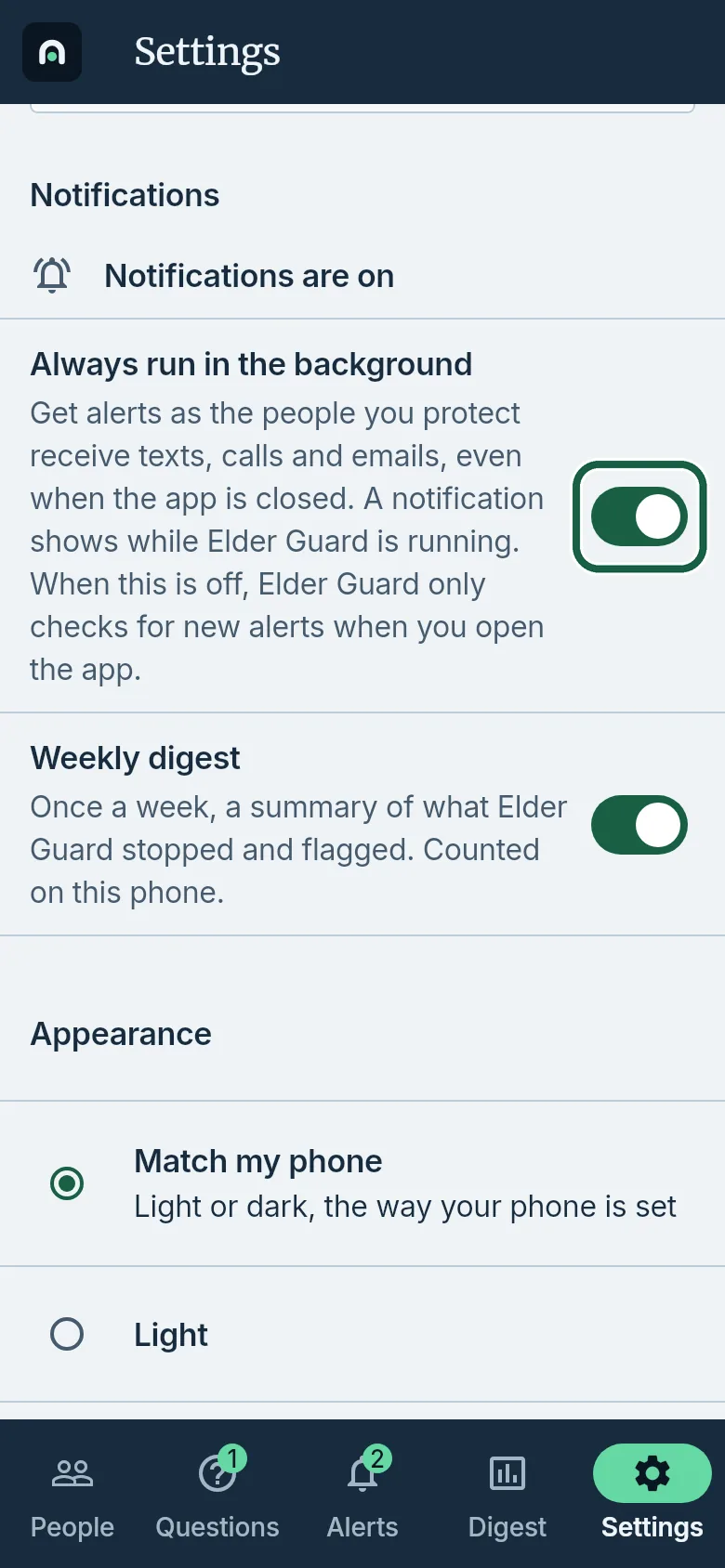
Tap the Settings tab, then turn on Always run in the background.
Guardian’s phone: Settings, with Always run in the background circled.Enlarge picture
It worked whenA notification shows while Elder Guard runs.
Read the list of scam red flags
Elder’s phone
Tap the Settings tab, then Scam red flags.
Guardian’s phone
Tap the Settings tab, scroll to Scam help, then tap Scam red flags.
Either phone
Scroll through the list. Each red flag has a short explanation. Tap the agency’s Source: link under a flag to open its page.
It worked whenThe list opens with “Pressure and threats” at the top.
Good to knowThe same flags appear under Warning signs we found when you answer a question.
Open I think I’ve been scammed
Elder’s phone
From Home, open I think I’ve been scammed.
Read the options on the screen.
To use Tell a Guardian, read the short notice, choose who gets it, then tap Send this notice.
It worked whenThe screen opens, even with no Guardian, no subscription and no network.
Good to knowThe notice never includes bank details, an amount or the message itself. In Settings, under Extra scam checks, you can turn on Extra checks for recovery scams for 90 days. Elder Guard can’t get money back. The list of places to get help is also in Settings, under If you’ve been scammed, even while protection is off.
Fix a problem
Find the message shown in the app, then open its steps below.
“Background checks are off” iPhone
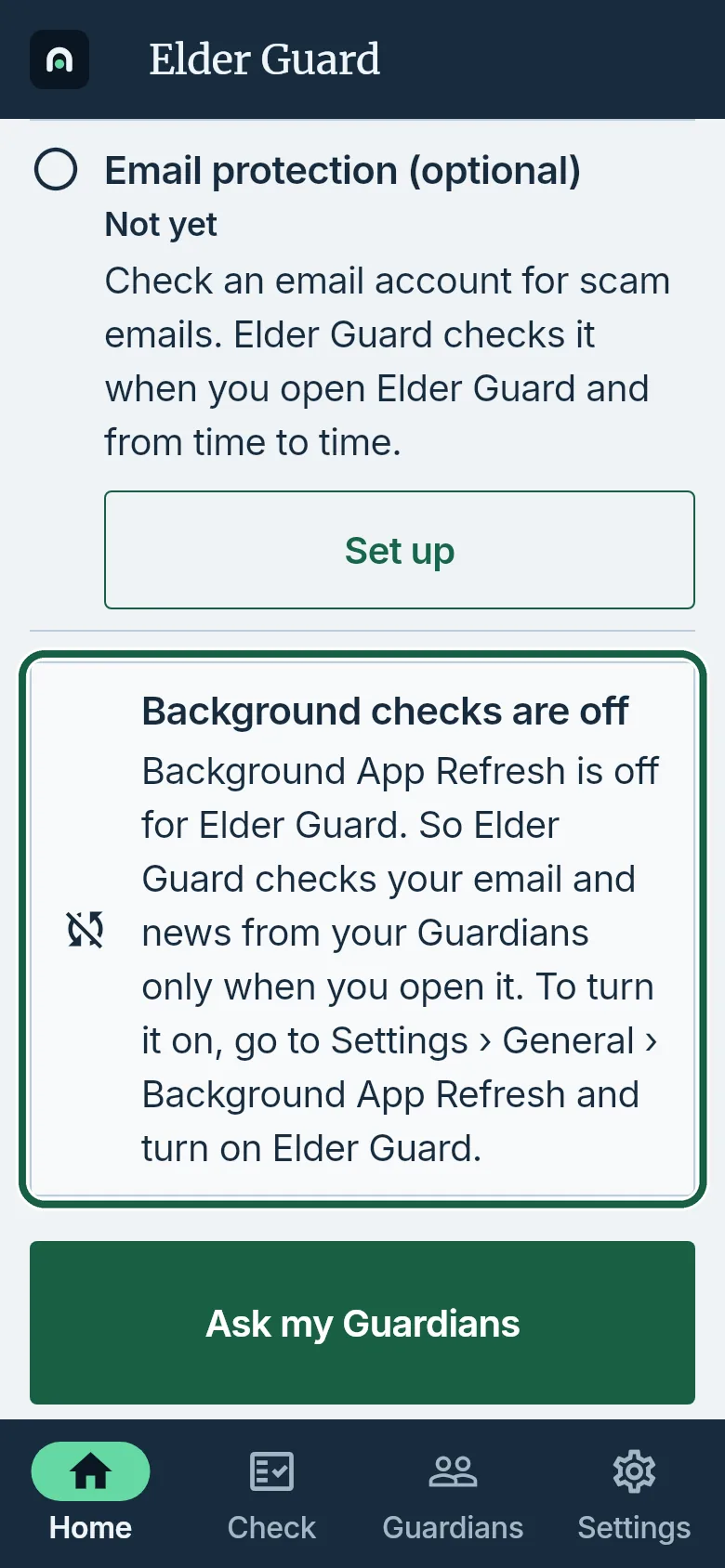
Before you startElder Guard shows this on the Home tab when Background App Refresh is off for it. The fix is in the iPhone’s own Settings app.
Elder’s phone
Open Settings, tap General, then Background App Refresh.
If Background App Refresh at the top says Off, tap it and choose Wi-Fi & Cellular Data.
Turn it on for Elder Guard.
Elder’s phone: Home, with Background checks are off circled.Enlarge picture
It worked when“Background checks are off” is gone from the Home tab.
Good to knowThis row shows only while protection is on. The subtitle says checks run only when you open Elder Guard. It can instead say Background App Refresh isn’t allowed on this iPhone.
Turn protection back on
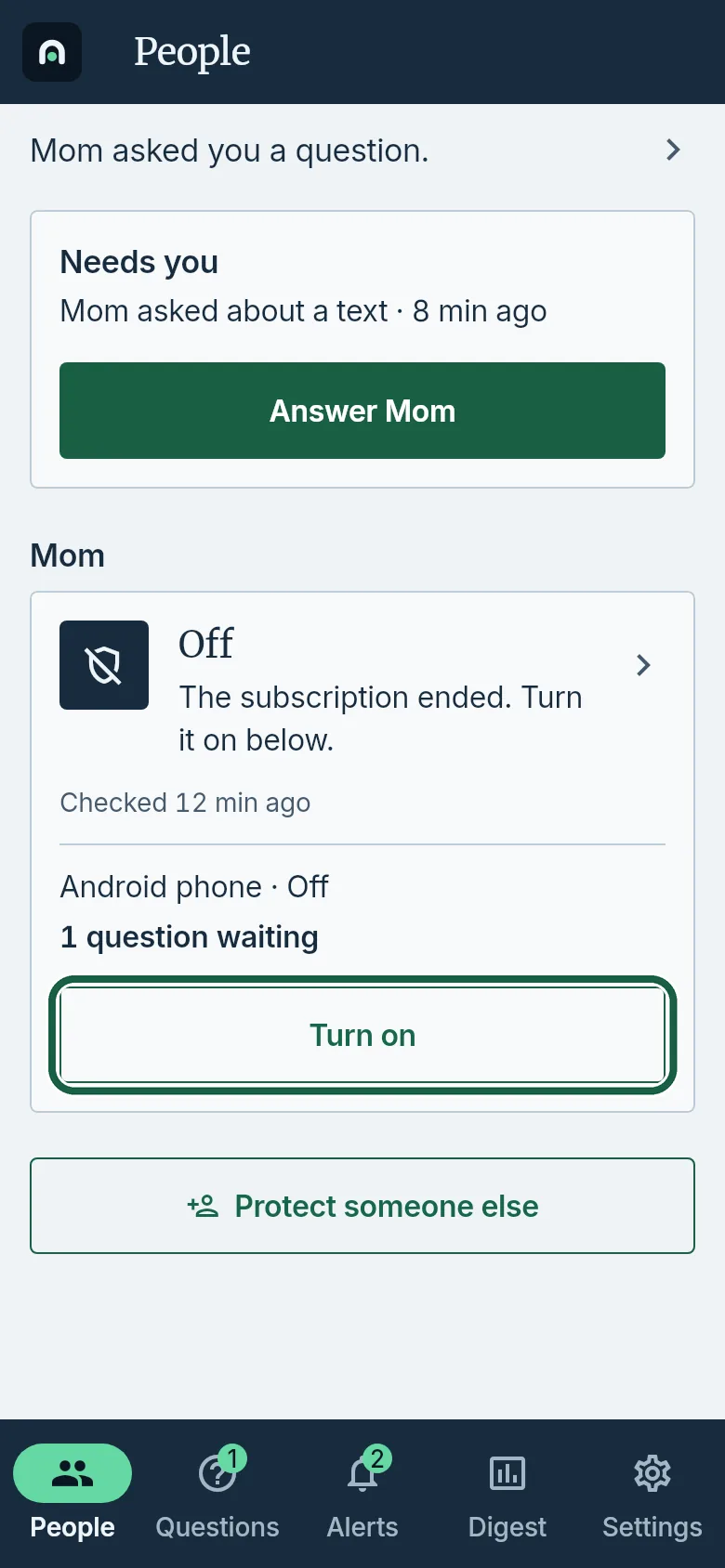
Before you startWhen a subscription ends, their card on People says Off. On their phone the status card says Protection is off. and Off.
Guardian’s phone
On the People tab, find the person whose status is Off and tap Turn on.
Guardian’s phone: People, with Turn on circled on Mom’s Off card.Enlarge picture
If you are not subscribed, finish subscribing on the Subscribe screen that opens.
It worked whenThe status word changes to Protected.
Good to knowOn their phone the status card says Off until protection is on again. Another of their Guardians can turn it on with their own subscription.
You already pay, but the app asks you to subscribe
Guardian’s phone
Tap the Settings tab, then the button to subscribe. The Subscribe screen opens.
Near the bottom of the screen, above Start free trial, tap Already subscribed? Restore purchase.
If it doesn’t work
If it says “No subscription was found for this account”, check the phone’s store account. Use the Google Play or Apple account you subscribed with. Also sign in to the same Elder Guard account.
It worked whenThe Subscribe screen closes and Settings says your subscription is active until a date.
“Your subscription is in use”
Before you startCheck which plan you have and which limit the app shows. Individual covers 1 Elder on up to 2 of their devices. Family covers 2 Elders on up to 4 devices in total.
Read the choices the app shows before you stop protecting another device. Your subscription already covers as many devices as it can.
A code appears. Only show it, in person, to someone you trust.
Install Elder Guard from Google Play.
Open it. Tap Help someone in my family stay safe.
Sign in, or create an account.
Tap Scan their code.
Scan the code on the inviting Guardian's phone.
If the safety codes match, tap Add Mom. Invited Guardians never pay.
Sam is now in the Guardians list.
Next, connect your parent's email.
Change your plan
You need your phone and your store sign-in.
Recorded with version 1.0.0+2
Transcript
Your plan change is explained.
Bring your phone and store login.
In Settings, tap Change plan.
Choose the plan you want. This example changes Family to Individual annual.
Tap Review plan.
Read the review, including the billing period. Tap Continue to Google Play.
From Family to Individual, choose who stays on Individual.
Tap Keep the Family plan to keep coverage. Otherwise, check who stays and tap Continue to Google Play.
This Google Play drawing shows Continue for the plan change.
Check the change date in Settings. Compare it with the store's date.
Next, cancel your subscription.
Cancel your subscription
You need your phone and the account that pays in the store.
Recorded with version 1.0.0+2
Transcript
Store cancellation is explained.
Use your paying app store account.
To cancel, tap Manage in your store.
Find Elder Guard in store subscriptions. Use the store account that pays.
To cancel, choose Cancel subscription. Keep subscription leaves the subscription running.
Check the store's confirmation and end date.
Return to Elder Guard. Cancelling in the store does not delete your Guardian account.
If you also want to delete your account, follow the separate account deletion video.
Next, delete your Guardian account.
Delete your Guardian account
You need your phone. Cancel first, and use your own sign-in.
Recorded with version 1.0.0+2
Transcript
Account deletion is explained.
Cancel first and bring your app login.
Find Sign out and delete. Tap Delete account and data.
Read what will be removed forever. Deleting your account does not cancel your subscription.
Read the note, then select I understand this cannot be undone.
Tap Delete my account and data.
When it asks Delete everything?, tap Delete.
Sign in again. Wait for the app to confirm deletion.
Wait for sign-out after successful deletion. Follow the on-screen message if deletion fails.
Account deletion explained.
Subscribe in Elder Guard
Guardian’s phone
Tap the Settings tab, then the button to subscribe. The same screen opens when you tap Turn on and need a subscription.
Read Free for 14 days and what happens next. At the bottom, tap Start free trial and finish the purchase.
It worked whenThe Subscribe screen closes and Settings says your subscription is active until a date.
Good to knowIf your store account is eligible, the first 14 days are free. After any free trial, your monthly or yearly subscription is billed until you cancel (see pricing). Individual protects one person on up to 2 of their devices. Family protects two people on up to 4 devices in total. Up to 3 Guardians can share the job; invited Guardians and the Elder never pay. See the Terms of Service.
Invite another Guardian
Before you startYou need to be an owner: the first Guardian is one, and owners can make other Guardians owners. The other Guardian has installed Elder Guard and signed in with their own account.
Guardian’s phone
On People, tap the person, then tap Invite another Guardian.
Leave the invitation code on screen.
Other Guardian’s phone
On People, tap Scan their code or Protect someone else. If you see Joining as another Guardian?, tap it.
Scan the invitation code on the other Guardian’s phone.
Check that each safety code matches the one on your screen.
Type their first name and tap Add Mom.
It worked whenManage Guardians opens the Guardians screen. The count goes up, for example to “2 of 3 Guardians”.
Good to knowAn Elder can have up to 3 Guardians, and invited Guardians never pay. One code adds all of this person’s devices that you protect. Show it only to the person you mean to add: anyone who scans it becomes their Guardian.
See and change who the Guardians are
Guardian’s phone
On People, tap the person, then tap Manage Guardians.
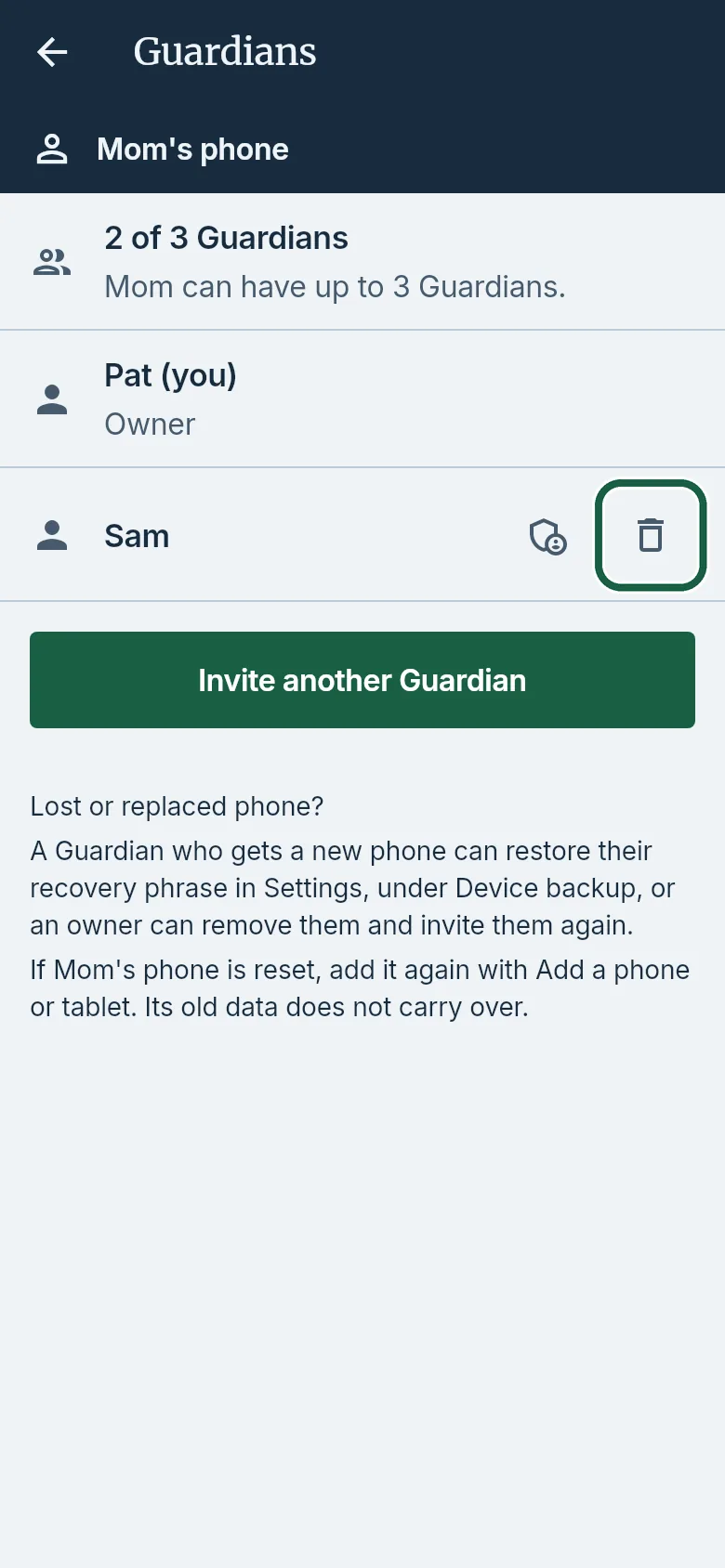
If you are an owner, next to another Guardian tap Make Sam an owner or Remove Sam from Guardians.
Guardian’s phone: Guardians, with Remove Sam from Guardians circled.Enlarge picture
On the confirmation, tap Make owner or Remove.
If Confirm it’s you appears, confirm with your password, Google or Apple using the same Elder Guard account.
It worked whenIt says “Saved. It takes effect when the phone Mom uses connects.”
Stop protecting a lost or replaced device
Guardian’s phone
On People, tap the person.
Tap Mom’s phone: lists and settings.
Tap Stop protecting Mom’s phone.
Tap Stop protecting.
If Confirm it’s you appears, confirm with your password, Google or Apple using the same Elder Guard account.
It worked whenThat device is gone from People.
Good to knowIf your subscription covered it, that place is now free for another device. To add the new one, open People. Tap Protect someone else, or Scan their code if no one is listed, then scan the new device’s setup code.
Cancel your subscription
Before you startCancel at least 24 hours before it renews. During the free trial, cancel at least 24 hours before the trial ends, or the paid subscription begins.
It worked whenThe store shows the date your subscription ends. Settings still says it’s active until that date.
Good to knowCanceling stops the next charge. Protection stays on until the paid period or free trial ends. Then it turns off, and the phones show that it’s off. Deleting the app or your Elder Guard account doesn’t cancel the subscription.
Back up your Guardian phone
Before you startWrite the backup words down somewhere private, and never share them. Anyone who has them can act as you.
Guardian’s phone
Tap the Settings tab, then Device backup.
If Confirm it’s you appears, confirm with your password, Google or Apple using the same Elder Guard account.
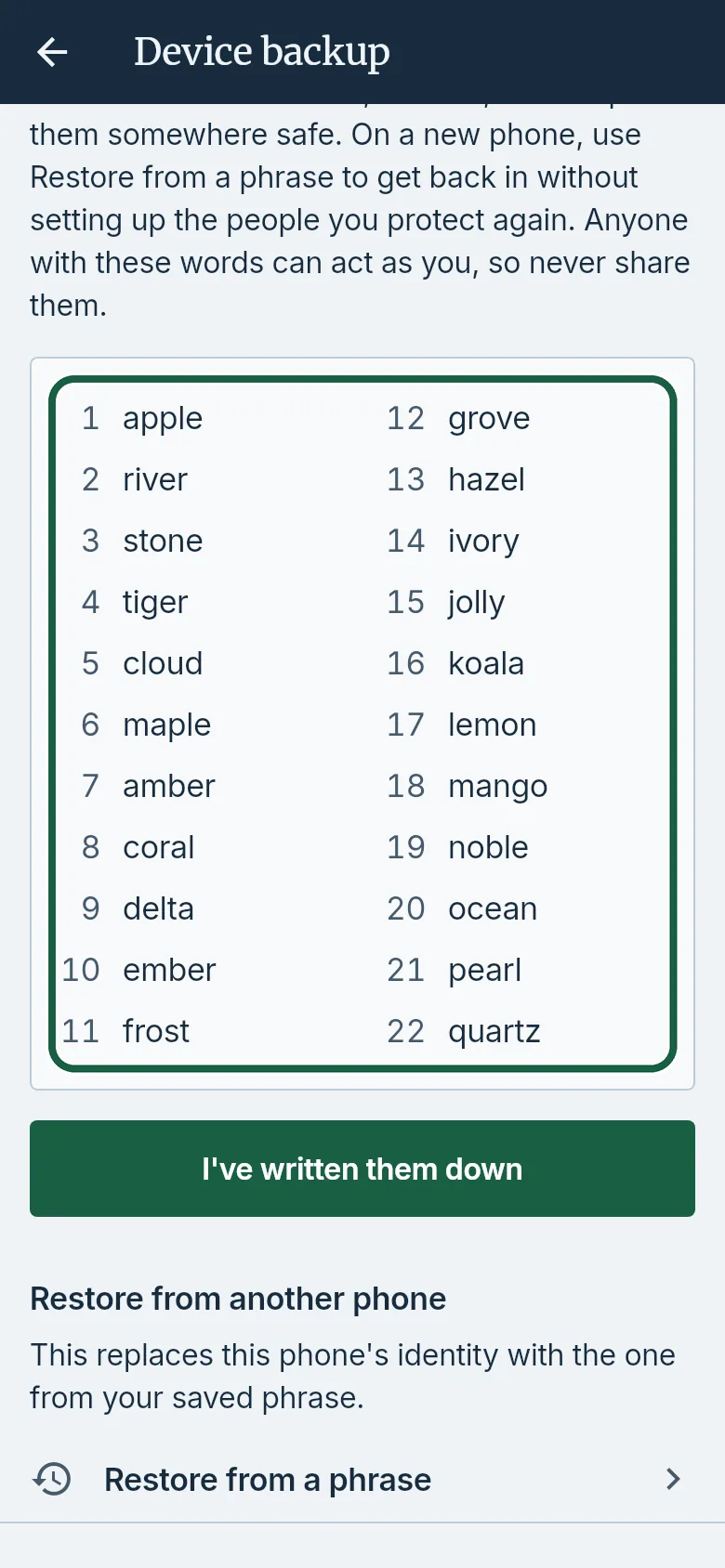
Write down the words under your recovery phrase, in order.
Guardian’s phone: Device backup, with the recovery phrase circled. The words shown are an example.Enlarge picture
Tap I’ve written them down.
It worked whenYou have all the words, in order, somewhere safe.