
For Elders
Your family asked you to try Elder Guard
Here is what it does, what it never does, and how you stay in charge.
What it does for you
- It stops calls from numbers your family has blocked. If your family turns it on, it also stops numbers many people have reported to the FTC.
- If a call, text, email or link seems off, you can ask your family: “Is this safe?” They answer on their phone.
- It warns you about likely scam texts on Android. On iPhone, likely scam texts from strangers go to the Junk folder.
What it never does
- It never runs in secret. You can always open it and see who your Guardians are.
- It does not listen to your calls or record anything.
- On iPhone, it cannot read your texts at all.
- It shows no ads and sells nothing about you.
- We cannot read what you and your family send each other.
You’re in charge
A Guardian is a family member you trust. You choose them.
- Elder Guard starts only after you read what will be shared and say yes.
- You can see your Guardians any time.
- You can remove protection, and delete its data from your phone, whenever you like. Open Elder Guard, tap Settings, then choose Remove protection & delete data.
- It’s free for you.
How asking works
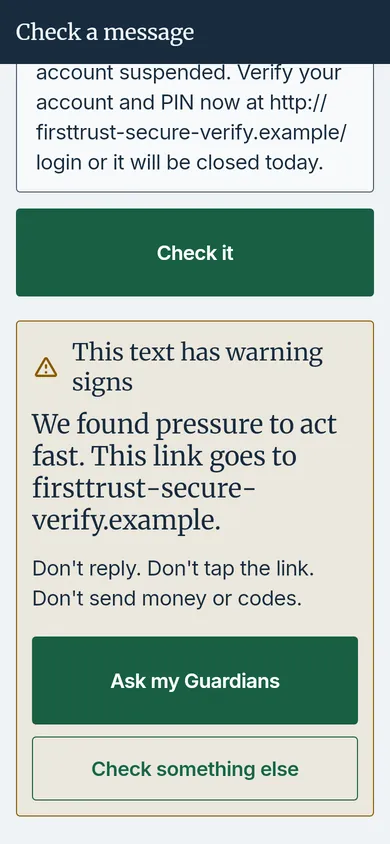
- Paste the text or link into Elder Guard, or share it there from Messages.
- Read what it found.
- Tap Ask my Guardians. Your family sees what you saw and answers “It’s safe”, “It’s a scam” or “I’ll call you”.
Getting set up together
Your family member will set Elder Guard up with you, in person, with both phones in hand. You read what will be shared, and you say yes before anything starts.
If you get a message about Elder Guard that you weren’t expecting, call your family member first, on a number you already have.