
How-to
How to use Elder Guard
Step-by-step help for Guardians and Elders on Android and iPhone. Each guide shows the app screen with the control to tap circled in green.
Start here
Setting up takes two phones and about ten minutes. Do these in order; each one is a guide below.
- Create your Guardian account on your phone.
- They sign in on their phone.
- Set up their phone together, with both phones side by side.
- Turn on protection on their phone: on Android, message protection and call protection; on an iPhone, scam text filtering, unknown callers, call blocking and Safari.
- Choose what Elder Guard checks, on your phone.
- Try a practice question together.
- Optional: their email.
Set up
On your phone, the bottom bar is People, Questions, Alerts, Digest and Settings. On their phone it is Home, Check, Guardians and Settings.
-
Create your Guardian account and sign in
Guardian’s phone
- Open Elder Guard. The first time, it asks you to Select your Role: tap Guardian.
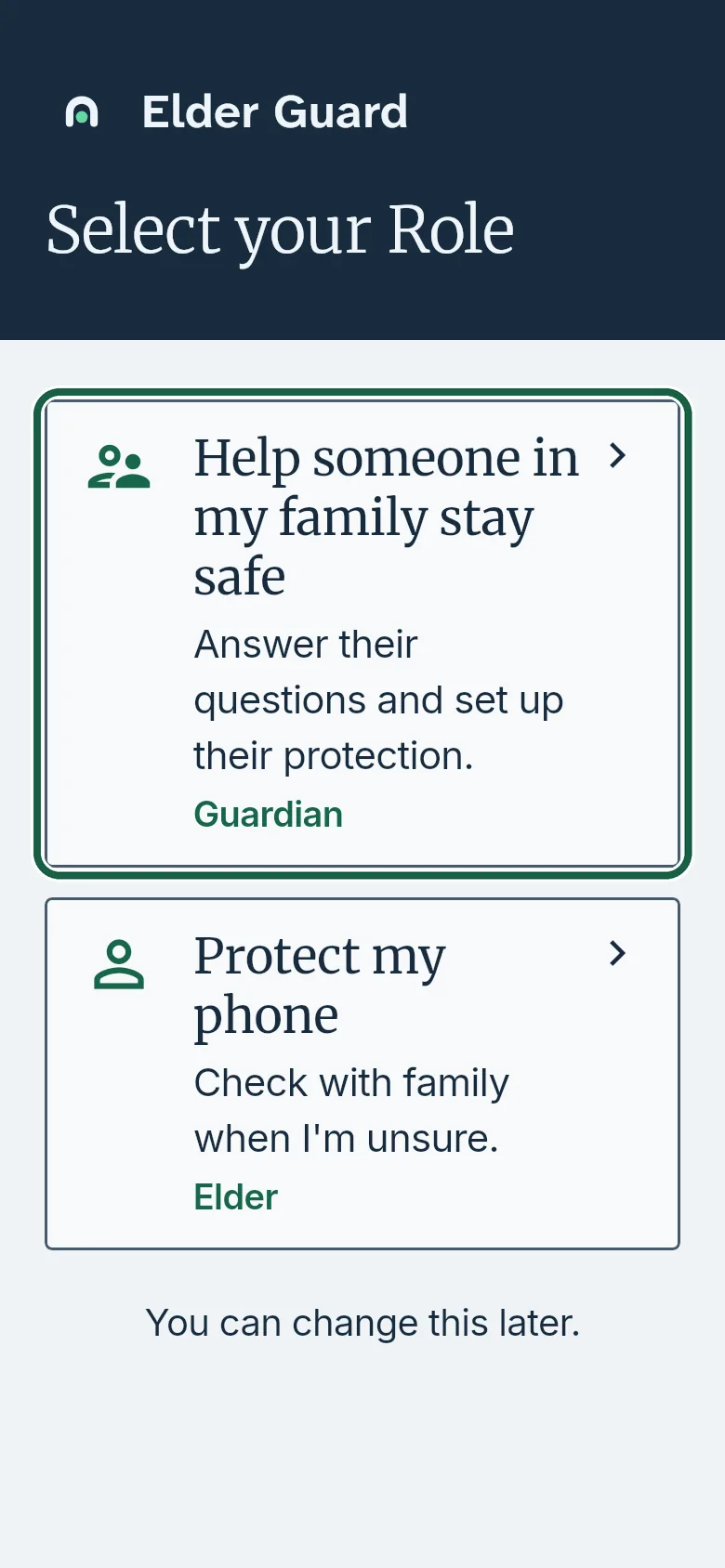
Guardian’s phone: Select your Role, with Guardian circled. - Sign in with your own account.
Choose one
- New to Elder Guard: tap Create an account, type your email and a password twice, then tap Create an account.
- Already have an account: type your email and password, then tap Sign in.
- Tap Sign in with Google. On an iPhone you can also tap Sign in with Apple.
If it doesn’t work If the app says This account is an Elder’s account, and this phone is set up as a Guardian. tap Sign in with a different account or Switch role.
It worked whenYou see the People tab with Scan their code on the set-up card.
Good to knowTo sign out later, open Settings and tap Sign out. Chose the wrong role for this phone? Tap Switch role on Settings.
- Open Elder Guard. The first time, it asks you to Select your Role: tap Guardian.
-
Sign in to Elder Guard on their phone
Before you startInstall Elder Guard on their phone, and have the account they will use: their own, not yours.Elder’s phone
- Open Elder Guard. When it asks you to Select your Role, tap Elder.
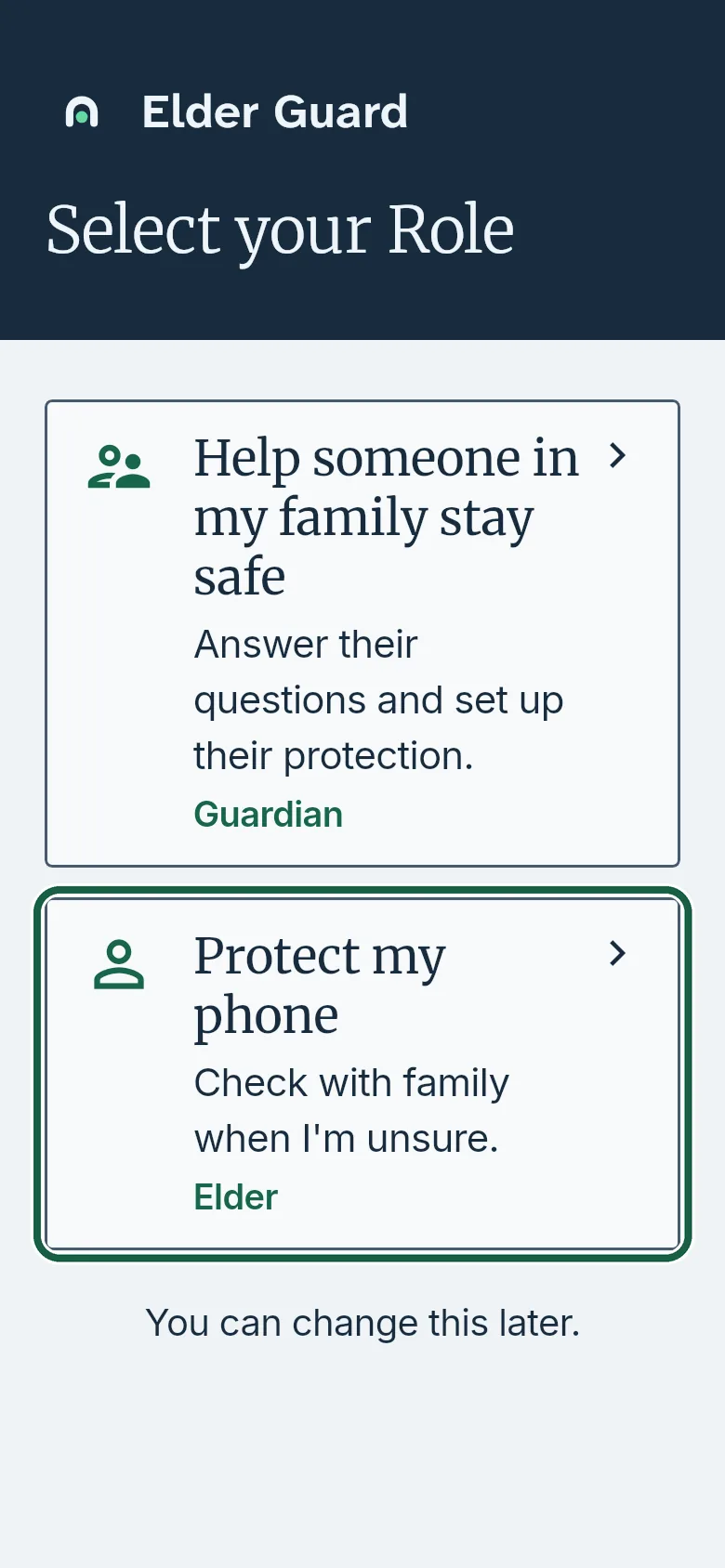
Elder’s phone: Select your Role, with Elder circled. - Sign in with their account.
Choose one
- New account: tap Create an account, type an email and a password twice, then tap Create an account.
- Already have an account: type their email and password, then tap Sign in.
- Tap Sign in with Google.
- On an iPhone: tap Sign in with Apple.
If it doesn’t work If the app says This account is a Guardian’s account, and this phone is set up as an Elder. tap Sign in with a different account or Switch role.
It worked whenThe Home tab shows Not set up yet and Show my setup code.
- Open Elder Guard. When it asks you to Select your Role, tap Elder.
-
Set up their phone together
Before you start- Both phones are with you and online. They are signed in on their phone (Sign in on their phone).
- They are there to read what Elder Guard does and agree to it.
- It takes about 10 minutes.
Elder’s phone
- On the Home tab, tap Show my setup code.
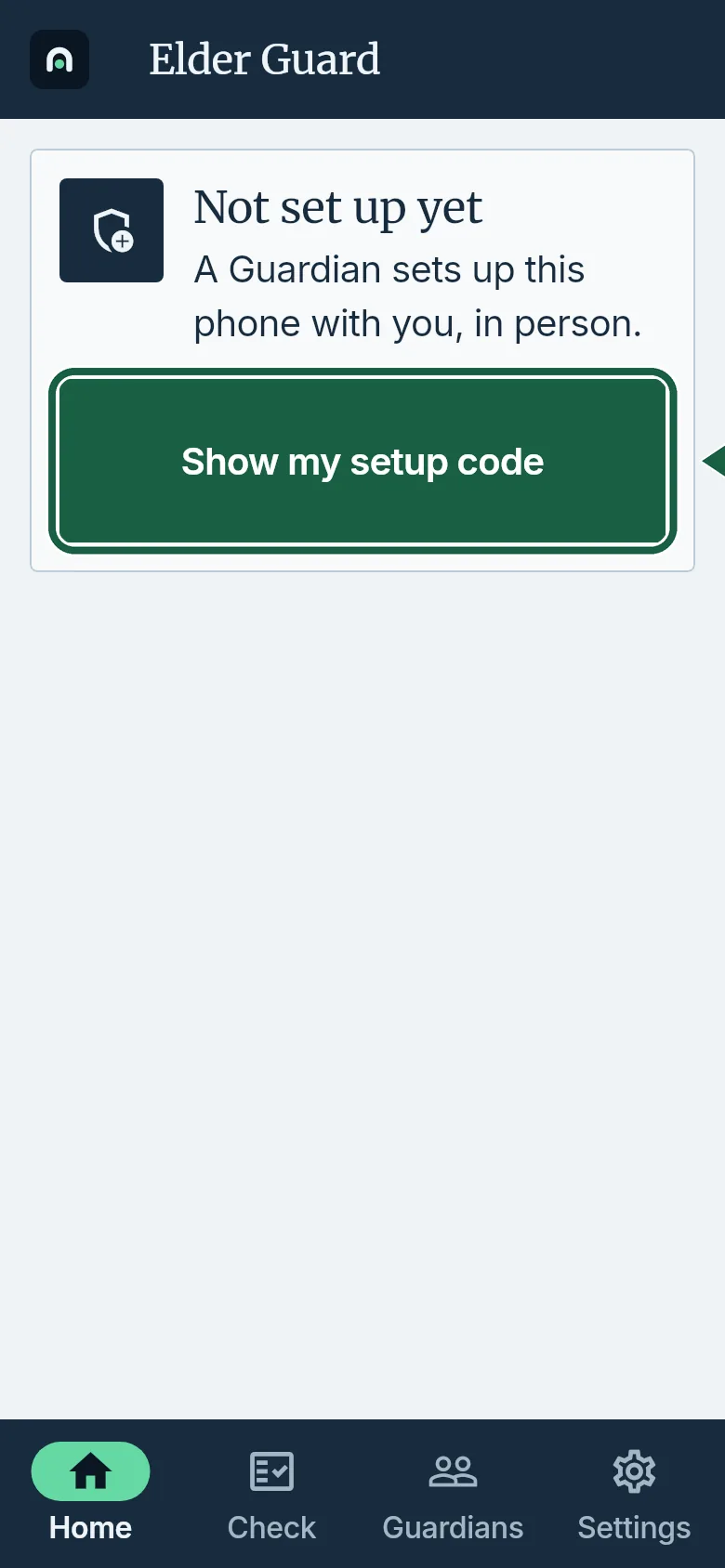
Elder’s phone: Home, with Show my setup code circled. - The first time, read How Elder Guard protects this phone and tap I understand and agree. Allow notifications when the phone asks. On Android, allow contacts when asked too.
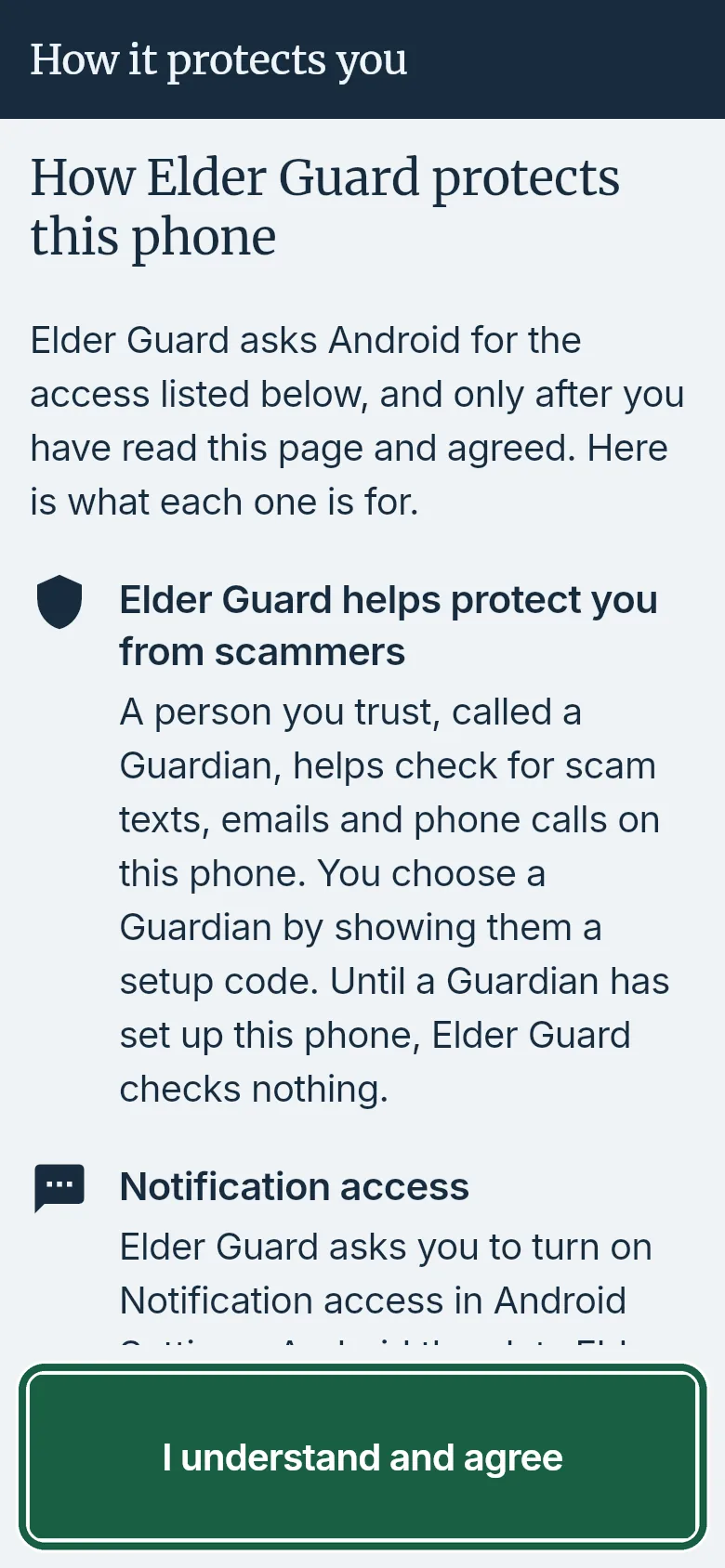
Elder’s phone: How Elder Guard protects this phone, with I understand and agree circled. - The Set up together screen shows a code. Leave it on screen.
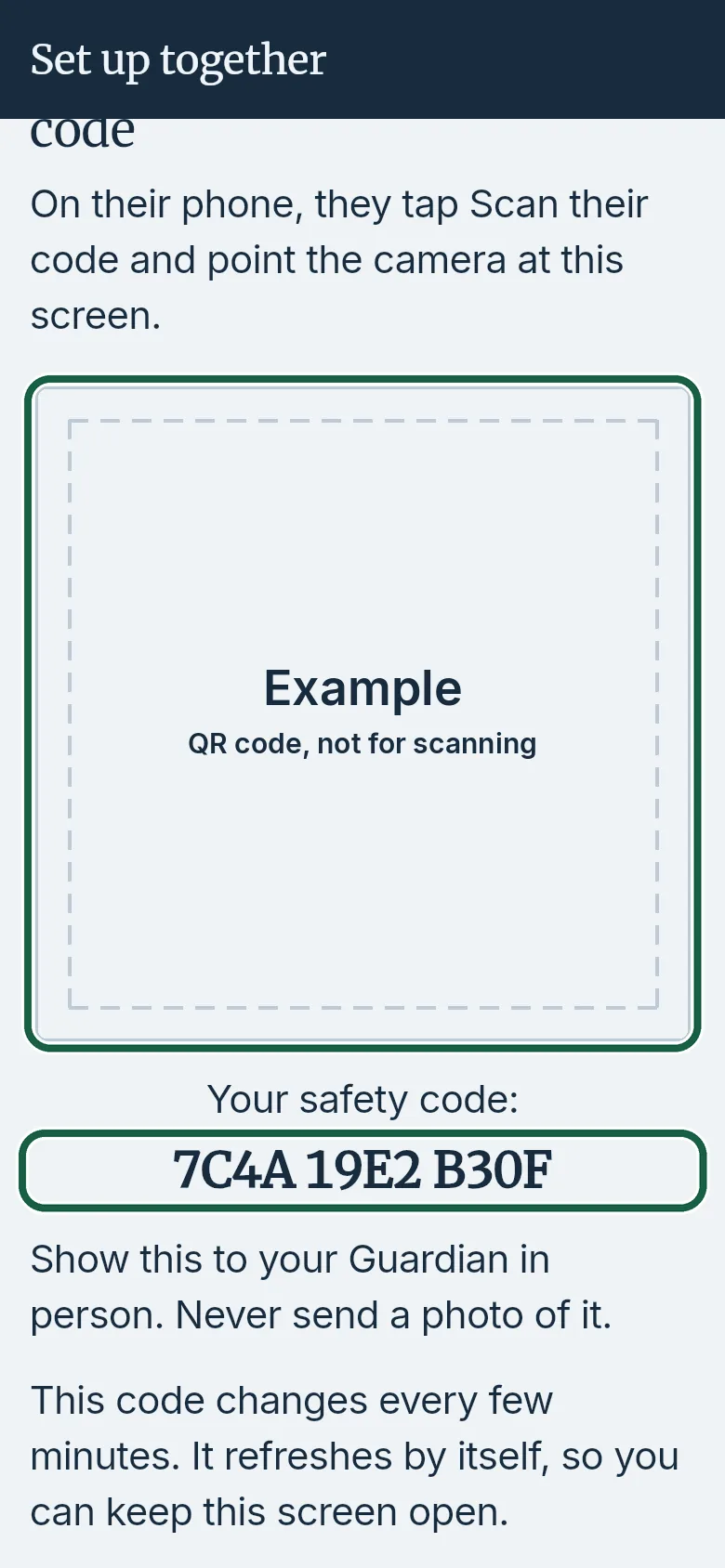
Elder’s phone: Set up together. The setup code and safety code shown are examples.
Guardian’s phone
- On the People tab, tap Scan their code.
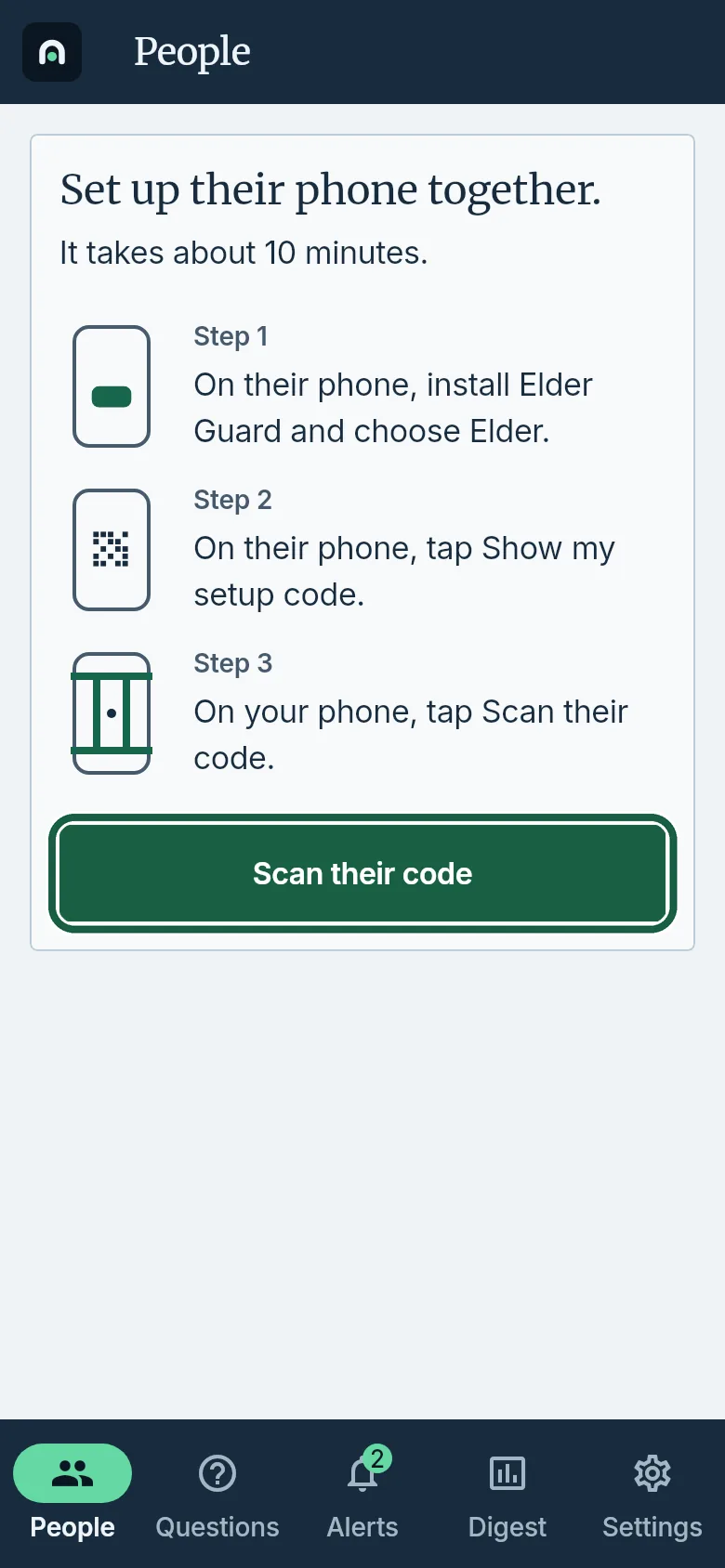
Guardian’s phone: People, with Scan their code circled. - The first time, read the camera screen and tap Continue. Allow the camera when the phone asks.
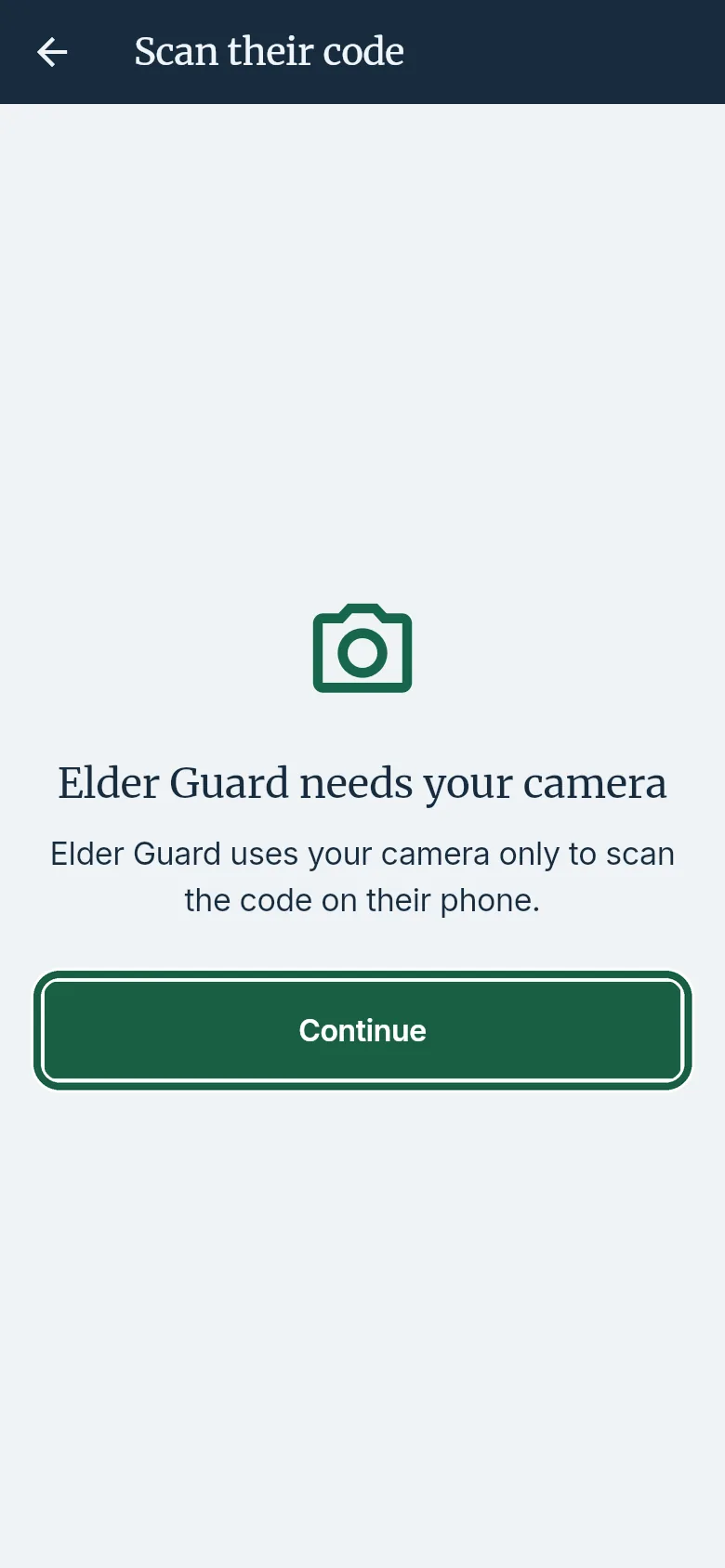
Guardian’s phone: Scan their code, with Continue circled. - Point the camera at the code on their phone.
If it doesn’t work If it says That code has expired, on their phone tap Show my setup code (or leave Set up together open), then scan again.
- Check the safety code. Tap Yes, it matches when it matches their phone.
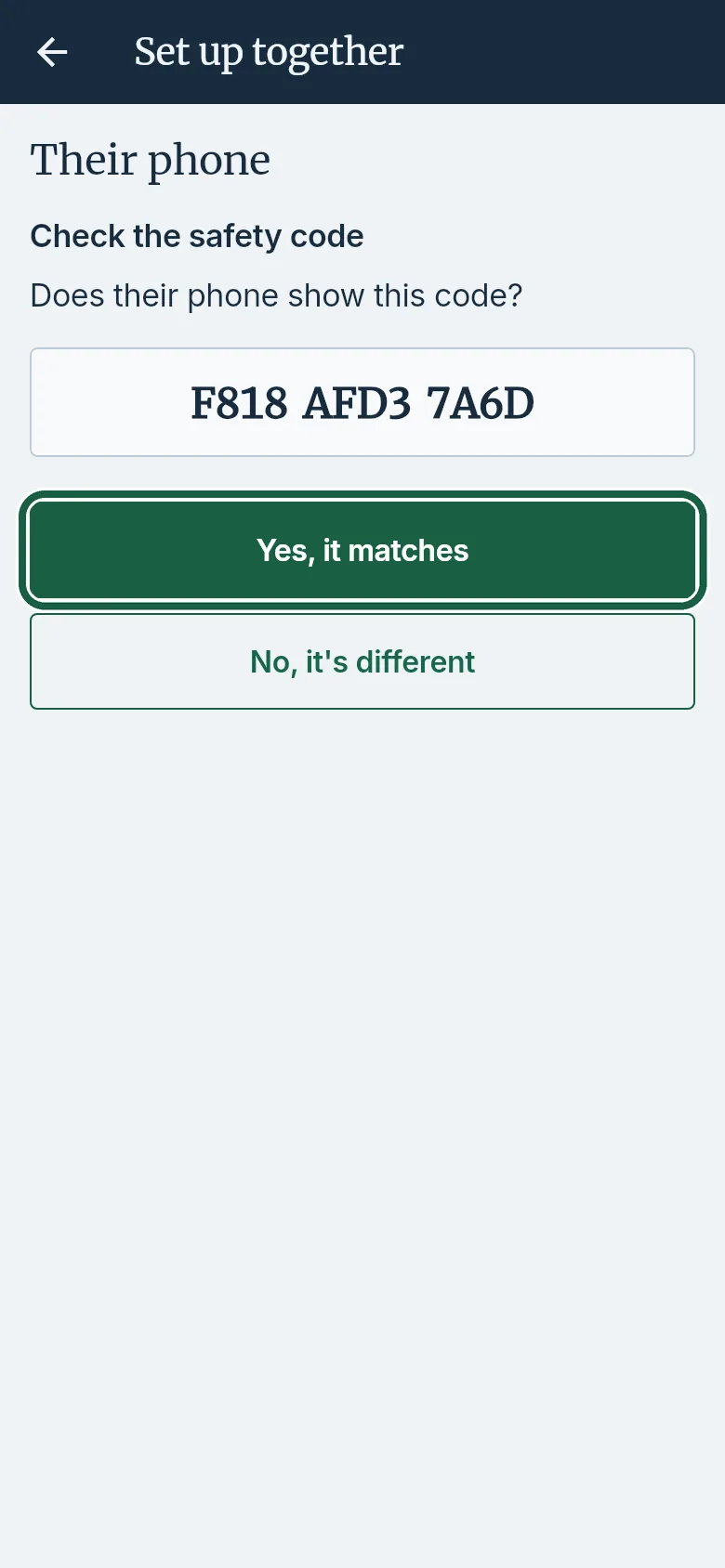
Guardian’s phone: Check the safety code, with Yes, it matches circled. If it doesn’t work If the codes do not match, tap No, it’s different, then Scan again. Scan their own phone, not a photo of the code. - Under Their first name, type a name, for example Mom. Tap Add Mom.
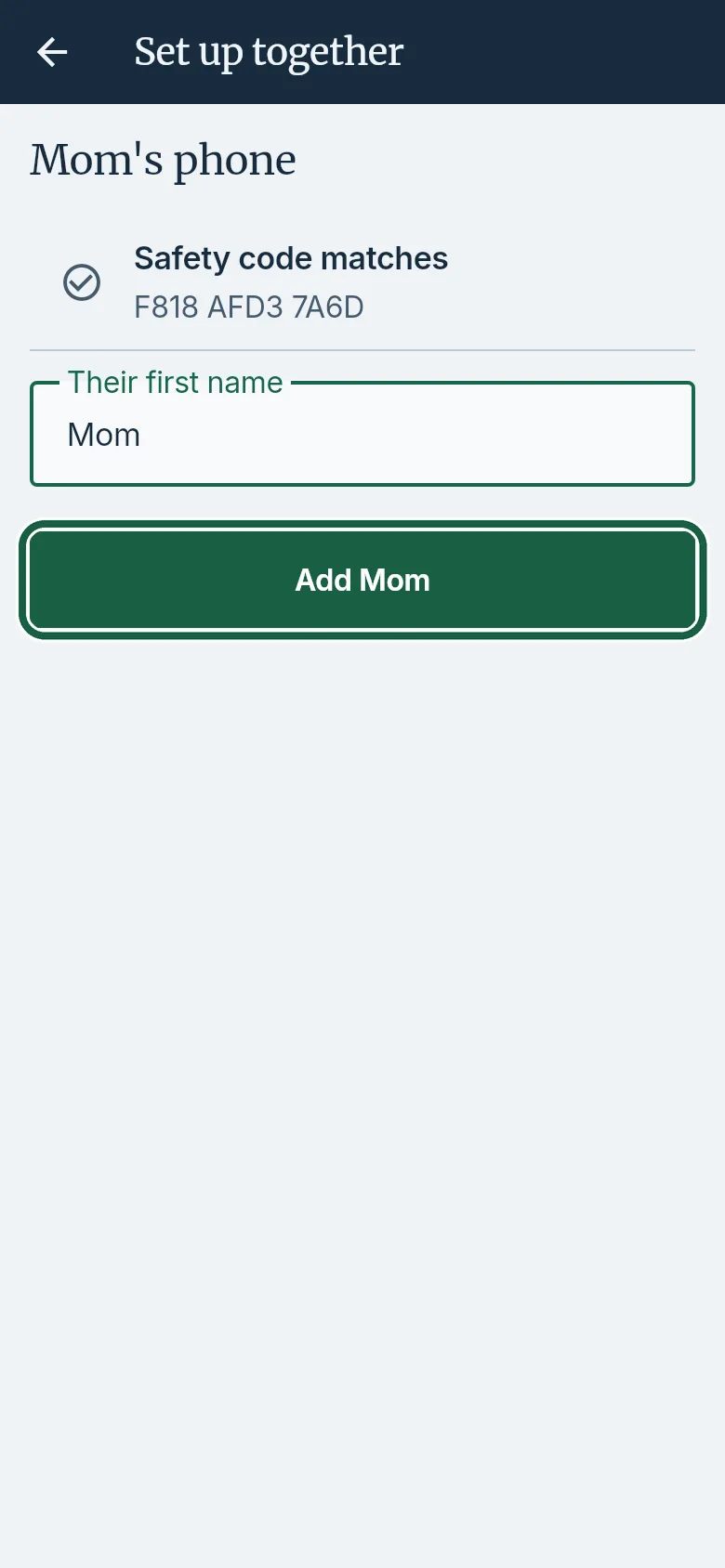
Guardian’s phone: name step, with Add Mom circled. No subscription yet? Tap Start free trial on Subscribe, then finish adding Mom.
Elder’s phone
- After you tap Add Mom, their phone shows Paired with Pat (or Paired with your Guardian). Check the safety code, then tap They match.
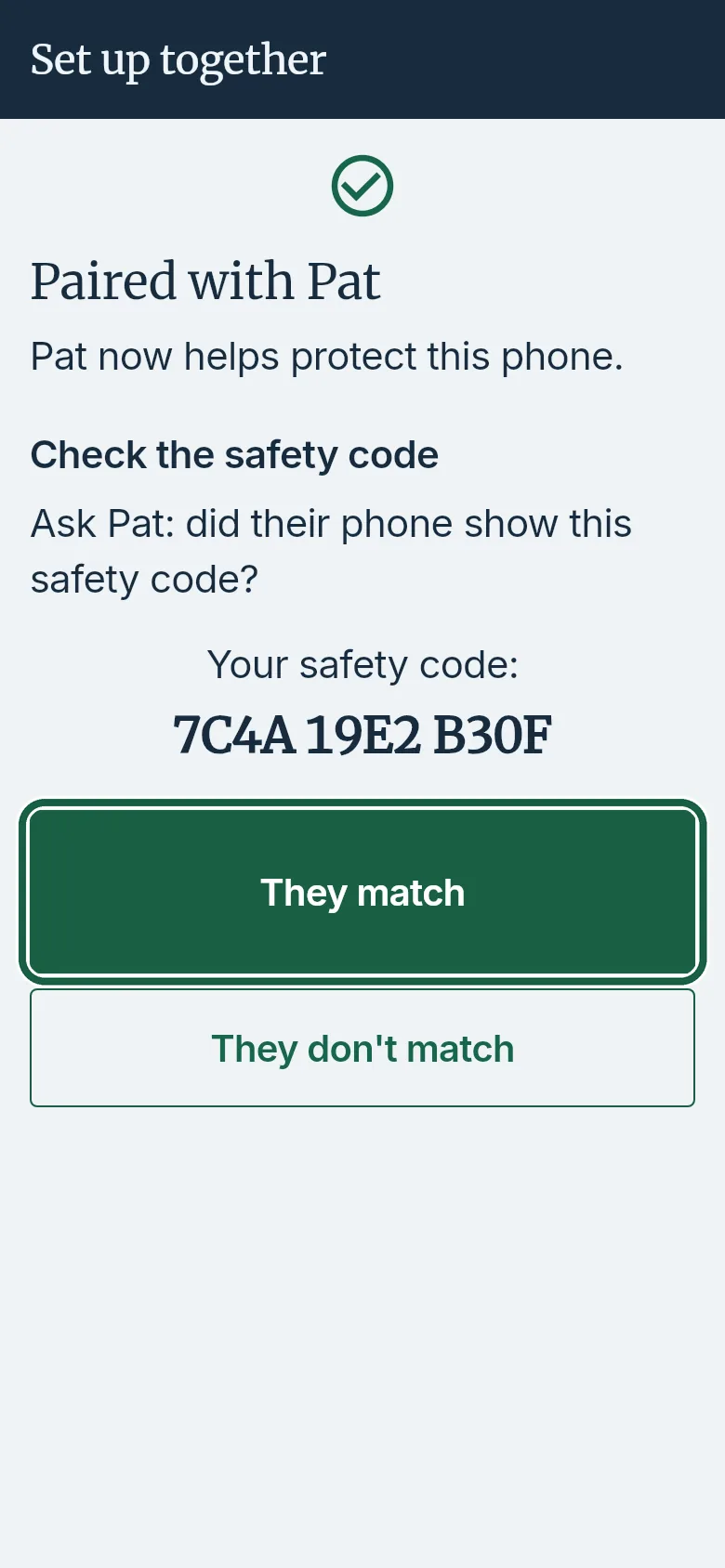
Elder’s phone: Paired with Pat, with They match circled. - On Try it once, tap Ask my Guardians or Not now.
Guardian’s phone
- On the success screen, tap Done.
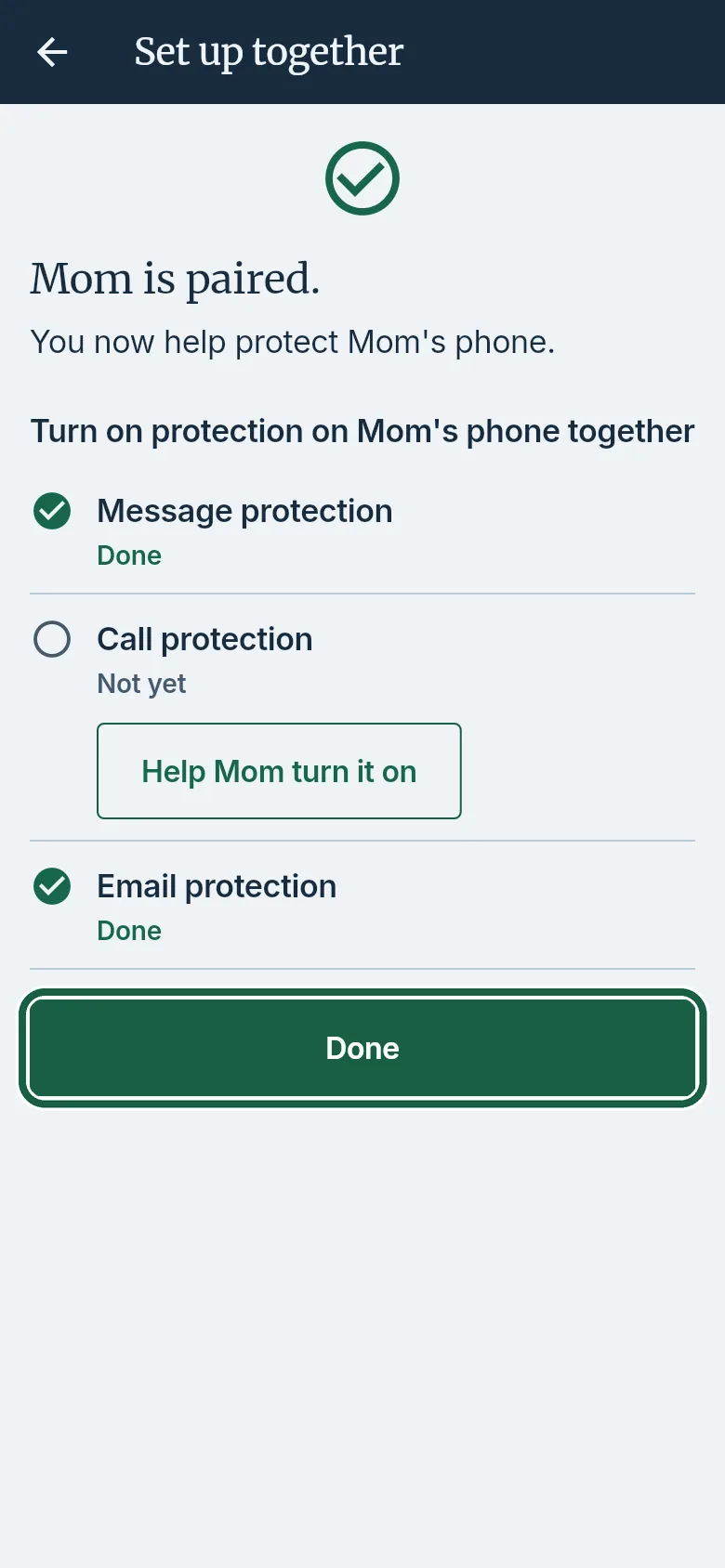
Guardian’s phone: Mom is paired, with Done circled. - If this is your first person, read Get Mom’s questions right away and tap Continue.
It worked whenYour People tab shows Mom. Their Home tab no longer says Not set up yet.
Good to knowAfter the first Guardian, their phone no longer shows a setup code. A current Guardian invites more.
-
Choose what Elder Guard checks
Before you startOn an iPhone or iPad, Elder Guard cannot turn on text or call checks from your phone. You can still turn on email checks and other switches that apply.Guardian’s phone
- On the People tab, tap Mom’s card to open their page.
- Under What Elder Guard does on Mom’s phone, turn on Check Mom’s texts for scams. Turn on the calls or emails switches if you want those checked too.
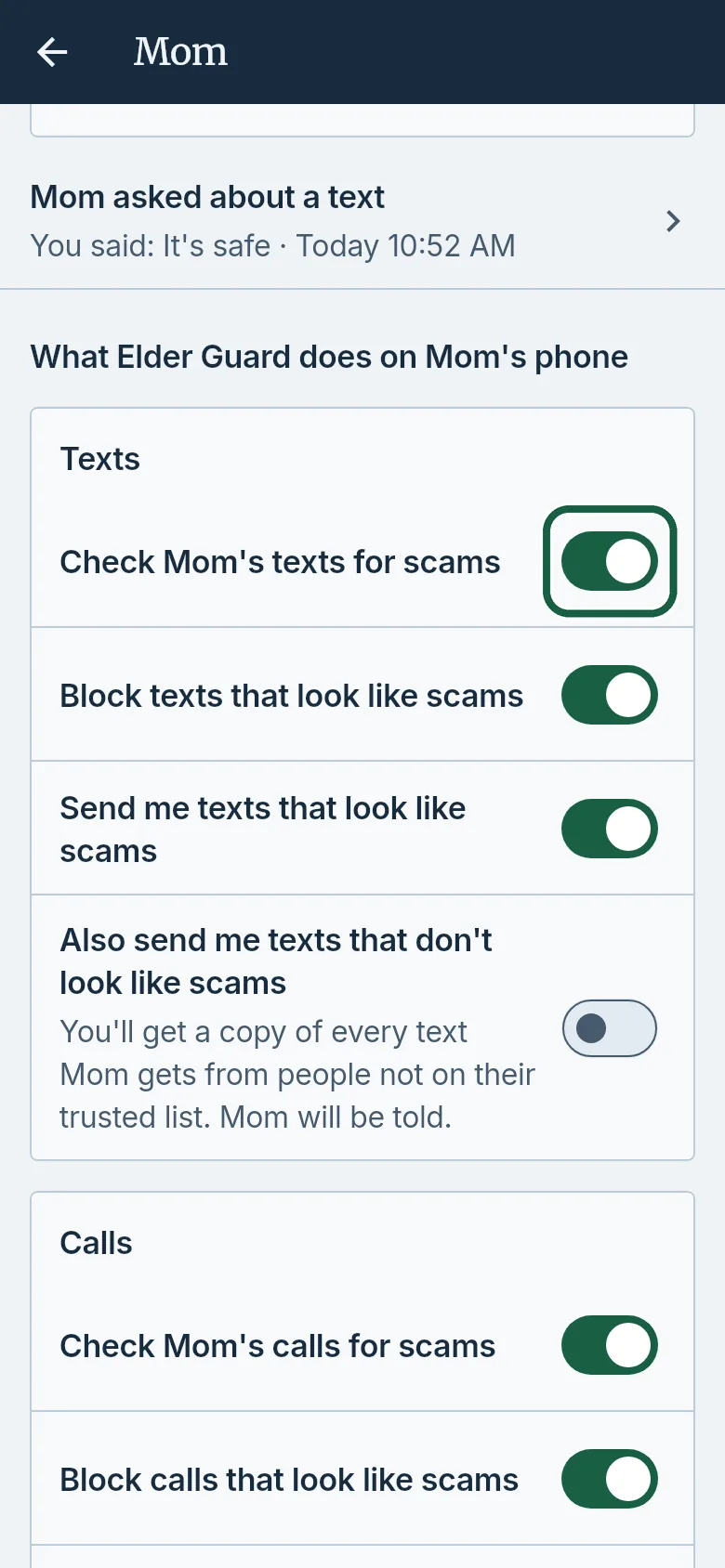
Guardian’s phone: Mom’s page, with Check Mom’s texts for scams circled.
It worked whenThe switch stays on and no message says That change couldn’t be saved. Please try again.
Good to knowEach switch saves as soon as you flip it. Their phone may take a few minutes to catch up.
-
Try a practice question
Before you startFinish Set up their phone together first. The sample message is labeled practice and is not real.Elder’s phone
- Right after setup, on Try it once, tap Ask my Guardians. Or open Settings and tap Try a practice question.
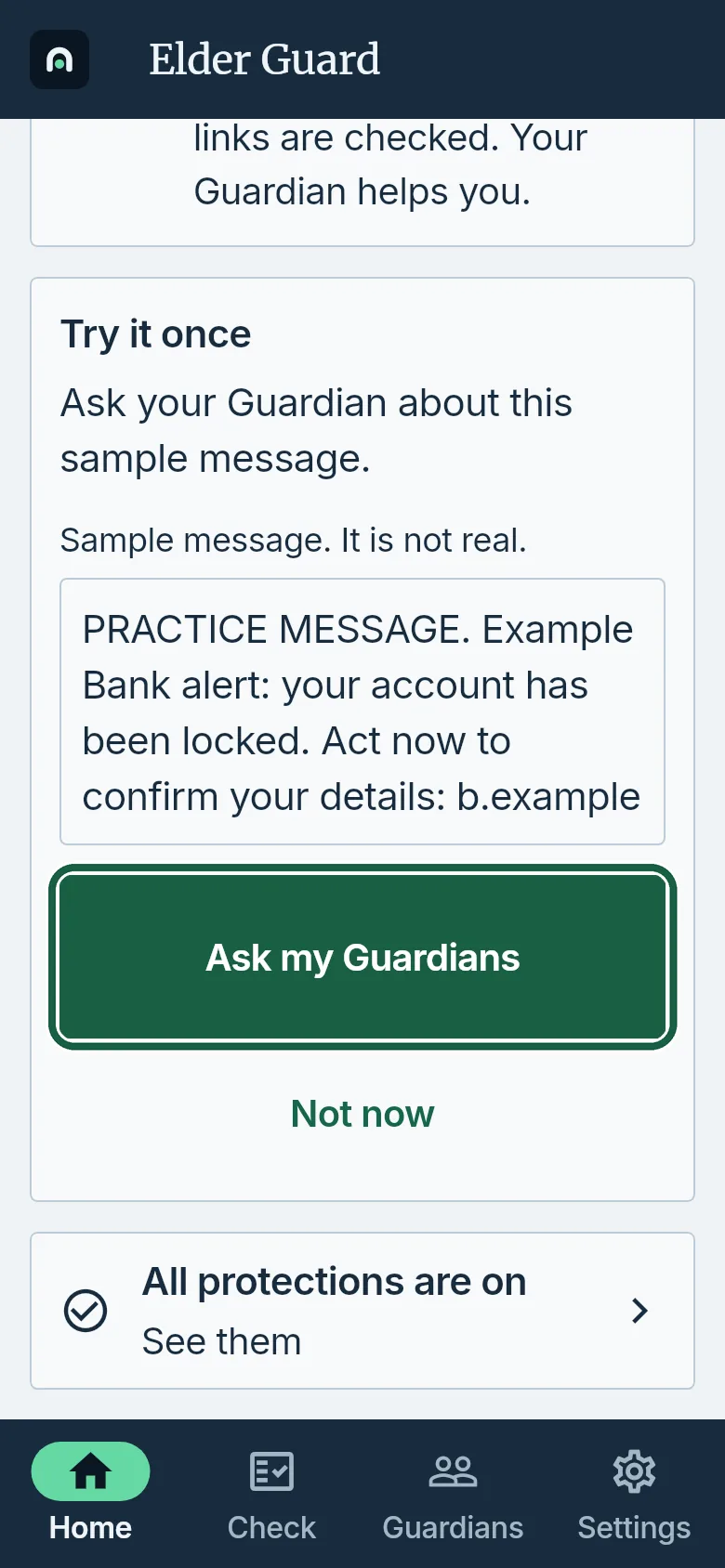
Elder’s phone: Try it once, with Ask my Guardians circled.
Guardian’s phone
- On the People tab, open the Needs you card and tap Answer Mom. The heading says it is a practice question.
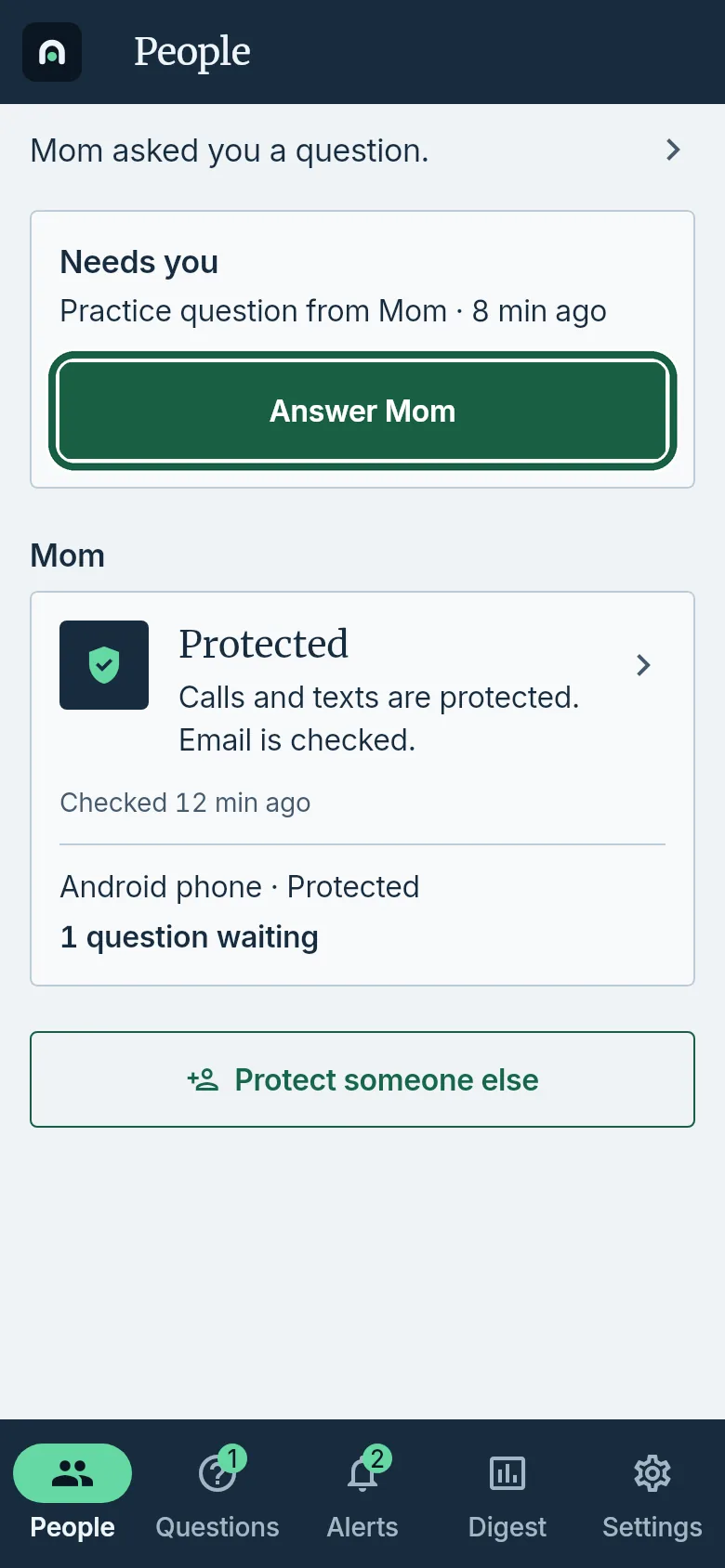
Guardian’s phone: People, with Answer Mom circled. - Tap It’s a scam, then tap Send to Mom.
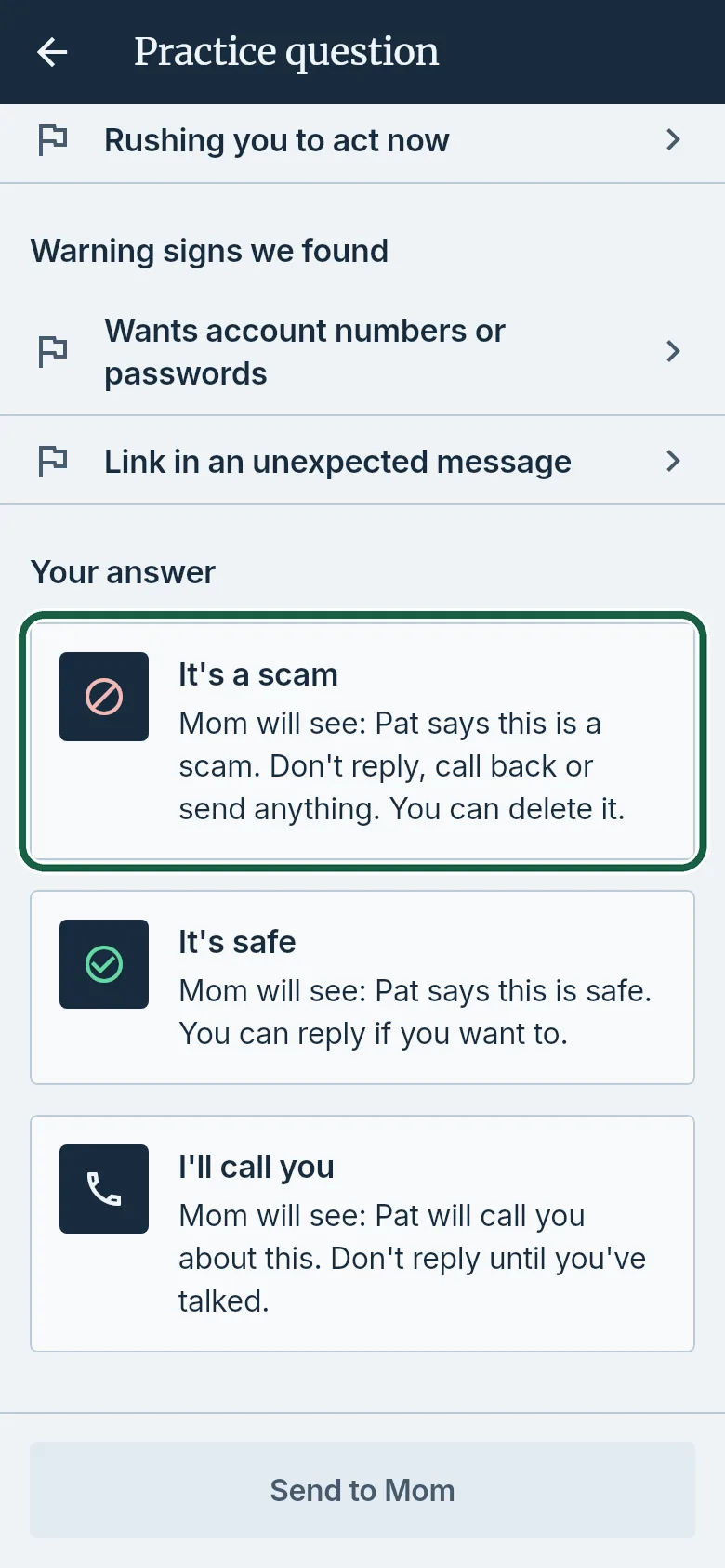
Guardian’s phone: answer screen, with It’s a scam circled.
Elder’s phone
- On Home, tap See the answer. Under Pat’s answer it says You’re all set.
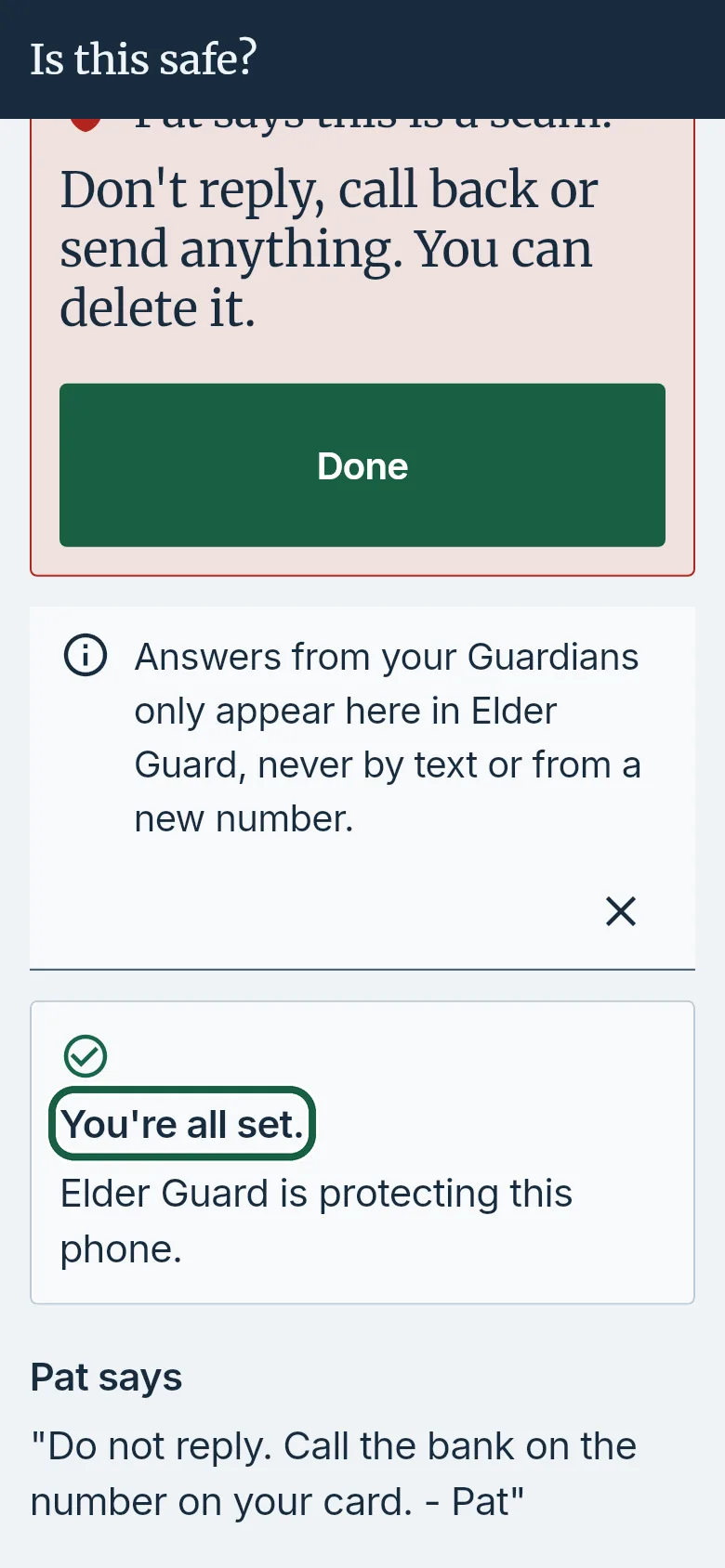
Elder’s phone: practice answer, with You’re all set circled.
It worked whenHome shows the card Pat answered your practice question.
Good to knowSkipped it? Start it from Settings; that row is hidden while protection is off, or while a practice question is waiting or still under Recent answers on Check.
- Right after setup, on Try it once, tap Ask my Guardians. Or open Settings and tap Try a practice question.
On their phone
On their phone, Elder Guard shows Home, Check, Guardians, and Settings on the bottom bar. When protection is on, Ask my Guardians sits above it on Home, Check, and Guardians. These guides work when read aloud over a call.
-
Turn on message protection Android
Before you startThe Message protection row on Home shows once a Guardian has set up the phone.Elder’s phone
- Tap Home on the bottom bar. In the Message protection row, tap Turn on.
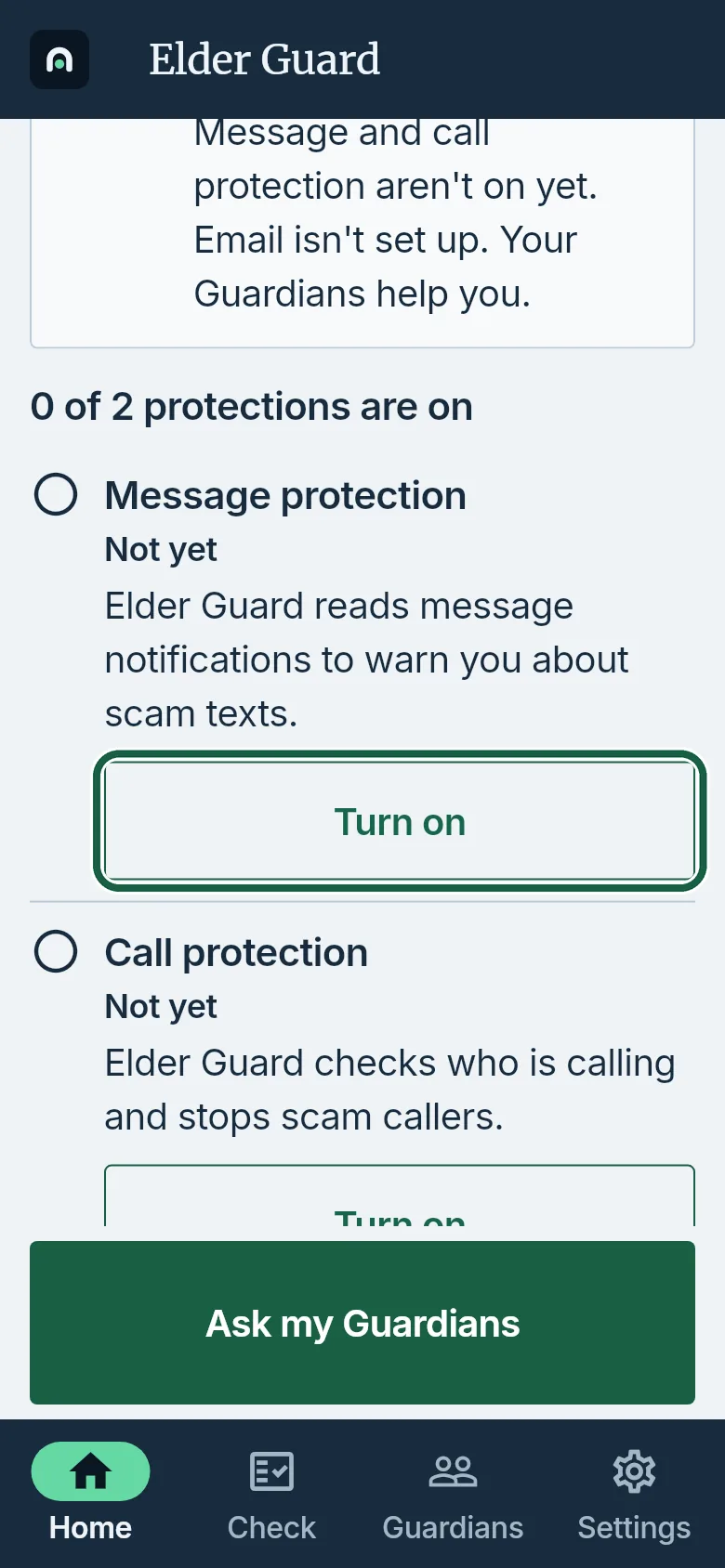
Elder’s phone: Home, Message protection row with Turn on circled. - On Android’s Notification access page, find Elder Guard, turn it on and confirm.
- Go back to Elder Guard.
It worked whenThe Message protection row shows Done, and Home says “Texts and links are checked.”
Good to knowElder Guard reads message notifications (the sender and the preview) so it can warn about scam texts.
- Tap Home on the bottom bar. In the Message protection row, tap Turn on.
-
Turn on call protection Android
Before you startCall protection needs Android 10 or later. To check: Settings › About phone › Android version.Elder’s phone
- Tap Home on the bottom bar. In the Call protection row, tap Turn on.
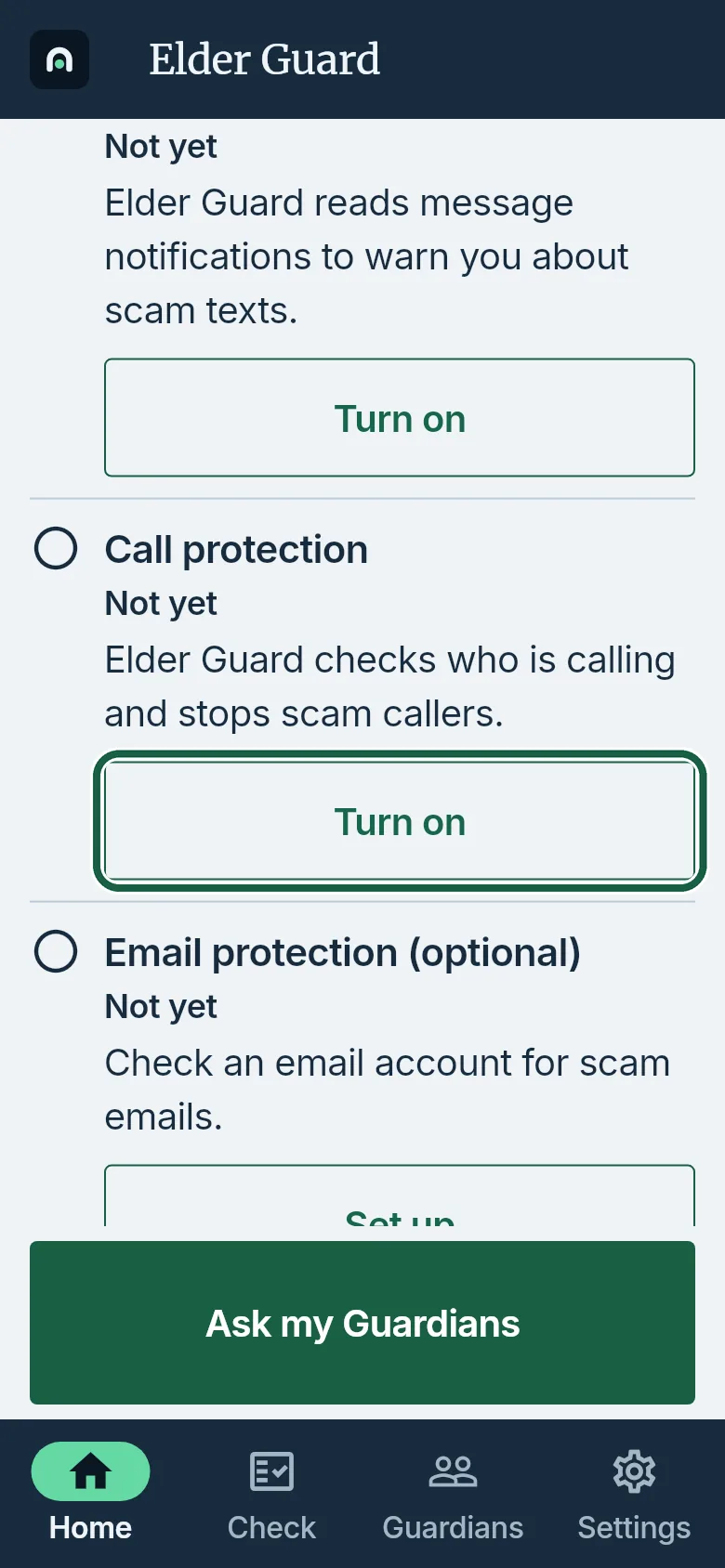
Elder’s phone: Home, Call protection row with Turn on circled. - When Android asks, choose Elder Guard as your caller ID & spam app and confirm. Wording can differ on some phones.
It worked whenThe Call protection row shows Done, and Home says “Calls and links are checked.”
Good to knowElder Guard can then warn about, and block, scam callers and the numbers your Guardians block.
- Tap Home on the bottom bar. In the Call protection row, tap Turn on.
-
Turn on scam text filtering iPhone
Before you startThe steps depend on the iPhone’s iOS version. To check: Settings › General › About.Elder’s phone
- Tap Home on the bottom bar. In the Text filtering row, tap See how. Elder Guard shows the steps for your iPhone.
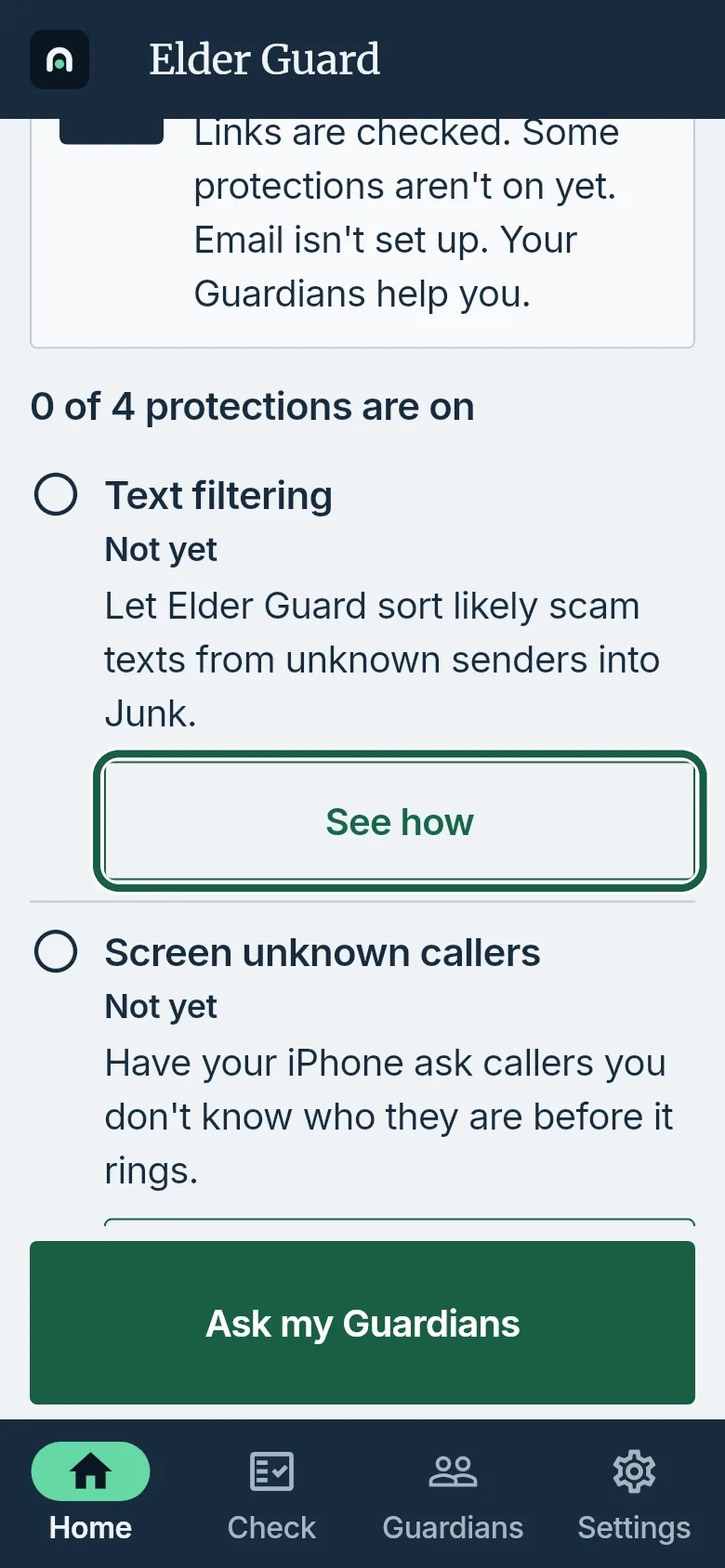
Elder’s phone: Home, Text filtering row with See how circled. - Turn the filter on in iOS.
If you have iOS 26 or later
- Open Messages, tap the Filters button at the top, then Manage Filtering.
- Under Unknown Senders, turn on Screen Unknown Senders.
- Tap Text Message Filter, turn on Text Message Filter, then turn on Elder Guard.
If you have iOS 18 or earlier- Open Settings, tap Apps, then Messages. On iOS 17 or earlier, tap Messages.
- Tap Unknown & Spam and turn on Filter Unknown Senders.
- Under SMS Filtering, choose Elder Guard.
- Back in Elder Guard, tap I’ve turned it on.
It worked whenThe Text filtering row says “You turned this on.”
Good to knowLikely scam texts from people who aren’t in your contacts go to the Junk list in Messages (iMessages aren’t filtered); they are sorted on the iPhone and never kept or sent anywhere. The iPhone doesn’t tell Elder Guard whether this is on, which is why you tap I’ve turned it on yourself.
- Tap Home on the bottom bar. In the Text filtering row, tap See how. Elder Guard shows the steps for your iPhone.
-
Screen or silence unknown callers iPhone
Before you startThe setting’s name depends on the iPhone’s iOS version. To check: Settings › General › About.Elder’s phone
- Tap Home on the bottom bar. In the Screen unknown callers row (on older iPhones, Silence unknown callers), tap See how.
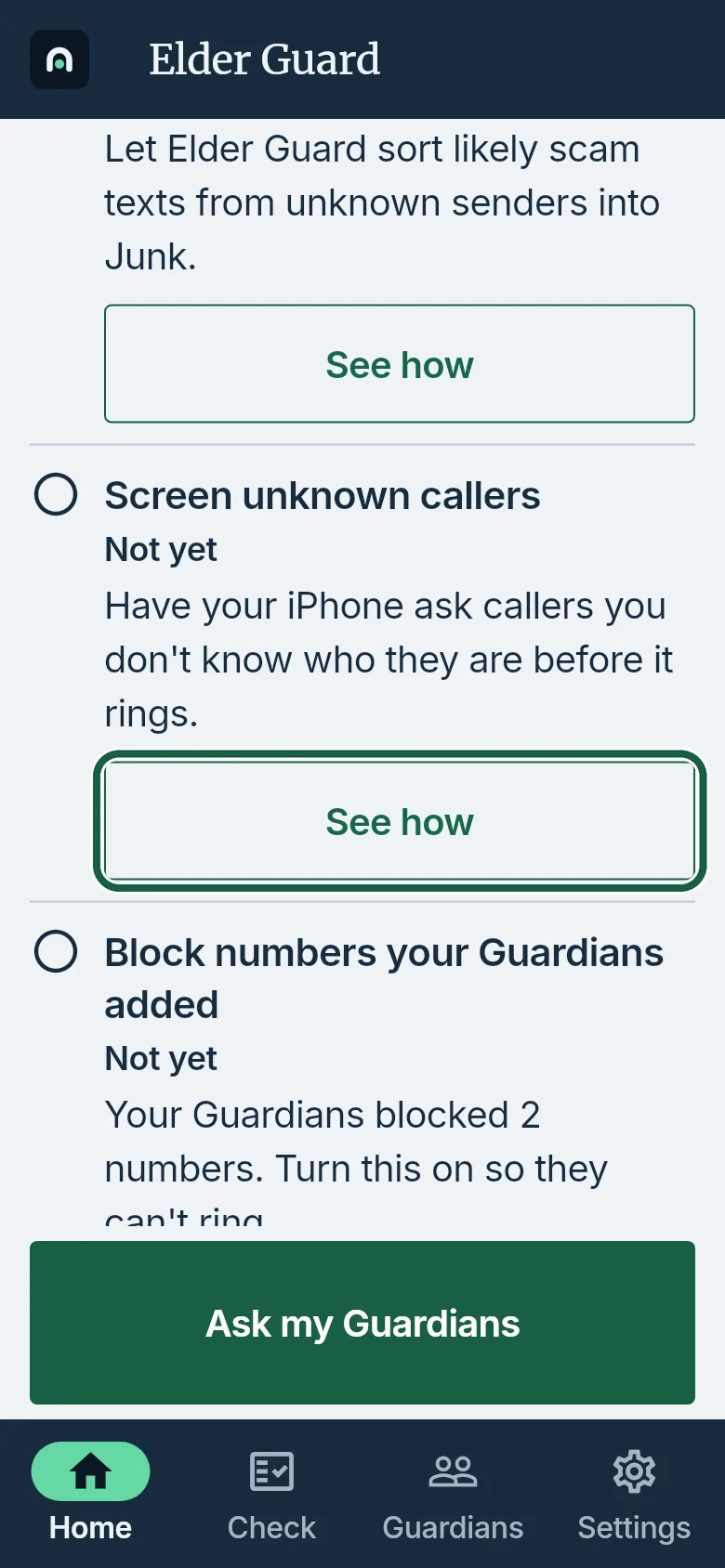
Elder’s phone: Home, Screen unknown callers row with See how circled. - Turn it on in iOS.
If you have iOS 26 or later
- Open Settings, tap Apps, then Phone.
- Under Screen Unknown Callers, choose Ask Reason for Calling (or Silence).
If you have iOS 18 or earlier- Open Settings, tap Apps, then Phone. On iOS 17 or earlier, tap Phone.
- Tap Silence Unknown Callers and turn it on.
- Back in Elder Guard, tap Done.
It worked whenPeople in your contacts still ring as usual, and a caller you don’t know is asked who they are first (Ask Reason for Calling) or goes to voicemail (Silence).
- Tap Home on the bottom bar. In the Screen unknown callers row (on older iPhones, Silence unknown callers), tap See how.
-
Block numbers your Guardians added iPhone
Elder’s phone
- Tap Home on the bottom bar. In the Block numbers your Guardians added row, tap Turn on.
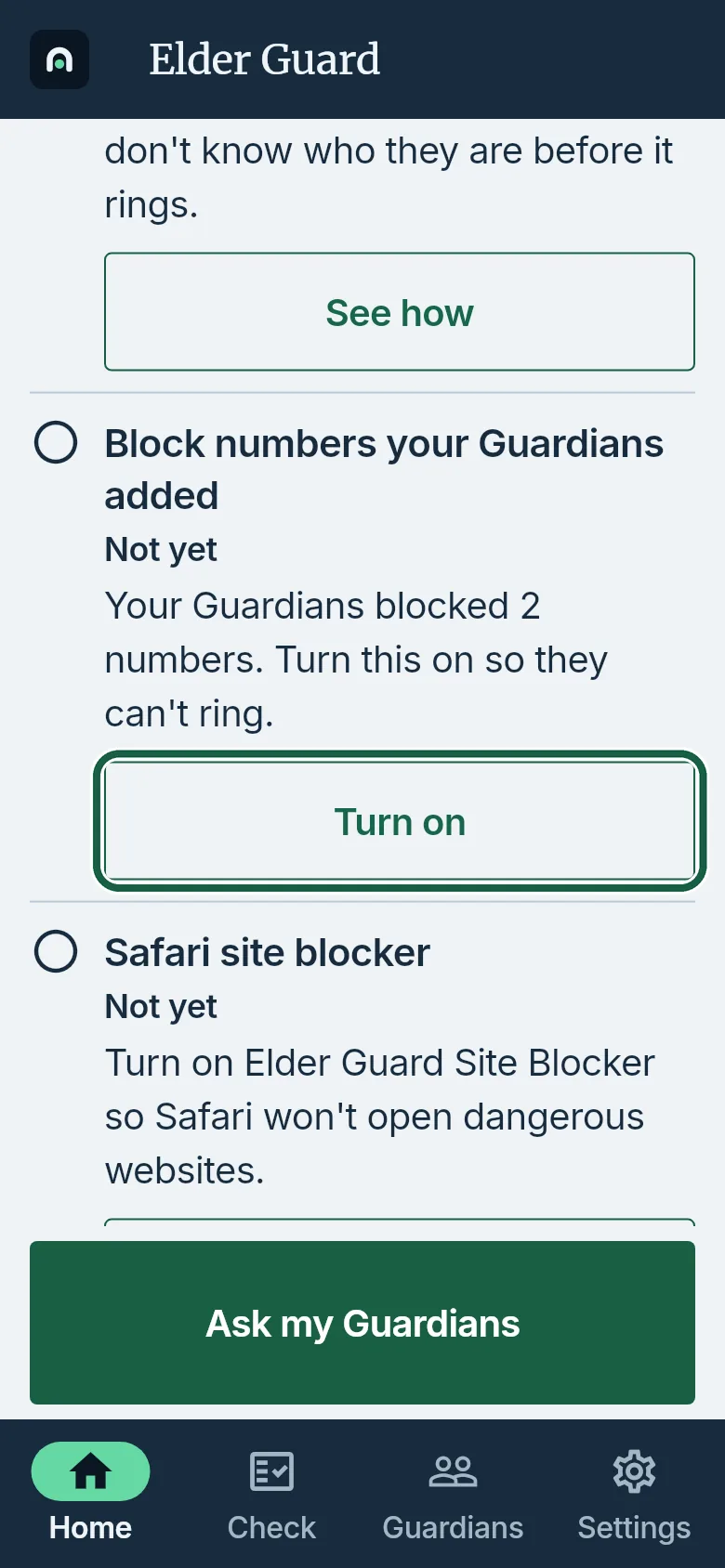
Elder’s phone: Home, Block numbers your Guardians added row with Turn on circled. - Tap Open call blocking settings.
If it doesn’t work If Settings doesn’t open there: open Settings, tap Apps, then Phone (on iOS 17 or earlier, tap Phone), then Call Blocking & Identification.
- Turn on Elder Guard, then go back to Elder Guard.
It worked whenThe Block numbers your Guardians added row starts with “On.” and says how many numbers are blocked.
Good to knowCalls from numbers your Guardians added won’t ring; Elder Guard never learns about the calls, and trusted contacts are never blocked. Guardians outside the US and Canada type blocked numbers with the country code (like +44), or the iPhone can’t block them.
- Tap Home on the bottom bar. In the Block numbers your Guardians added row, tap Turn on.
-
Block dangerous websites in Safari iPhone
Elder’s phone
- Tap Home on the bottom bar. In the Safari site blocker row, tap See how. Elder Guard shows the steps for your iPhone.
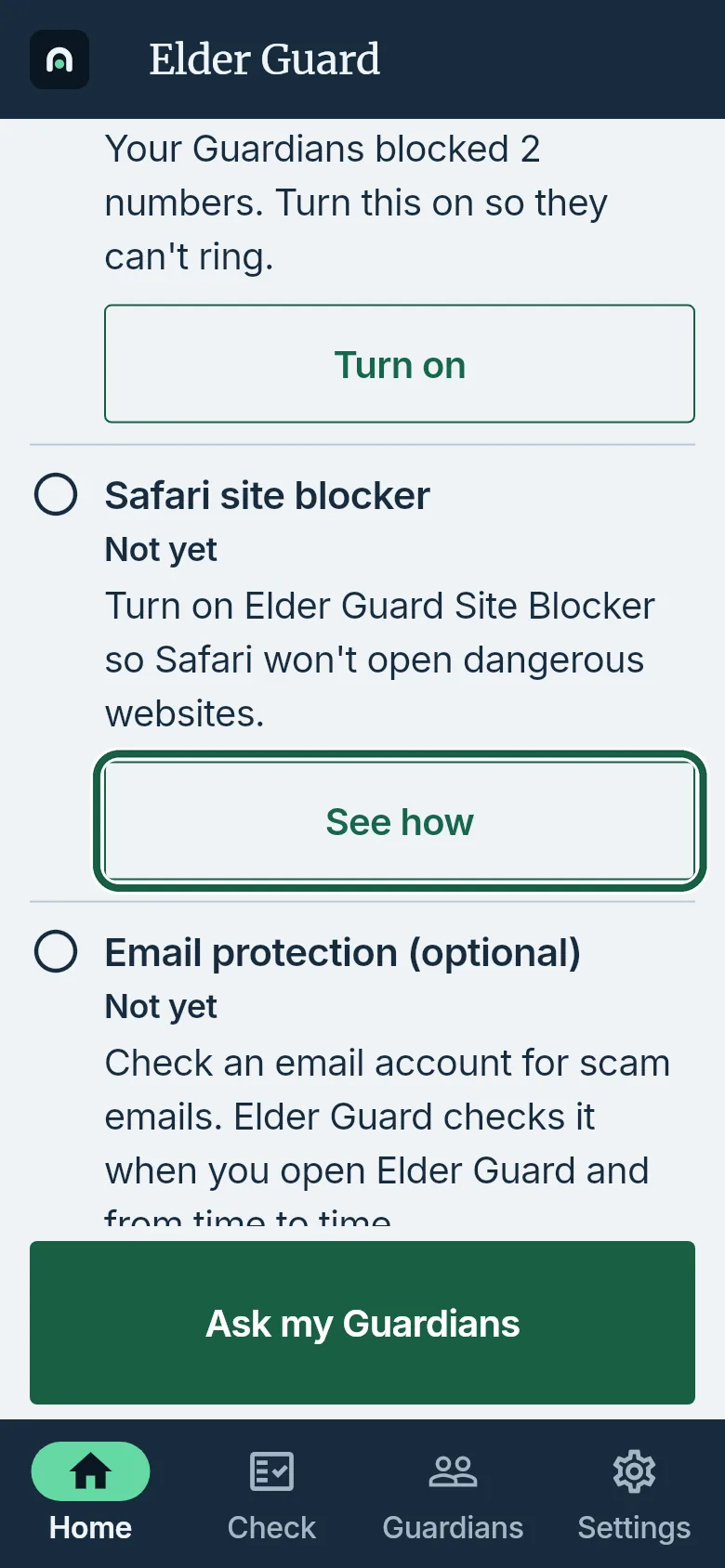
Elder’s phone: Home, Safari site blocker row with See how circled. - Open Settings, tap Apps, then Safari. On iOS 17 or earlier, tap Safari.
- Tap Extensions, then Elder Guard Site Blocker, and turn it on. Go back to Extensions, tap Elder Guard, and turn it on too.
- Back in Elder Guard, tap Done.
It worked whenThe Safari site blocker row starts with “On.”
Good to knowSafari then won’t open websites known to be dangerous, or ones your Guardians warned you about; Elder Guard only gives Safari a list of websites to stop and never sees the websites you visit. With Elder Guard turned on under Extensions, you can also check a link in Safari before you open it.
- Tap Home on the bottom bar. In the Safari site blocker row, tap See how. Elder Guard shows the steps for your iPhone.
-
Set up email protection on their phone
Before you start- Gmail can use Sign in with Google, or an app password through Other ways to connect.
- Outlook, Hotmail, Live and MSN addresses use Sign in with Microsoft when Elder Guard offers it.
- Yahoo Mail, iCloud Mail and AOL Mail use an app password. Other providers need a Mail server and App password.
Elder’s phone
- Tap Home on the bottom bar. In Email protection (optional), tap Set up. Or tap Settings, then Email protection.
- Under Email address, type the address.
- For a Gmail address, tap Sign in with Google and finish sign-in in the browser.
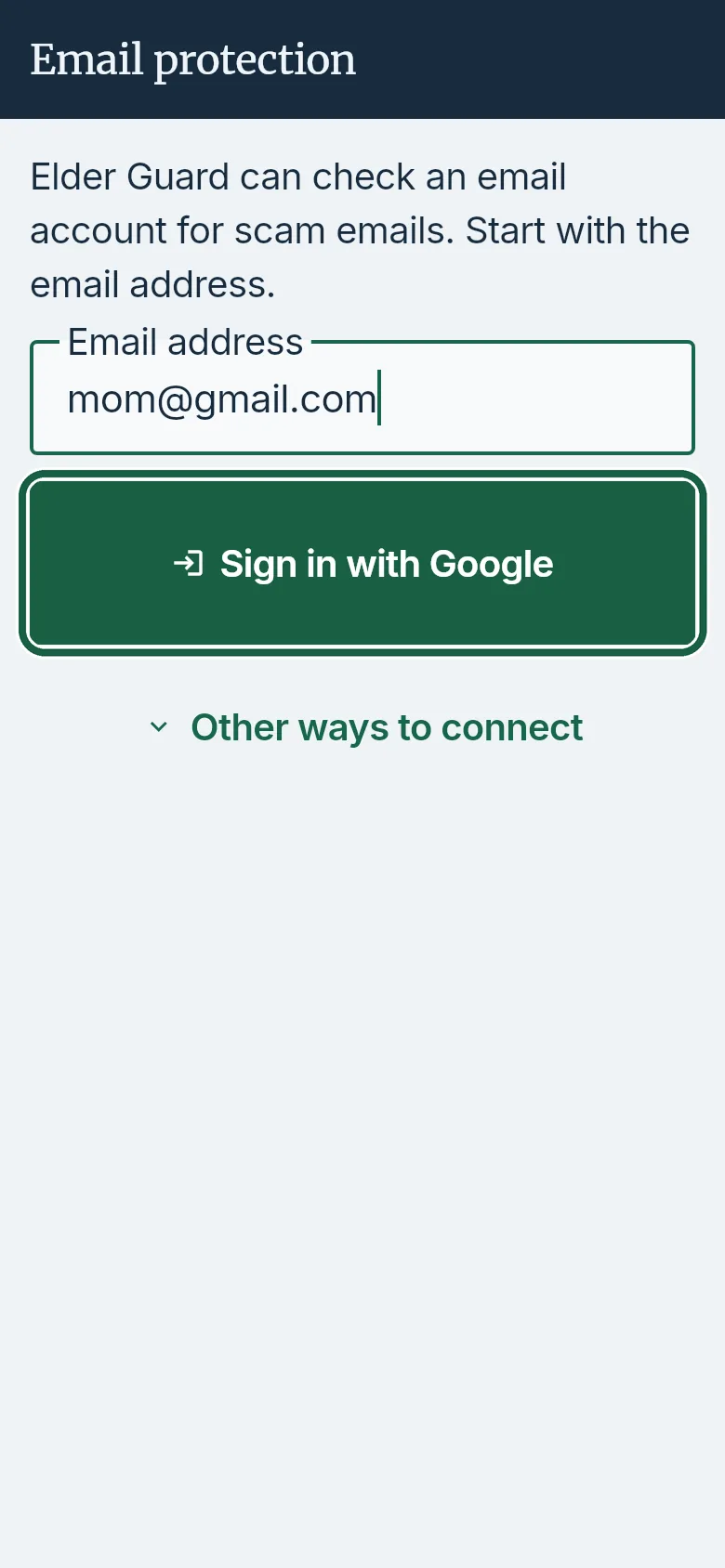
Elder’s phone: Email protection, with Sign in with Google circled. On an iPhone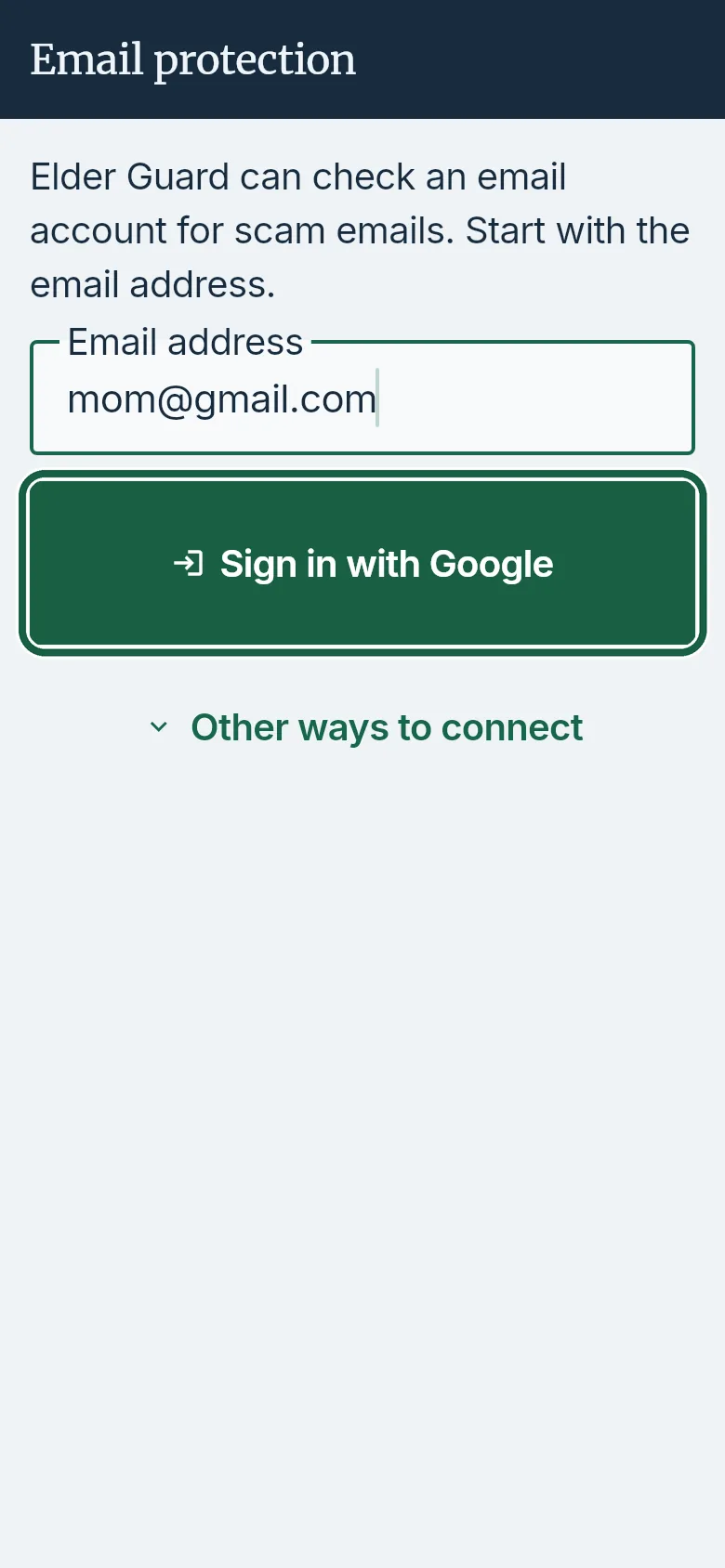
Elder’s phone: Email protection, with Sign in with Google circled. - For Outlook, Hotmail, Live or MSN, tap Sign in with Microsoft and finish sign-in in the browser.
- For Yahoo Mail, iCloud Mail or AOL Mail, follow the steps on screen, type the App password, then tap Save.
- For any other provider, type the Mail server and App password, then tap Save.
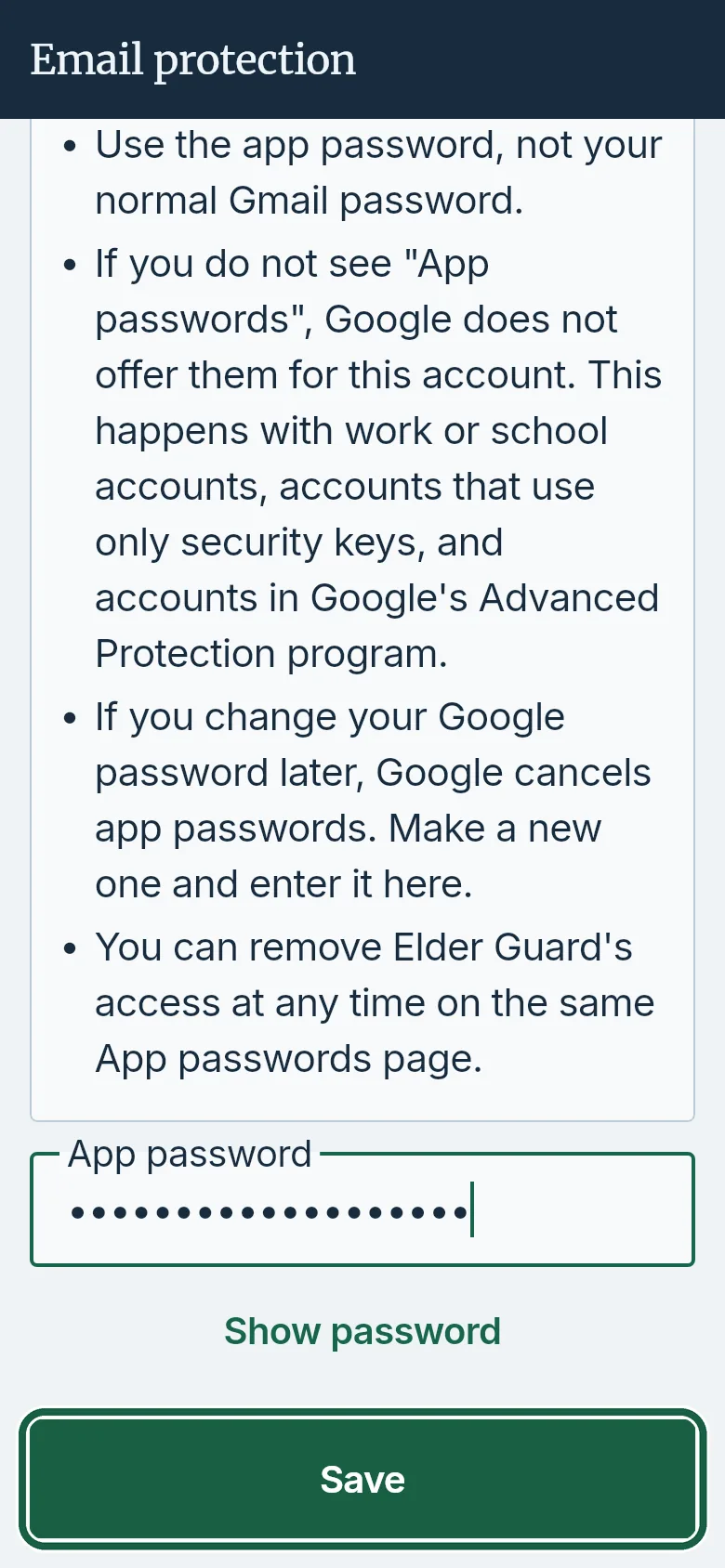
Elder’s phone: Email protection, with Save circled. On an iPhone When the iPhone asks about contacts, allow it. On iOS 18 and later you can share all contacts or only some; email from anyone not shared counts as from someone you don’t know. - On Gmail, to use an app password instead, tap Other ways to connect, follow the steps, then tap Save.
It worked whenThe screen heading names the address and starts with “Email protection is on for”, and the Email protection (optional) row shows Done.
Good to knowOn Android, Elder Guard checks the mailbox in the background; on an iPhone, when you open Elder Guard and from time to time. To stop, open Email protection again and tap Turn off email protection.
-
Check a message or link on their phone
Elder’s phone
- Tap Check on the bottom bar.
- Paste the text, email or link in the Message or link box, then tap Check it.
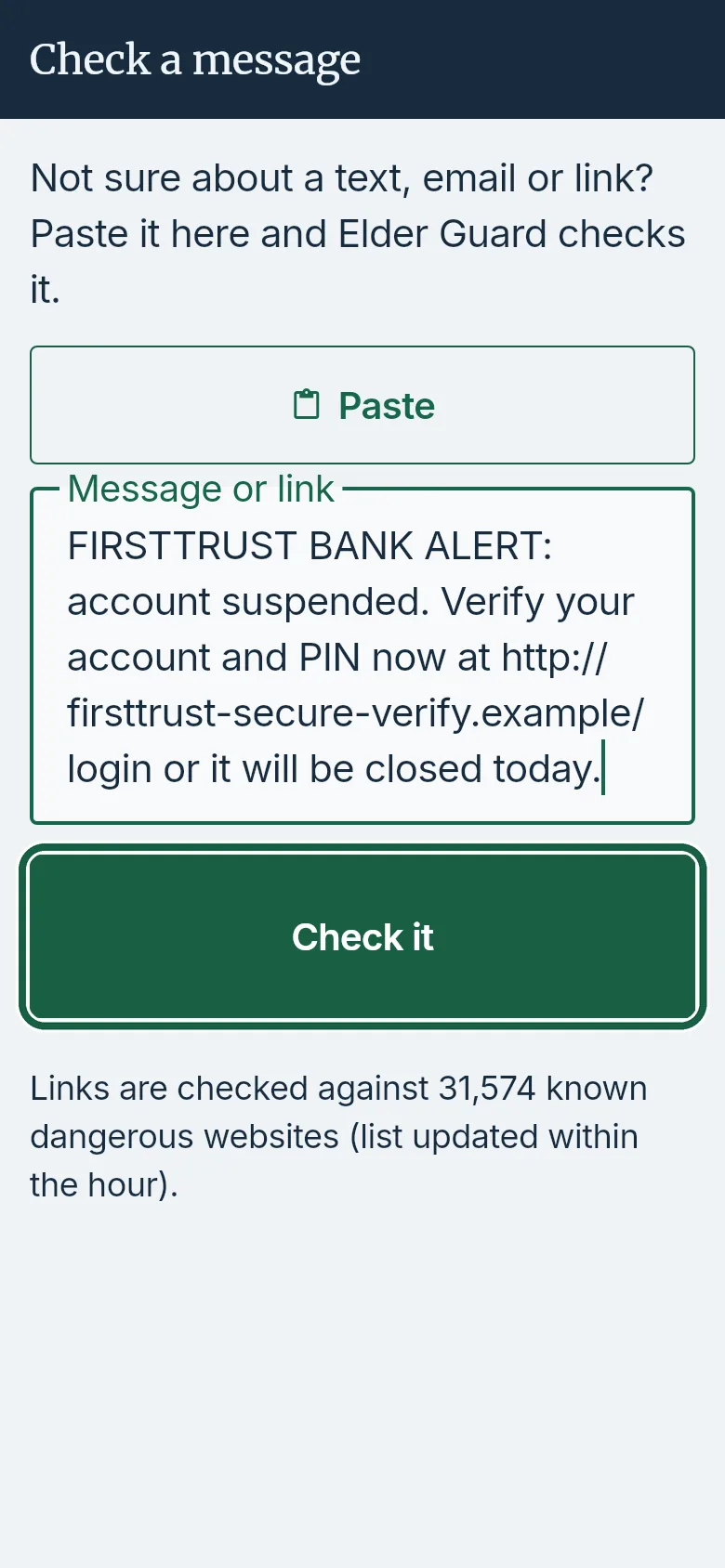
Elder’s phone: Check tab, with Check it circled. On an iPhone Copy the text first. Touch and hold in the box and tap Paste.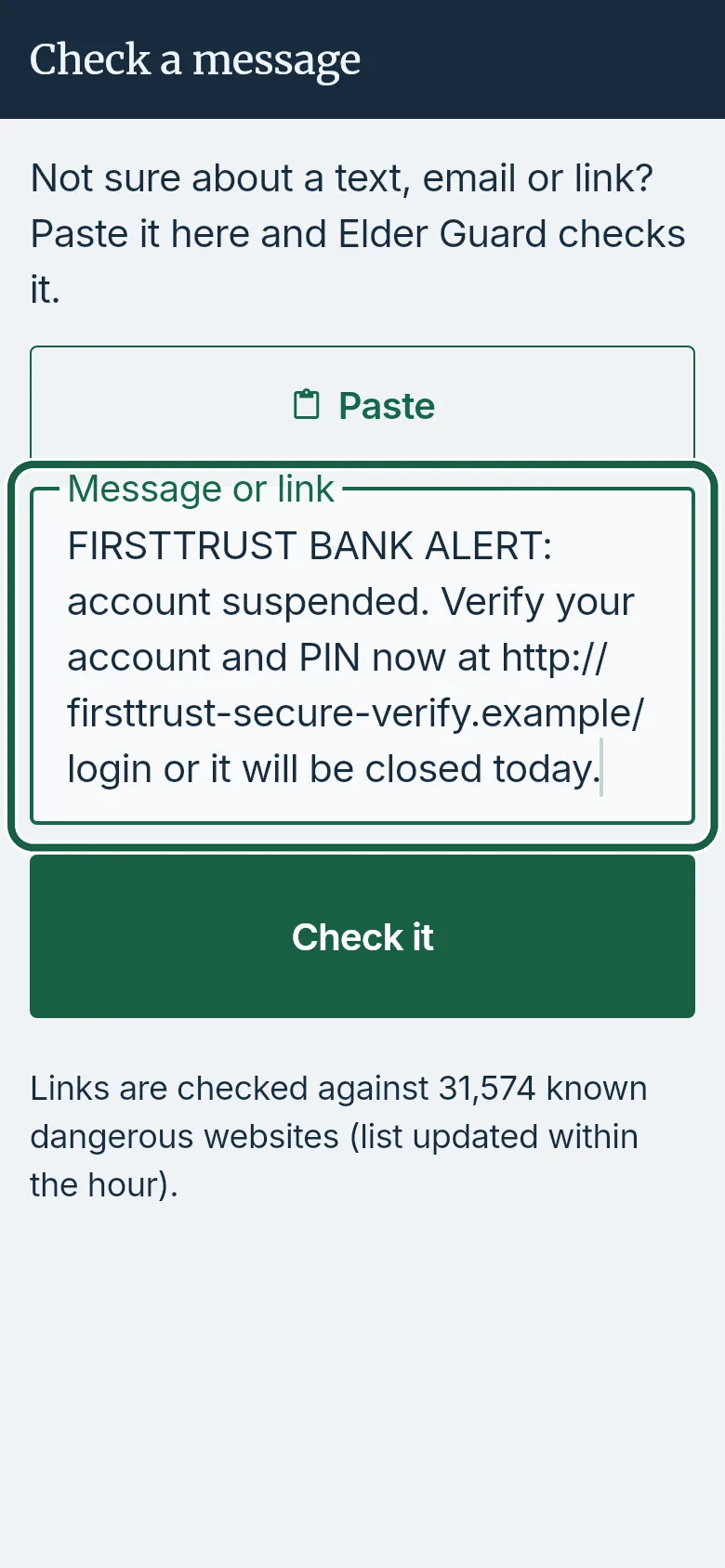
Elder’s phone: Check tab, with Message or link circled. - Read the answer. When the heading is This text has warning signs, tap Ask my Guardians. Under Warning signs we found, tap a sign and read Why this matters if you want.
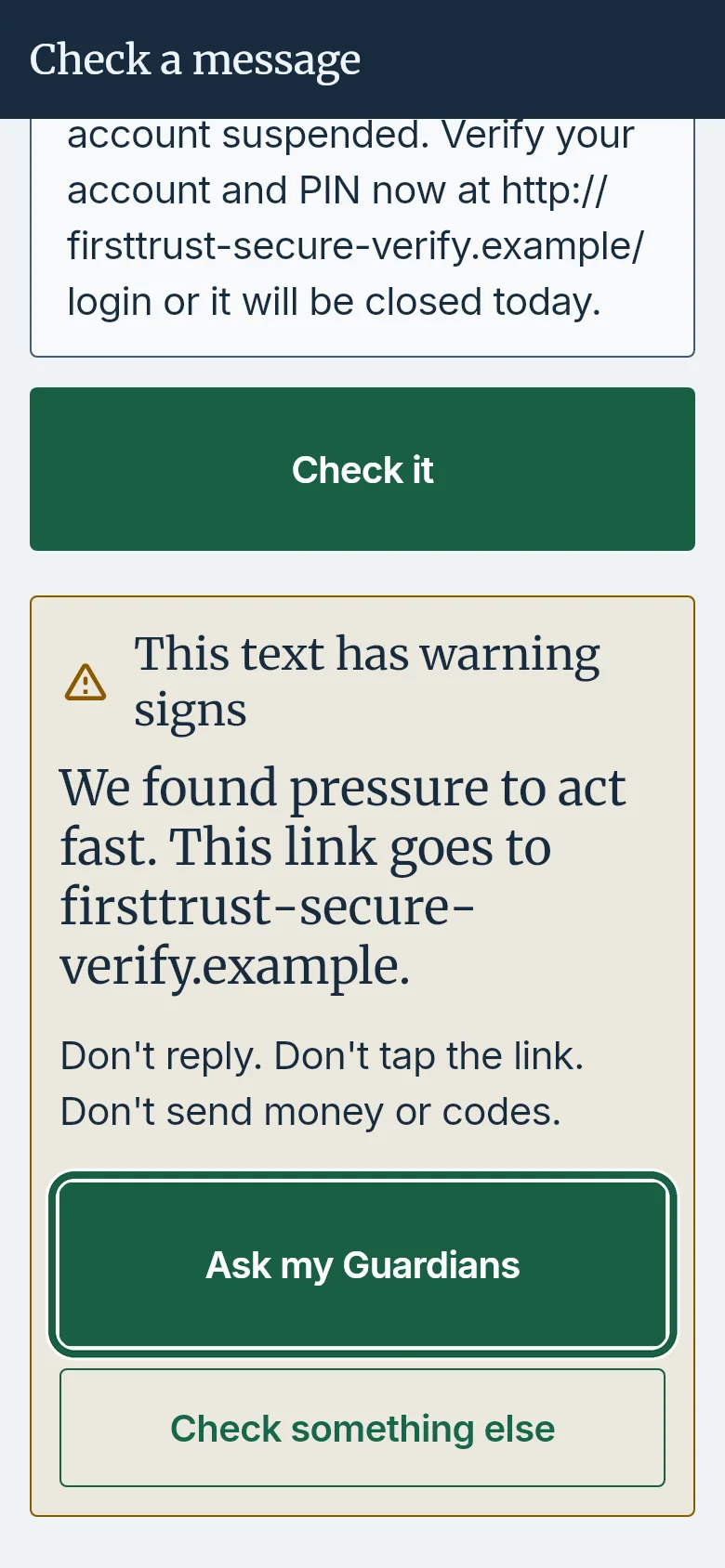
Elder’s phone: the check result, with Ask my Guardians circled. - On the next screen, under What worries you? (optional), change the warning signs if you want, then tap Send to my Guardians.
It worked whenThe heading is This text has warning signs. After Send to my Guardians, Home shows Sent · waiting for Pat.
Good to knowFrom another app, tap Share, then Check with Elder Guard. Messages and links are checked on the phone and go to your Guardians only when you ask them.
-
Ask my Guardians about something
Elder’s phone
- Tap Ask my Guardians above the bottom bar. Or on Home, tap a row that says Has warning signs.
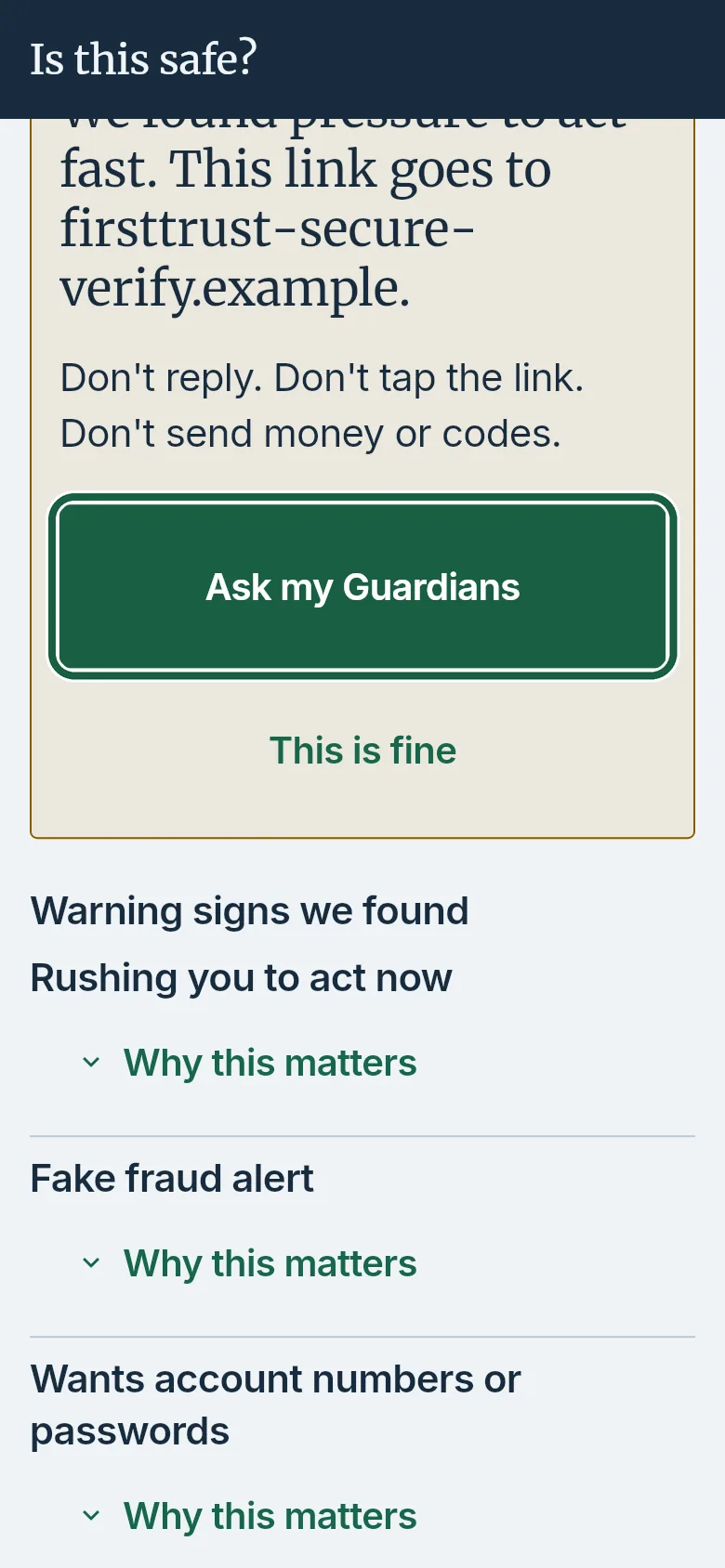
Elder’s phone: Ask my Guardians circled above the bottom bar. On an iPhone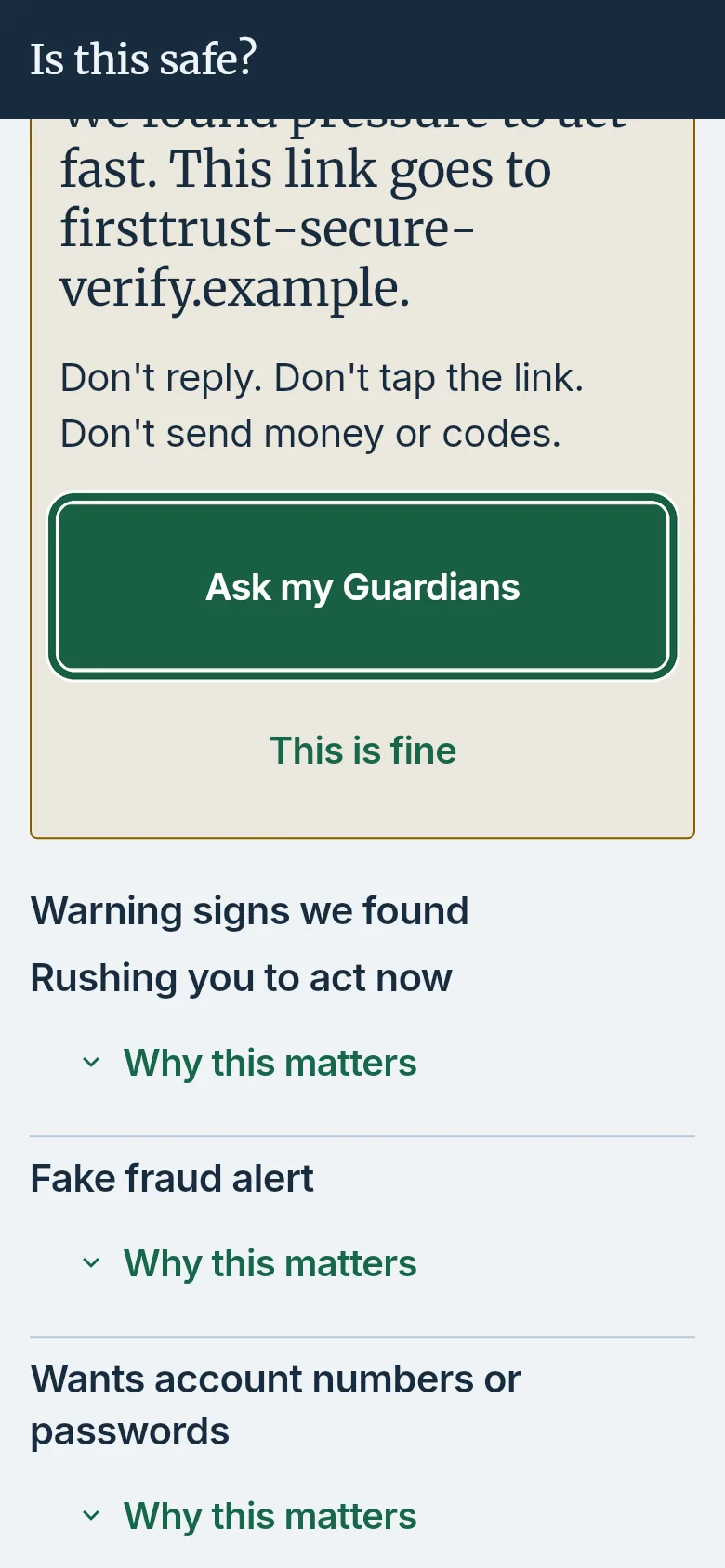
Elder’s phone: Ask my Guardians circled above the bottom bar. - If you opened Ask my Guardians, paste the message or link into the box.
- If you opened a waiting item, tap Ask my Guardians first. Under Warning signs we found, tap a sign to read Why this matters if you want. Or tap This is fine if you do not need help.
- Under What worries you? (optional), change the warning signs if you want, then tap Send to my Guardians.
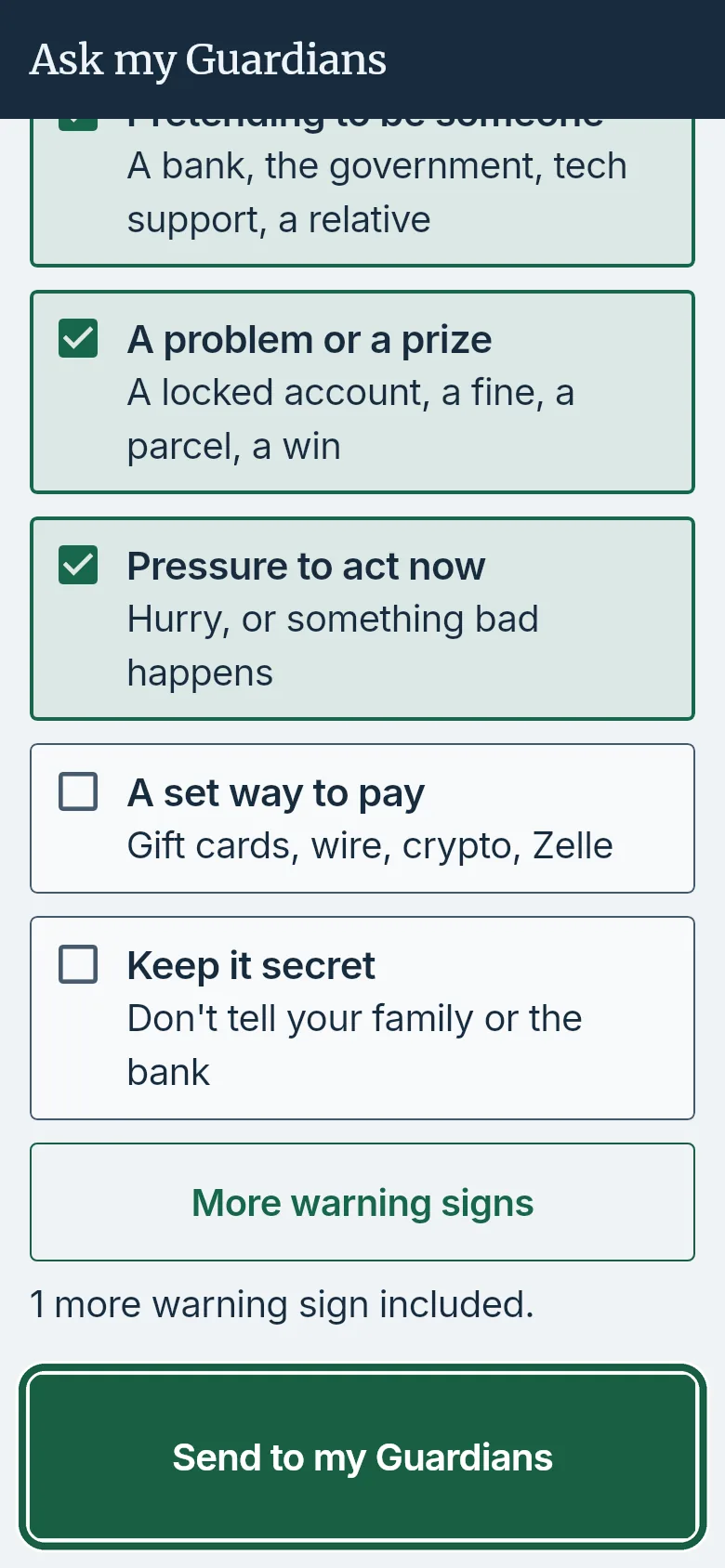
Elder’s phone: the Ask screen, with Send to my Guardians circled.
It worked whenIt says Sent to your Guardians. When Pat answers, Home shows Pat answered your question, and the screen says Pat says this is a scam. or Pat says this is safe. Tap Done.
Good to knowOn Android the answer also comes as a notification; on an iPhone, open Elder Guard again later to see it.
- Tap Ask my Guardians above the bottom bar. Or on Home, tap a row that says Has warning signs.
-
Remove protection from their phone
Elder’s phone
- Tap Settings on the bottom bar, then Remove protection & delete data.
- Read what will be deleted. Only if Elder Guard isn’t used on any other phone, select Also delete my account.
- Select I understand this cannot be undone., then tap Remove protection & delete data.
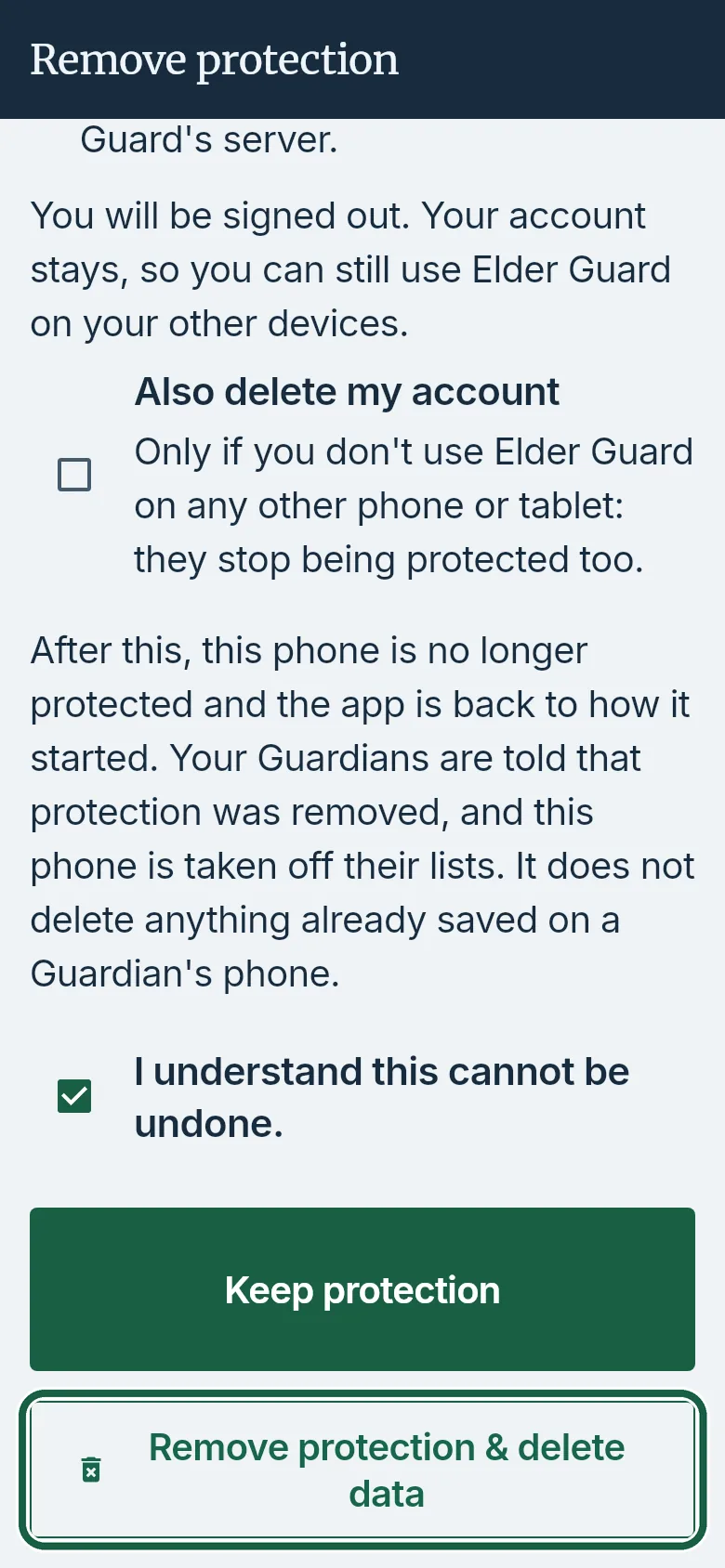
Elder’s phone: Remove protection, with Remove protection & delete data circled. - On the question that opens, tap Remove protection.
- If Confirm it’s you appears, confirm with your password, Google or Apple using the same Elder Guard account.
It worked whenElder Guard is back to how it started, and your Guardians are told that protection was removed.
Everyday use
What you do day to day on your phone after you set up together.
-
See what Elder Guard did for Mom
Guardian’s phone
- Tap the Alerts tab. Each card is a likely scam Elder Guard flagged.
- On a phone or text card, tap Block this number or Not a scam.
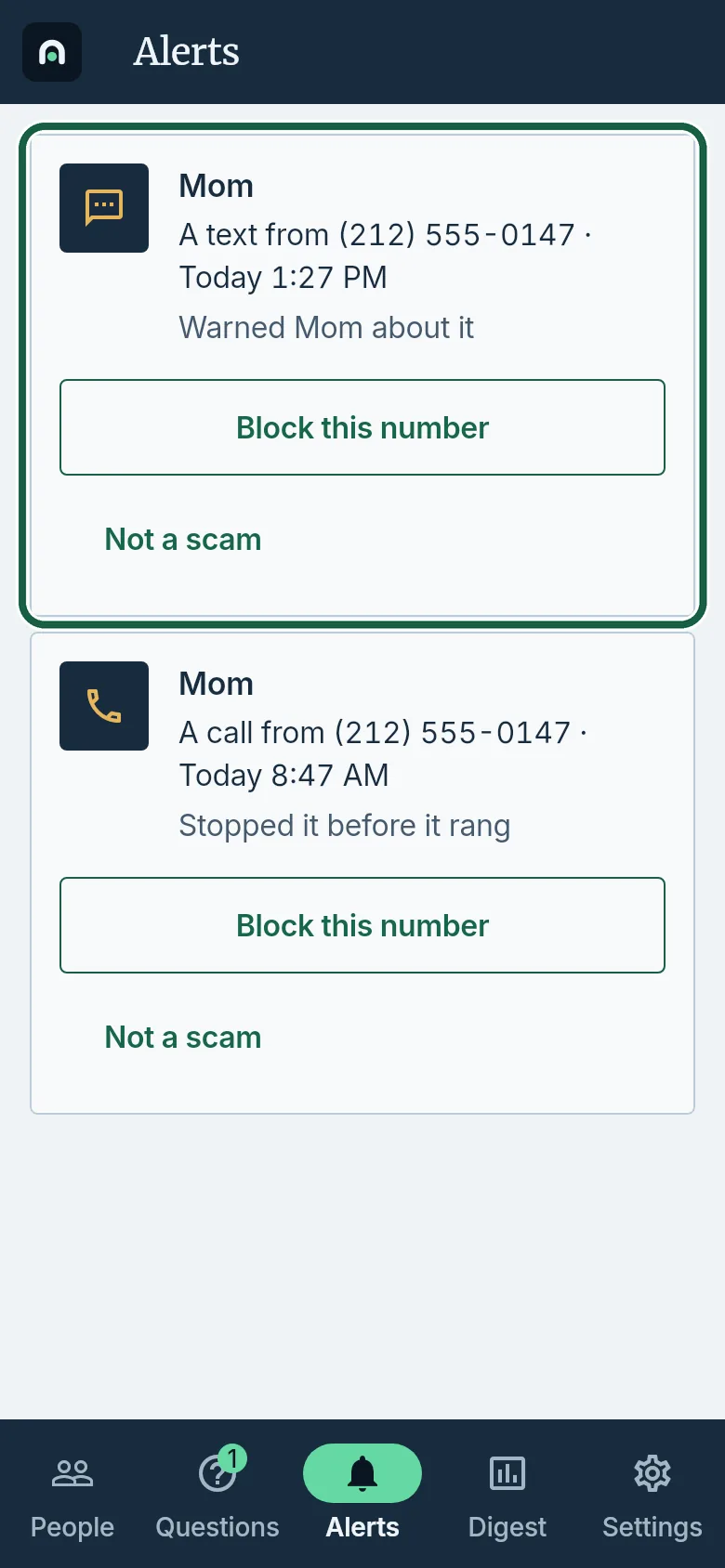
Guardian’s phone: Alerts, with Block this number circled on a card. - On an email card, tap See details or Not a scam.
Guardian’s phone
- Tap the People tab, then Mom’s status card.
- Tap Activity. Each row says what Elder Guard did, such as a call it stopped.
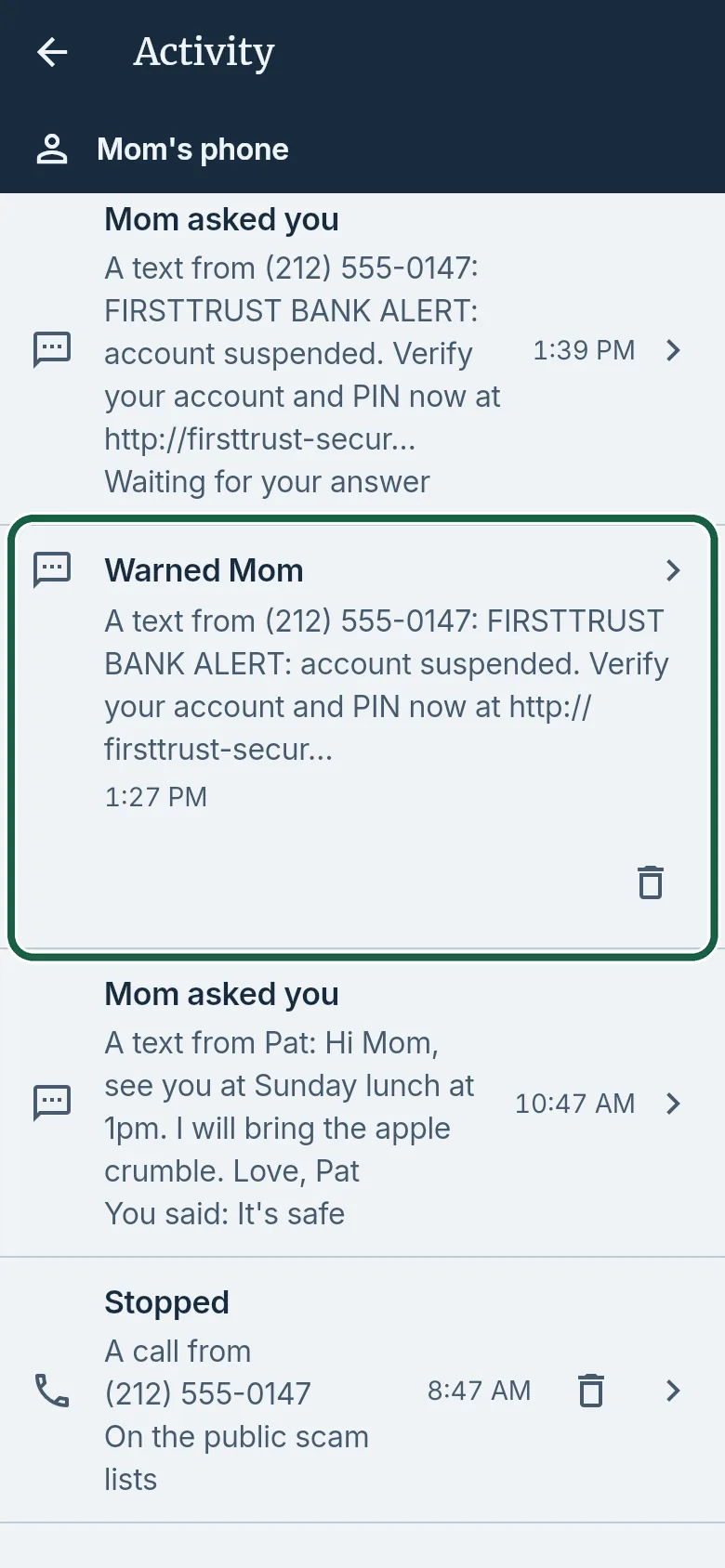
Guardian’s phone: Activity, with one row circled. - Tap a row to open its details.
It worked whenAlerts lists likely scams, or says “No likely scams this week.” Activity lists what happened, or says “Nothing yet.”
-
Answer a question
Guardian’s phone
- Tap the People tab and Answer Mom, or tap Questions and the waiting question.
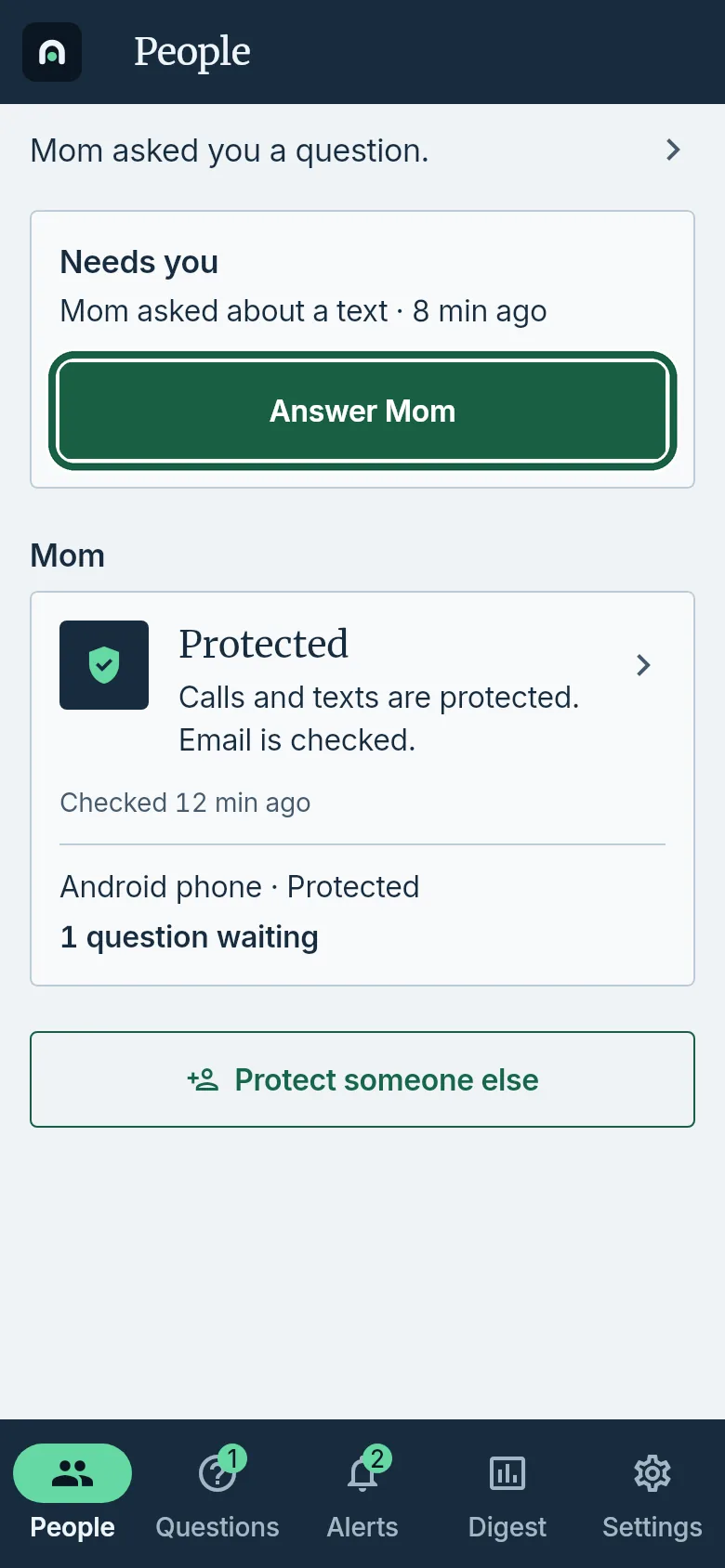
Guardian’s phone: People, with Answer Mom circled. - Read the message.
- If you see What worries Mom or Warning signs we found, tap a row to read what it means.
- Under Your answer, tap It’s a scam, It’s safe, or I’ll call you.
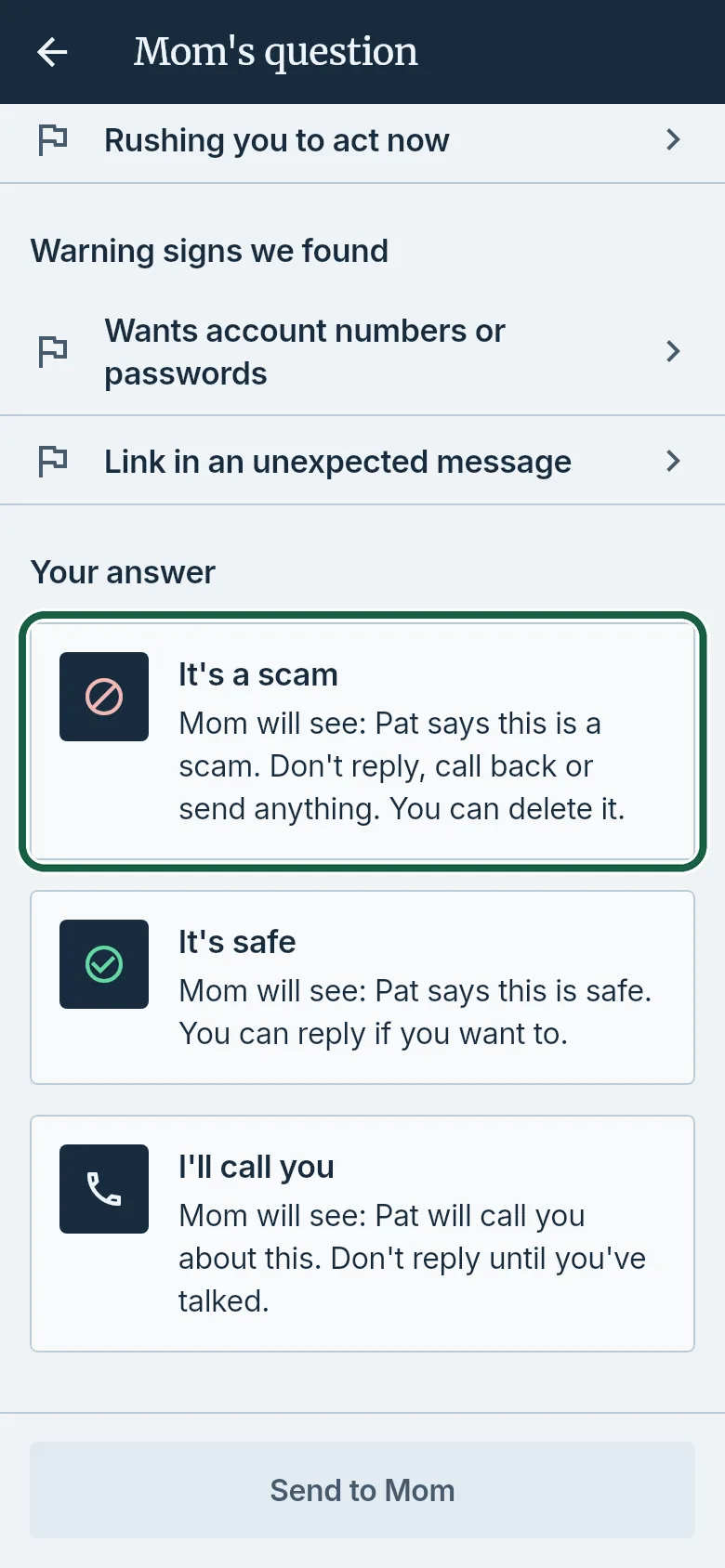
Guardian’s phone: Your answer, with It’s a scam circled. - After you choose an answer, optional: under Point out red flags, select or clear flags.
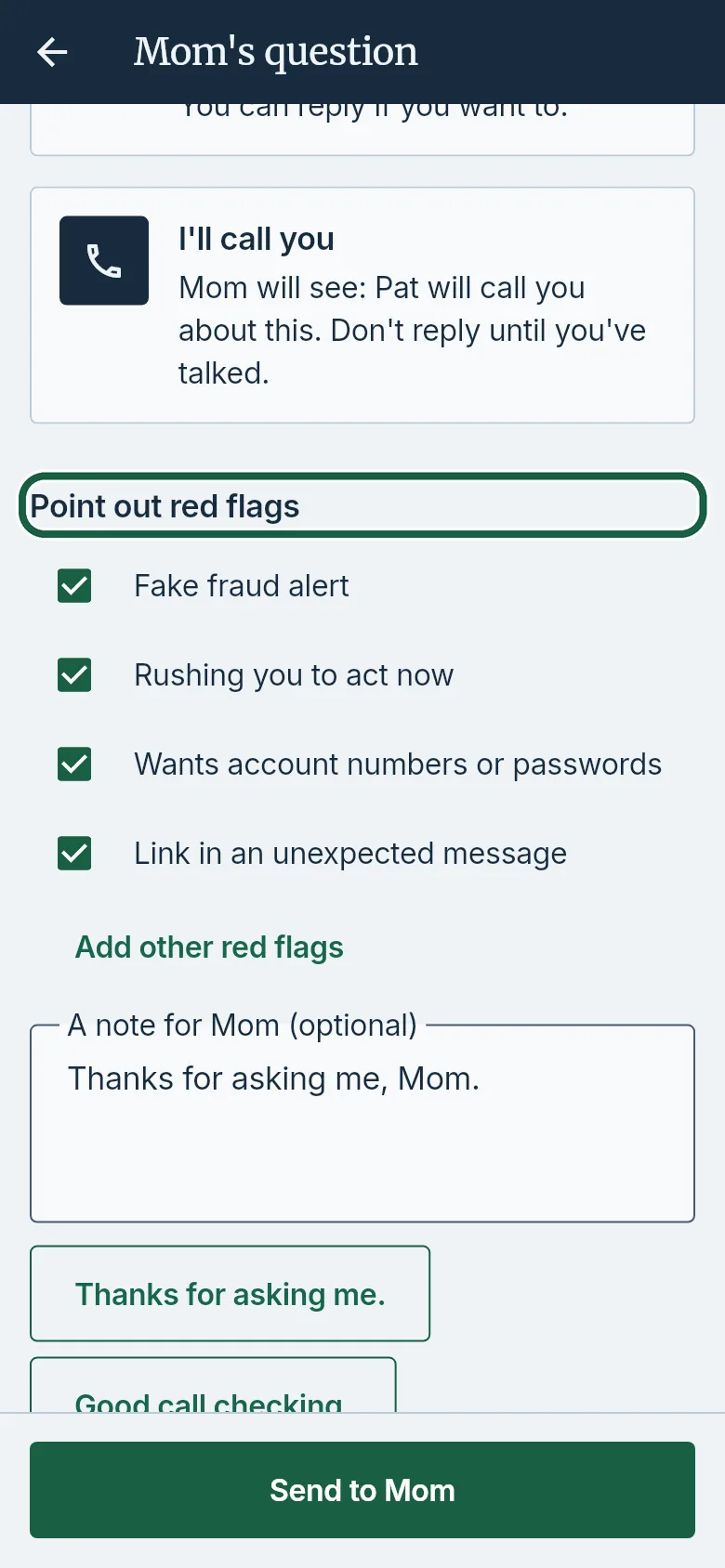
Guardian’s phone: Point out red flags, circled. - Optional: type a note under A note for Mom (optional).
- Tap Send to Mom.
It worked whenThe Needs you card is gone. Questions no longer lists that question, or says “No questions waiting.”
- Tap the People tab and Answer Mom, or tap Questions and the waiting question.
-
Block a phone number on their phone
Guardian’s phone
- Tap the People tab, then Mom’s status card. Under Lists, tap Blocked numbers.
- Tap Block a number, type the phone number, then tap Block.
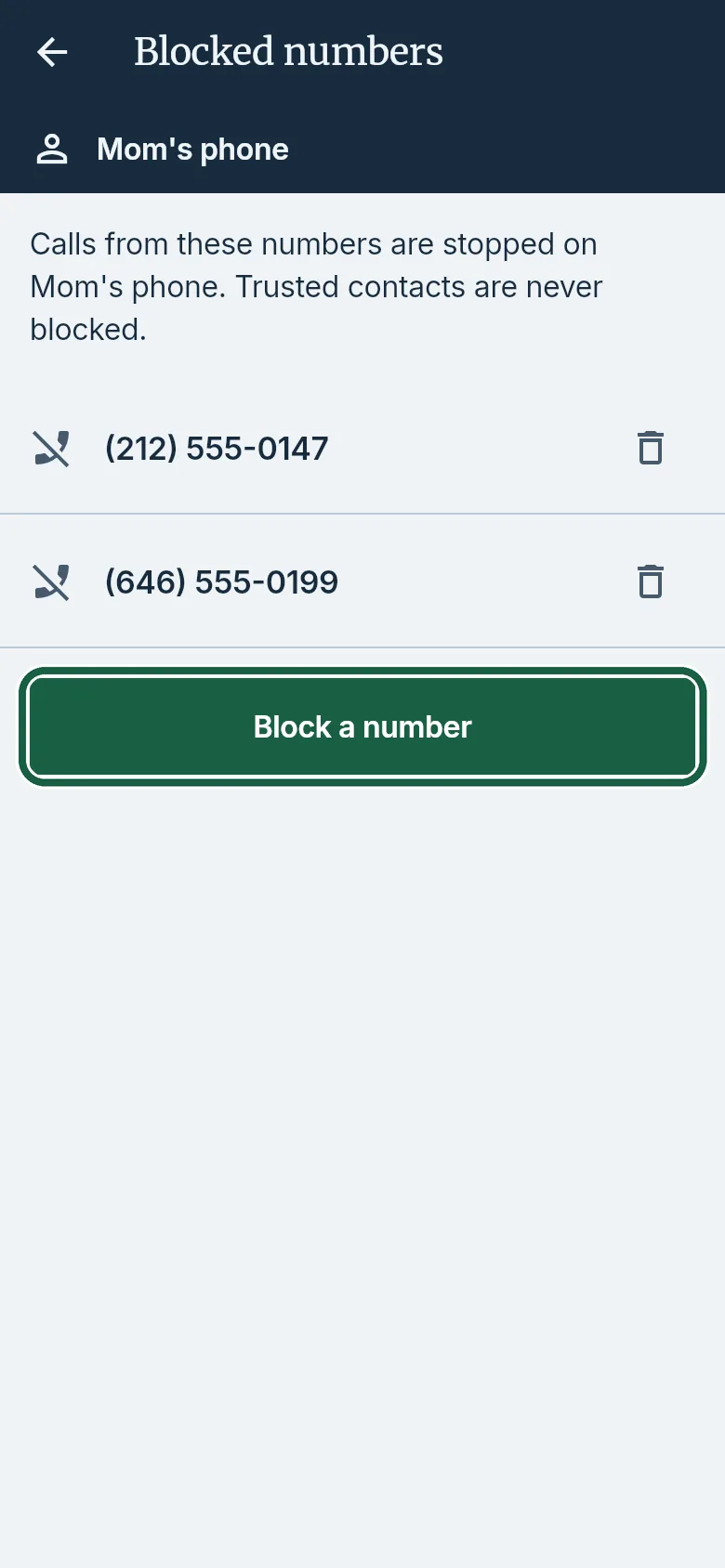
Guardian’s phone: Blocked numbers, with Block a number circled. - To unblock a number later, tap the remove icon next to it.
It worked whenThe number is in the list. Their phone gets it the next time it checks in, within a few minutes.
Good to knowTrusted contacts are never blocked. Outside the US and Canada, include the country code (like +44). On an iPhone, they turn call blocking on once: see Block numbers your Guardians list.
-
Add trusted contacts, warning words and websites
Guardian’s phone
- Tap the People tab, then Mom’s status card. Under Lists, tap Trusted contacts, Blocked numbers, Warning words, or Websites.
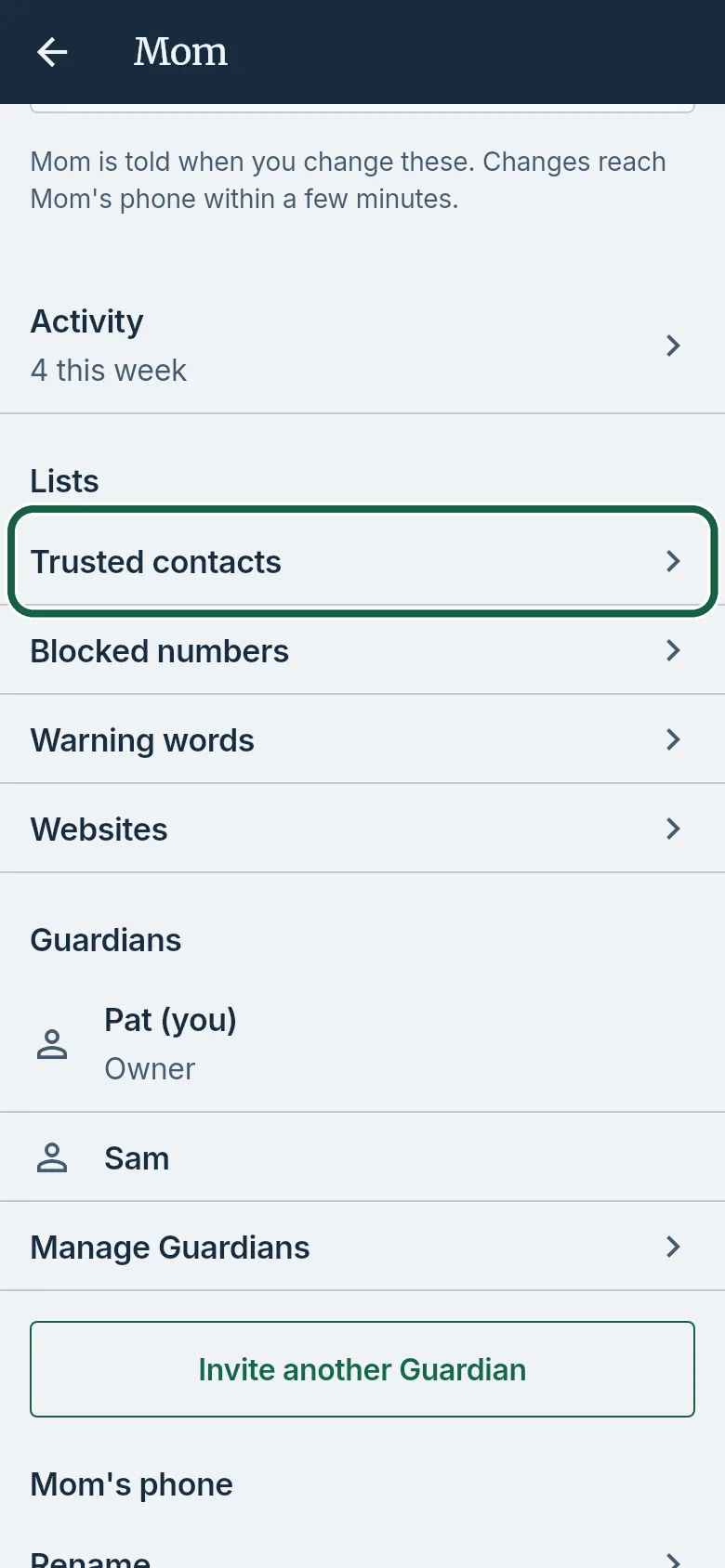
Guardian’s phone: Lists, with Trusted contacts circled. - Tap the add action for the list you opened.
Choose one
- Trusted contacts: tap Add a trusted contact.
- Blocked numbers: tap Block a number.
- Warning words: tap Add a warning word.
- Websites: tap Add a trusted website or Add a website to warn about.
- Type the contact, word or website address, then tap Add.
- To take something off a list, tap the remove icon next to it.
It worked whenThe entry is in the list. Their phone gets it the next time it checks in, within a few minutes.
Good to knowTrusted contacts are never blocked or flagged. Websites to warn about always get a warning on their phone.
- Tap the People tab, then Mom’s status card. Under Lists, tap Trusted contacts, Blocked numbers, Warning words, or Websites.
-
Turn on the weekly digest
Guardian’s phone
- Tap the Settings tab. Turn on the Weekly digest switch.
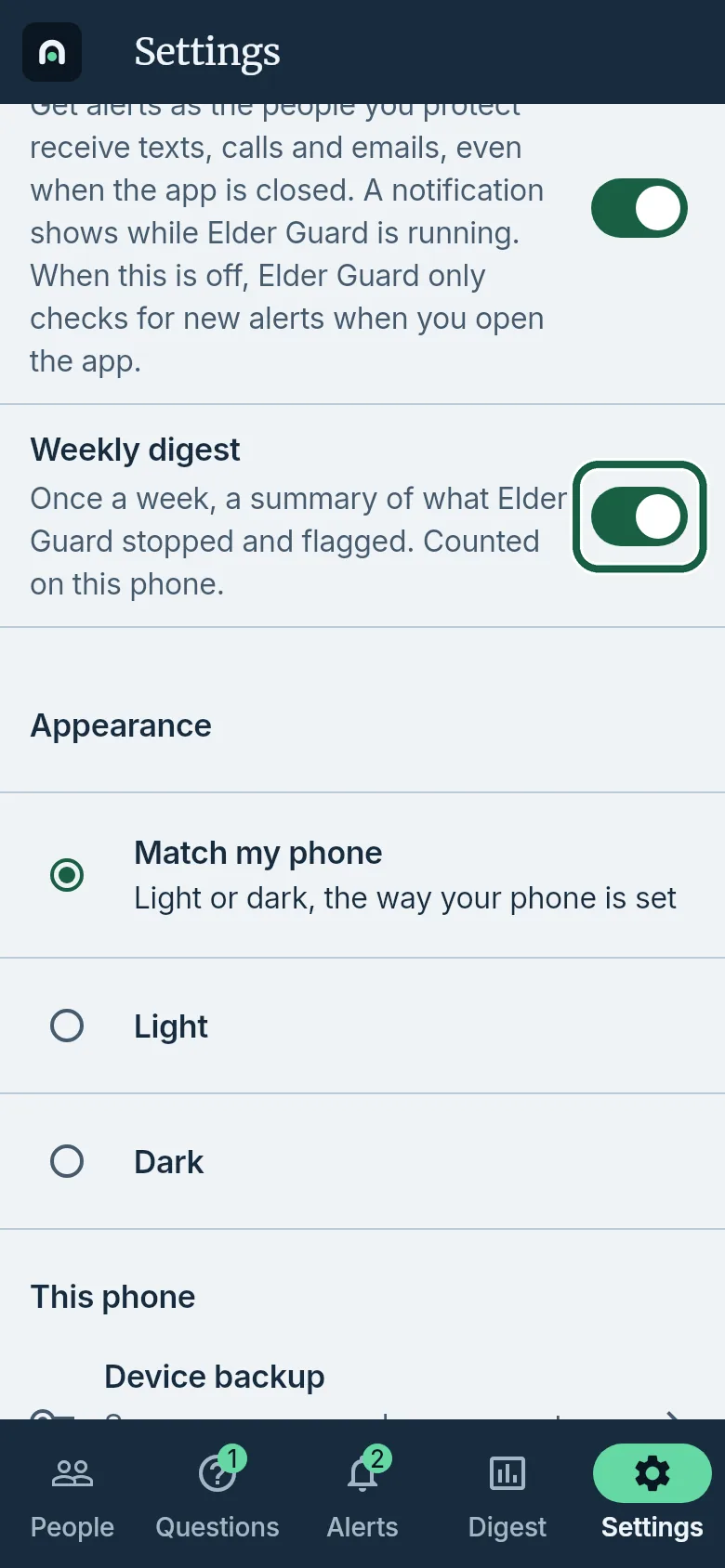
Guardian’s phone: Settings, with Weekly digest circled. - Tap the Digest tab.
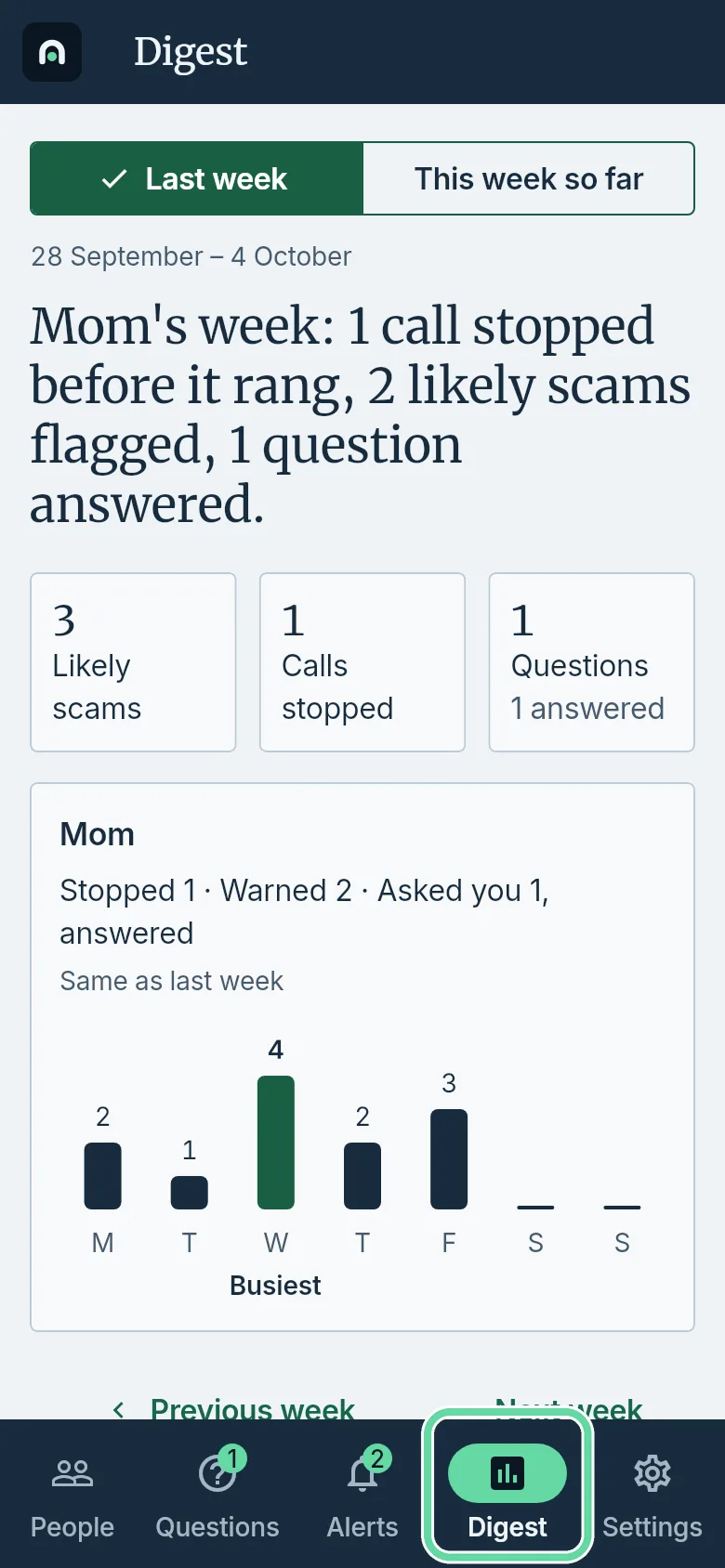
Guardian’s phone: Digest tab circled. - Tap Last week or This week so far.
It worked whenThe Weekly digest switch is on in Settings, and Digest shows the week’s counts.
Good to knowOnce a week, the digest sums what Elder Guard stopped and flagged. The counts are on this phone.
- Tap the Settings tab. Turn on the Weekly digest switch.
-
Get alerts while the app is closed (your Android phone)
Before you startThis is for a Guardian phone running Android. iPhones don’t let apps keep running in the background.Guardian’s phone
- Tap the Settings tab, then turn on Always run in the background.
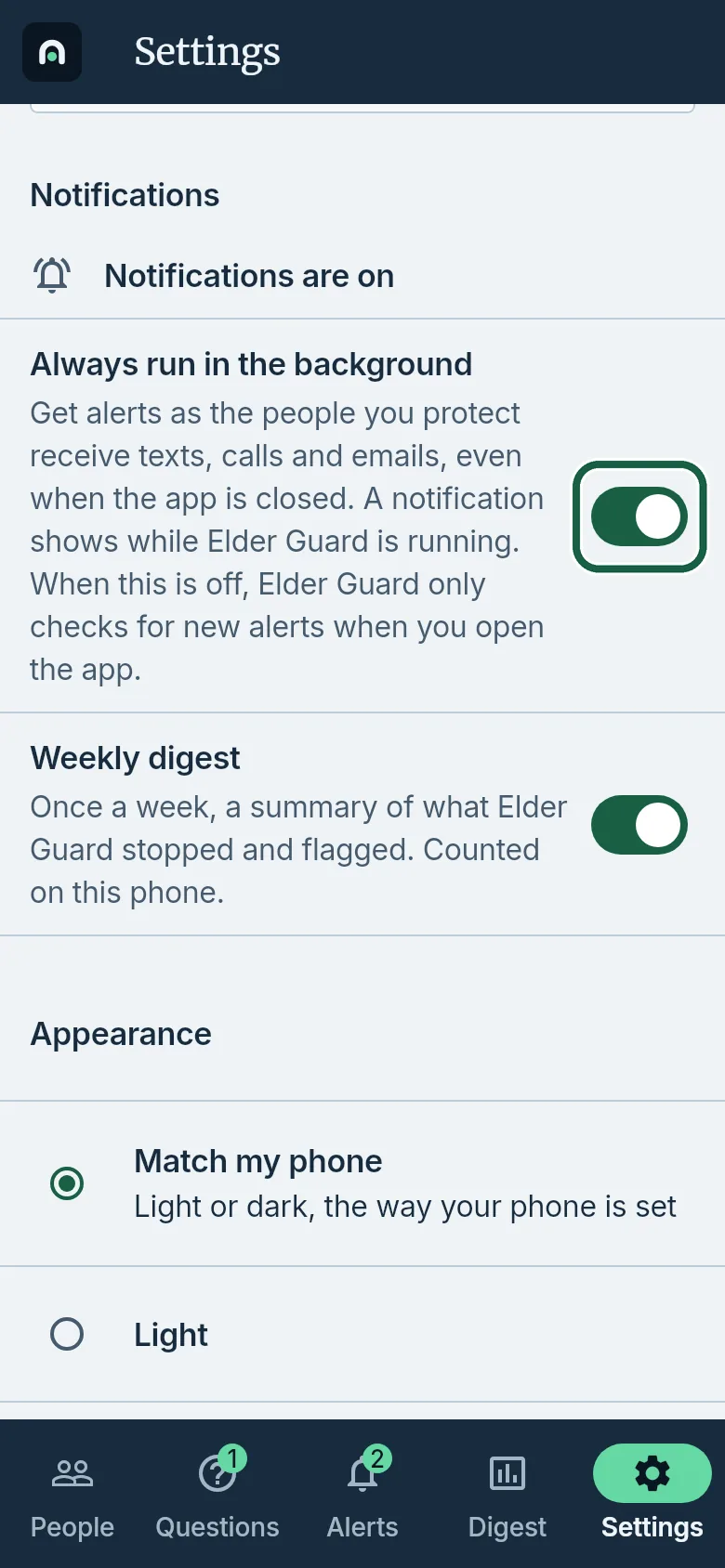
Guardian’s phone: Settings, with Always run in the background circled.
It worked whenA notification shows while Elder Guard is running.
- Tap the Settings tab, then turn on Always run in the background.
-
Read the list of scam red flags
Elder’s phone
- Tap the Settings tab, then Scam red flags.
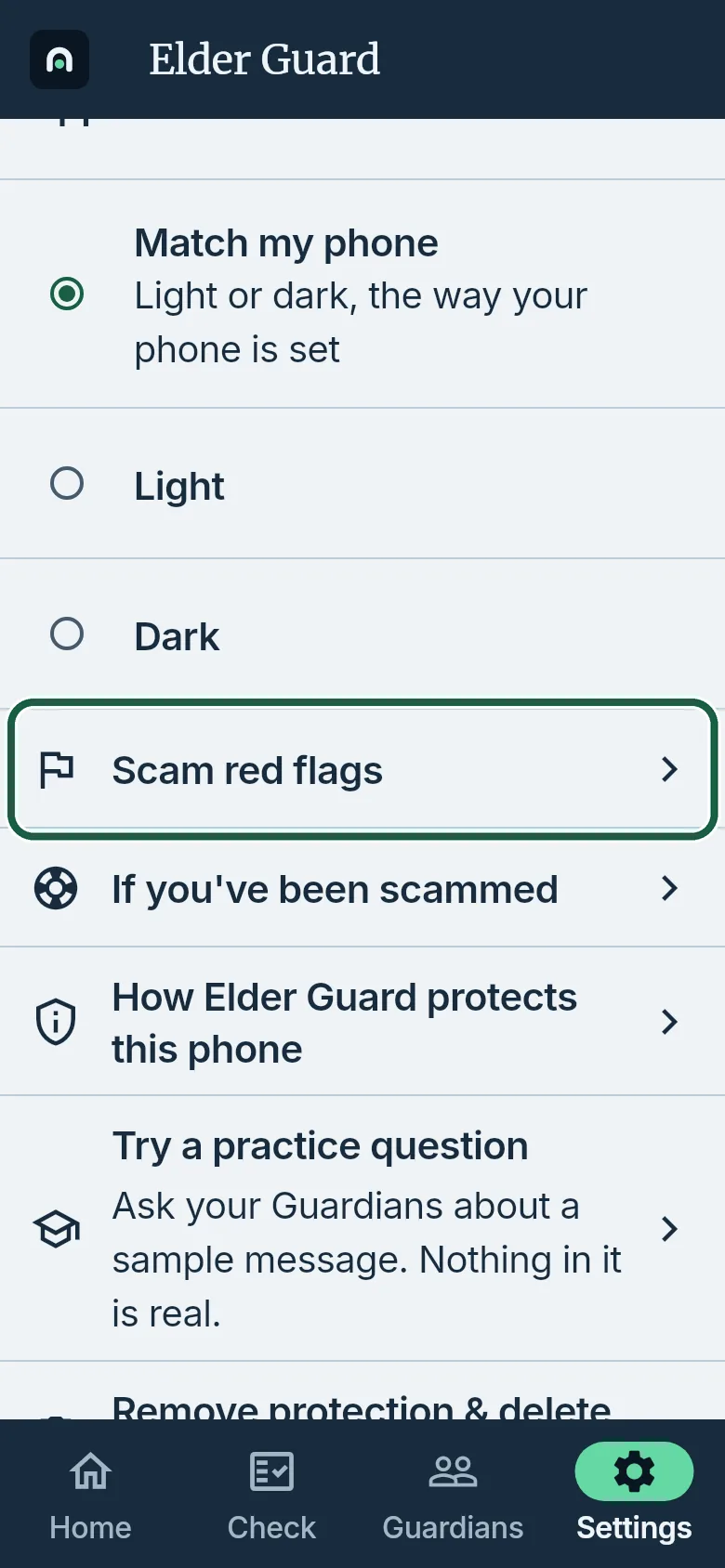
Elder’s phone: Settings, with Scam red flags circled.
Guardian’s phone
- Tap the Settings tab, scroll to Scam help, then tap Scam red flags.
Either phone
- Scroll through the list. Each red flag has a short explanation. Tap the agency’s Source: link under a flag to open its page.
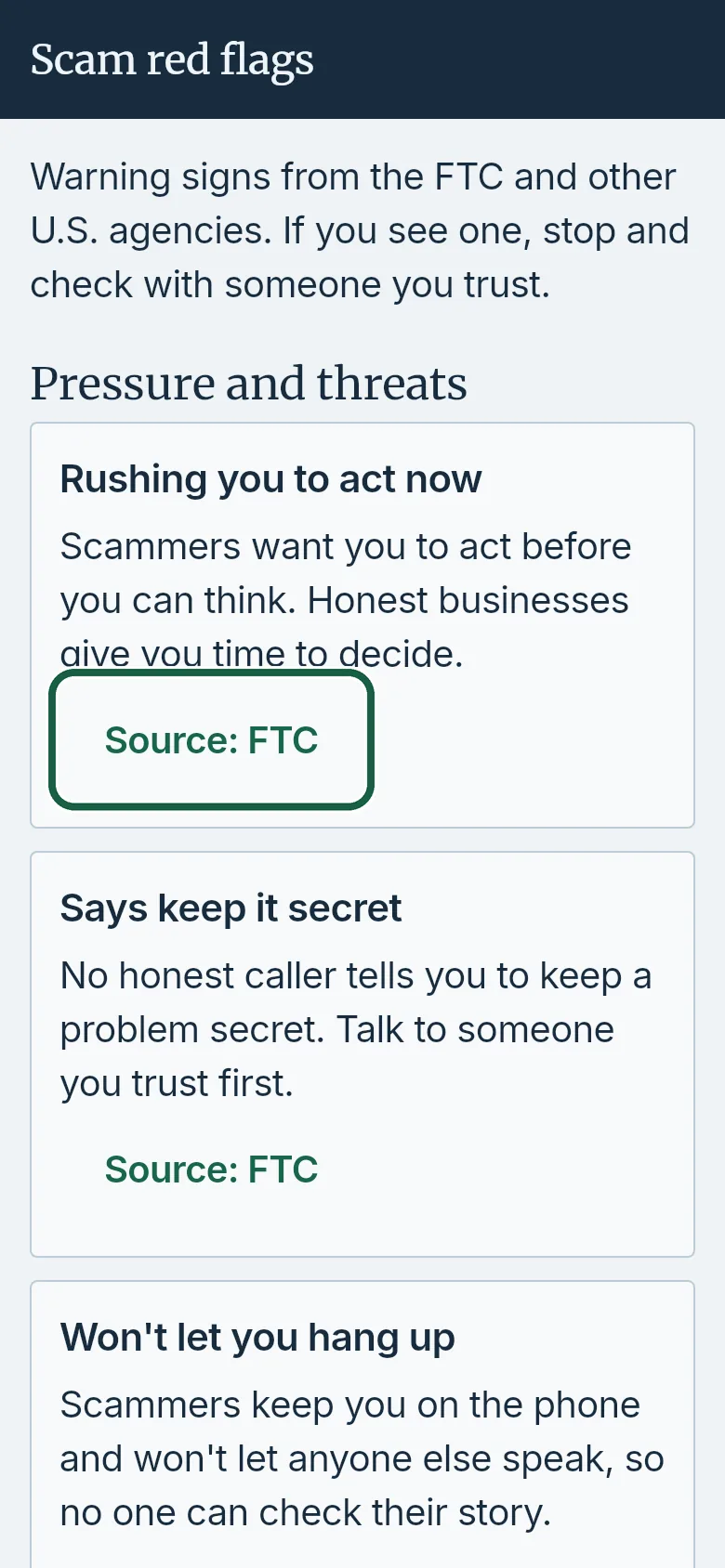
Either phone: Scam red flags, with a Source link circled.
It worked whenThe list opens with “Pressure and threats” at the top.
Good to knowThe same flags appear under Warning signs we found when you answer a question.
- Tap the Settings tab, then Scam red flags.
-
Find who to contact if you’ve been scammed
Elder’s phone
- Tap the Settings tab, then If you’ve been scammed.
Guardian’s phone
- Tap the Settings tab, scroll to Scam help, then tap If you’ve been scammed.
Either phone
- The list starts with the most urgent contact. Each entry shows Call and/or Website when those apply. On the first entry, tap Call to phone from the app.
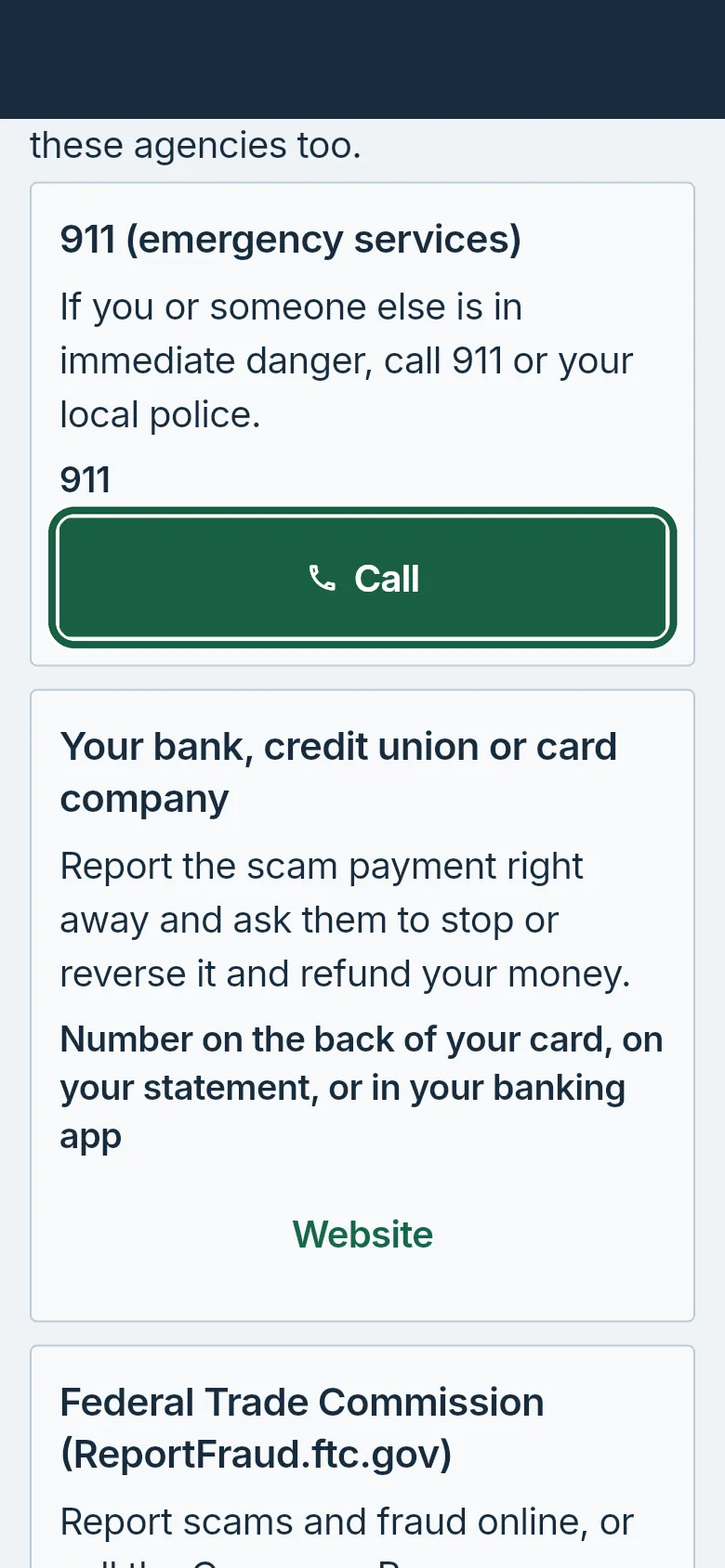
Either phone: If you’ve been scammed, with the first Call button circled. - When an entry has Website only, tap Website to open its page.
- Scroll down to If you paid or shared something, find how you paid, and tap it to open the official page for that.
It worked whenThe phone dials, or the agency’s page opens.
Good to knowThis list is there even while protection is off.
Fix a problem
Titled by the message you see on the screen.
-
“Background checks are off” iPhone
Before you startElder Guard shows this on the Home tab when Background App Refresh is off for it. The fix is in the iPhone’s own Settings app.Elder’s phone
- Open Settings, tap General, then Background App Refresh.
- If Background App Refresh at the top says Off, tap it and choose Wi-Fi & Cellular Data.
- Turn it on for Elder Guard.
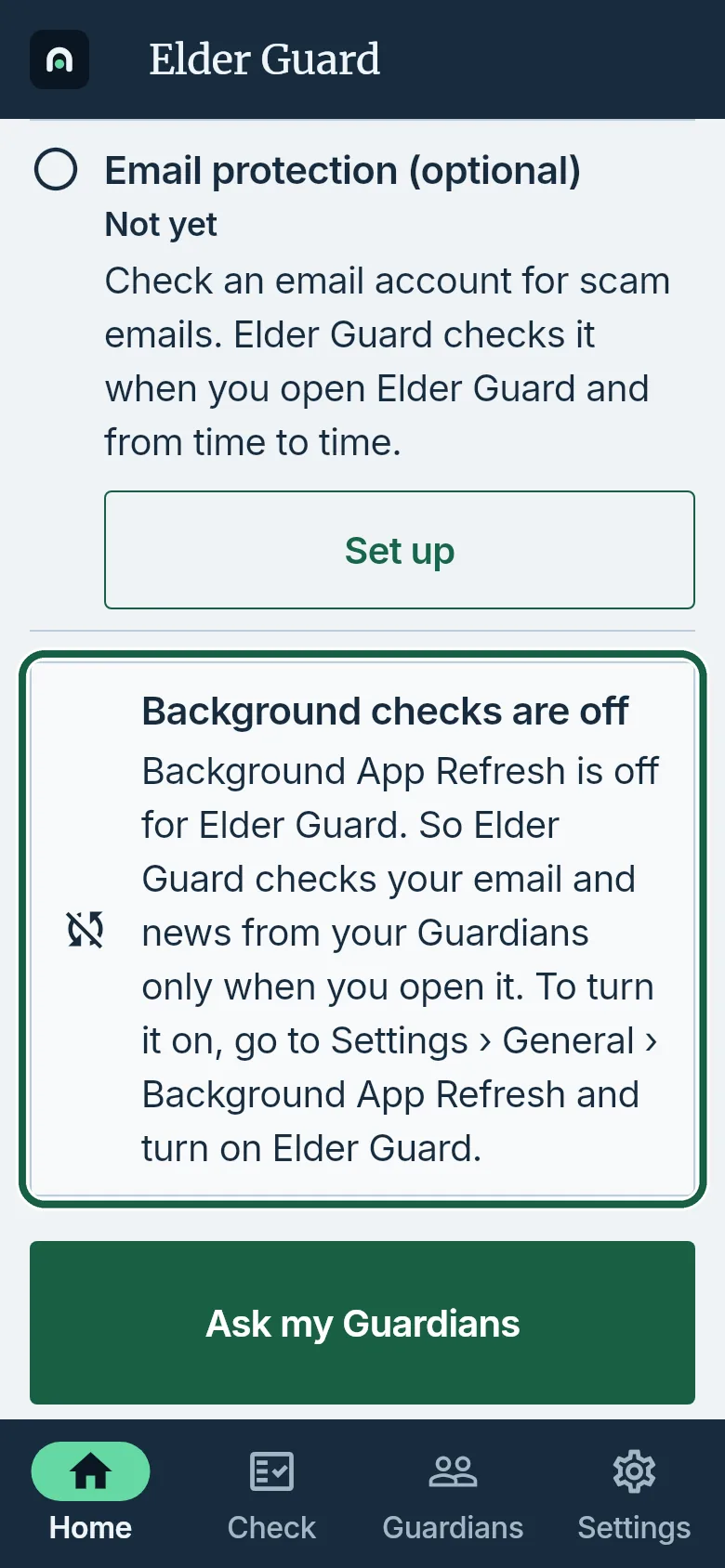
Elder’s phone: Home, with Background checks are off circled.
It worked when“Background checks are off” is gone from the Home tab.
Good to knowThis row shows only while protection is on. The subtitle says Elder Guard checks your email and news from your Guardians only when you open it, or that Background App Refresh isn’t allowed on this iPhone.
-
Turn protection back on
Before you startWhen a subscription ends, their card on People says Off. On their phone the status card says Protection is off. and Off.Guardian’s phone
- On the People tab, find the person whose status is Off and tap Turn on.
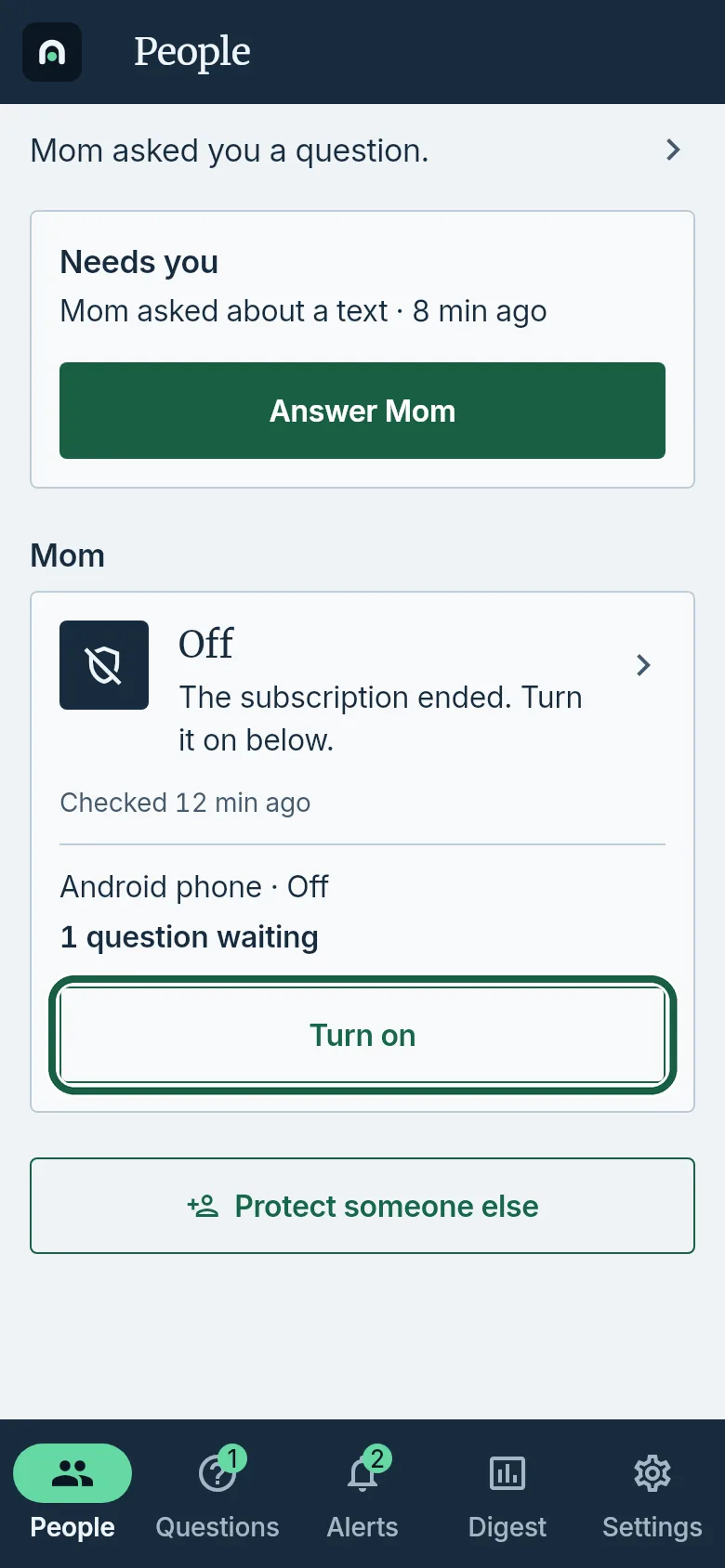
Guardian’s phone: People, with Turn on circled on Mom’s Off card. - If you are not subscribed, finish subscribing on the Subscribe screen that opens.
It worked whenThe status word changes to Protected.
Good to knowOn their phone the status card says Off until protection is on again. Another of their Guardians can turn it on with their own subscription.
- On the People tab, find the person whose status is Off and tap Turn on.
-
Already paying but Elder Guard won’t subscribe
Guardian’s phone
- Tap the Settings tab, then the button to subscribe. The Subscribe screen opens.
- Near the bottom of the screen, above Start free trial, tap Already subscribed? Restore purchase.
If it doesn’t work If it says “No subscription was found for this account”, check that this phone uses the Google Play or Apple account you subscribed with, and that you are signed in to the same Elder Guard account.
It worked whenThe Subscribe screen closes and Settings says your subscription is active until a date.
-
“Your subscription is in use”
Before you startOne subscription protects one person on up to 2 of their devices. This shows when both places are taken.Guardian’s phone
- On People, tap the person, then tap Stop protecting Mom’s phone.
- Tap Stop protecting.
- On People, tap Turn on on the device you want.
It worked whenThe device’s status word is Protected.
Good to knowAs the message says, another of their Guardians can turn this one on with their own subscription instead.
Subscription and account
-
Subscribe in Elder Guard
Guardian’s phone
- Tap the Settings tab, then the button to subscribe. The same screen opens when you tap Turn on and need a subscription.
- Read Free for 7 days and what happens next, then tap Start free trial at the bottom of the screen and finish the purchase.
It worked whenThe Subscribe screen closes and Settings says your subscription is active until a date.
Good to knowFree for 7 days, then a monthly subscription billed until you cancel (see pricing); it protects one person on up to 2 of their devices, and up to 3 Guardians can share the job while invited Guardians and the Elder never pay. See the Terms of Service.
-
Invite another Guardian
Before you startYou are an owner of this Elder, and the other Guardian has Elder Guard installed with their own account.Guardian’s phone
- On People, tap the person, then tap Invite another Guardian.
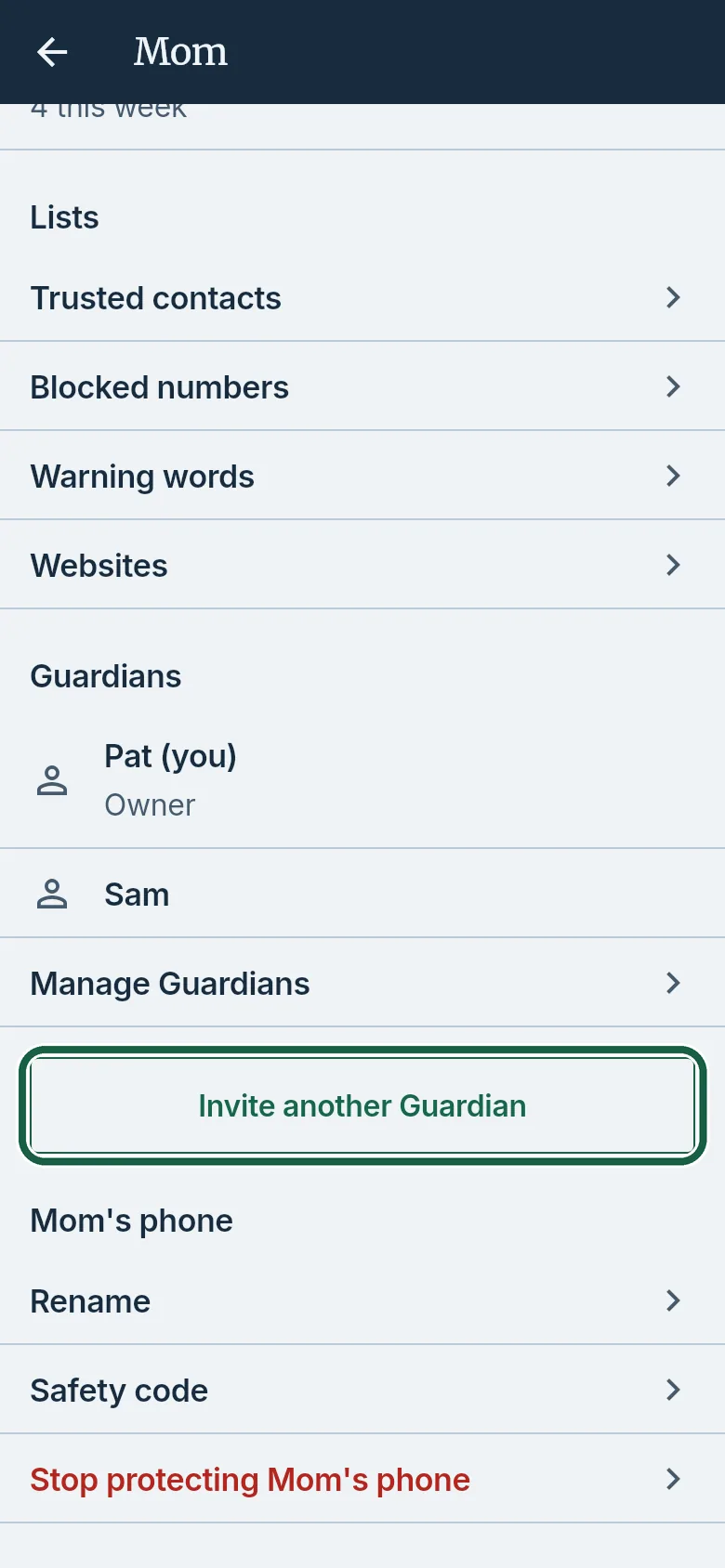
Guardian’s phone: Mom’s page, with Invite another Guardian circled. - Leave the invitation code on screen.
Other Guardian’s phone
- On People, tap Protect someone else, then Add a phone or tablet.
- Tap Scan their code, then scan the code on your screen.
- Check that each safety code matches the one on your screen.
- Type their first name and tap Add Mom.
It worked whenOn the Guardians screen that Manage Guardians opens, the count says for example “2 of 3 Guardians”.
Good to knowAn Elder can have up to 3 Guardians, and invited Guardians never pay. One code adds all of this person’s devices you have, and anyone who scans it becomes a Guardian of this Elder.
- On People, tap the person, then tap Invite another Guardian.
-
See and change who the Guardians are
Guardian’s phone
- On People, tap the person, then tap Manage Guardians.
- If you are an owner, next to another Guardian tap Make Sam an owner or Remove Sam from Guardians.
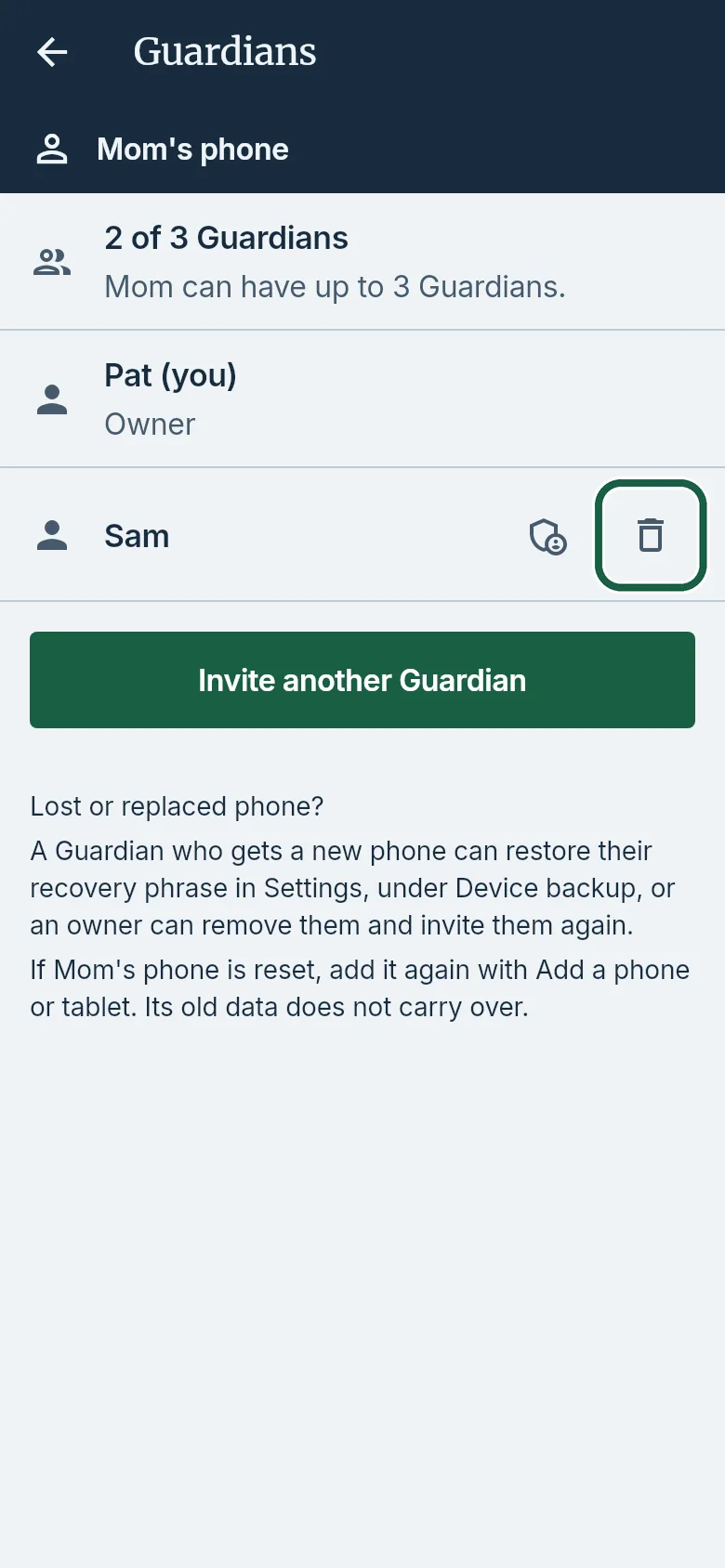
Guardian’s phone: Guardians, with Remove Sam from Guardians circled. - On the confirmation, tap Make owner or Remove.
- If Confirm it’s you appears, confirm with your password, Google or Apple using the same Elder Guard account.
It worked whenIt says “Saved. It takes effect when Mom’s phone connects.”
-
Stop protecting a lost or replaced device
Guardian’s phone
- On People, tap the person.
- Tap Stop protecting Mom’s phone.
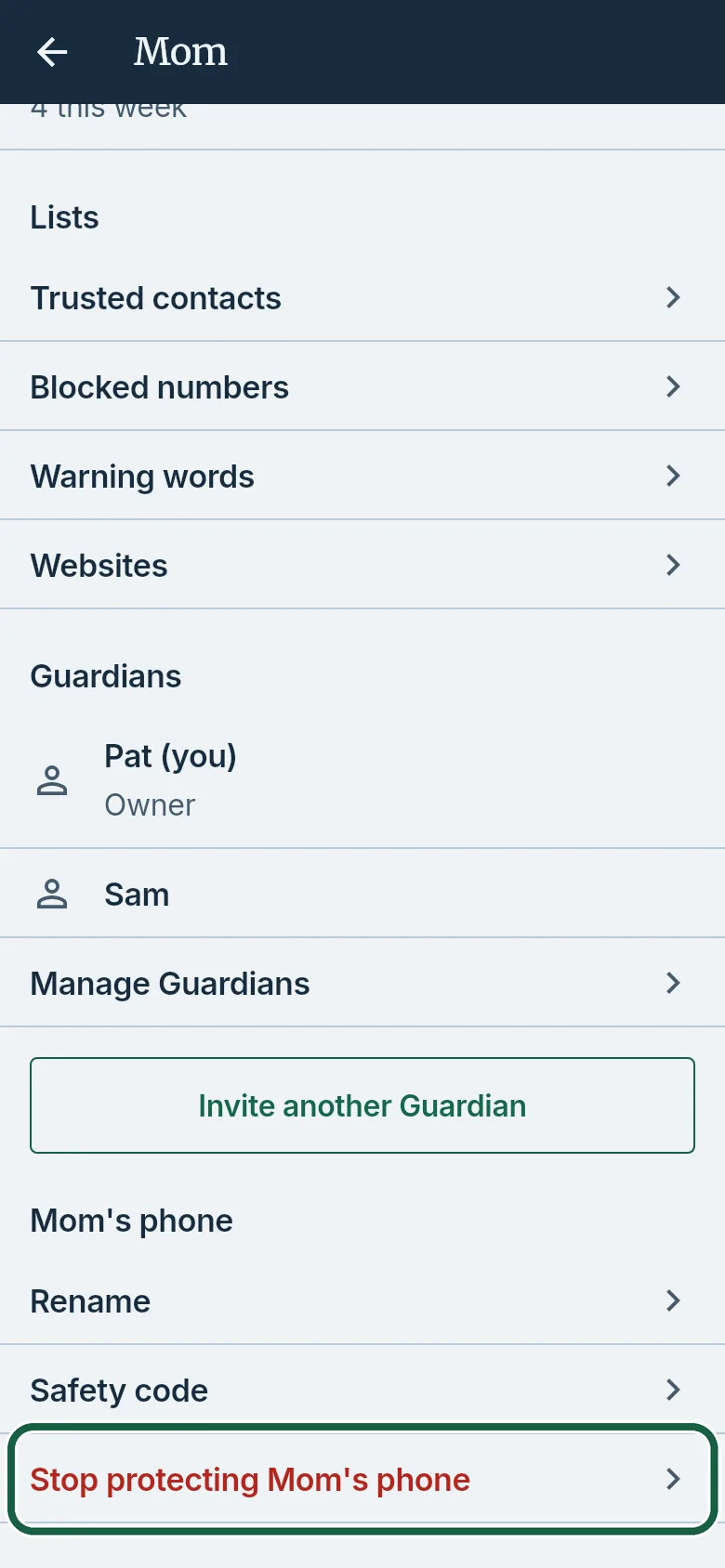
Guardian’s phone: Mom’s page, with Stop protecting Mom’s phone circled. - Tap Stop protecting.
- If Confirm it’s you appears, confirm with your password, Google or Apple using the same Elder Guard account.
It worked whenThat device is gone from People.
Good to knowIf your subscription covered it, that place is freed for another device. On People, tap Protect someone else, then Add a phone or tablet, and use Scan their code to add the new device.
-
Cancel your subscription
Before you startCancel at least 24 hours before it renews. In the free trial, cancel at least 24 hours before the trial ends, or it turns into a paid month.Guardian’s phone
- Cancel with the store you subscribed through.
Choose one
- On an iPhone: open Settings, tap your name, then Subscriptions. Tap Elder Guard, then Cancel Subscription. Apple’s page: If you want to cancel a subscription from Apple.
- On Android: in Google Play, open Subscriptions (play.google.com/store/account/subscriptions), select Elder Guard, then tap Cancel subscription. Google’s page: Cancel a subscription on Google Play.
It worked whenThe store shows the date your subscription ends, and Settings still says your subscription is active until that date.
Good to knowCanceling stops the next charge; protection stays on until the period you paid for (or the free trial) ends, then turns off and the devices say so. Deleting the app, or your Elder Guard account, does not cancel the subscription.
- Cancel with the store you subscribed through.
-
Back up your Guardian phone
Before you startThe backup is a list of words. Anyone with these words can act as you, so write them down somewhere private and never share them.Guardian’s phone
- Tap the Settings tab, then Device backup.
- If Confirm it’s you appears, confirm with your password, Google or Apple using the same Elder Guard account.
- Write down the words under your recovery phrase, in order.
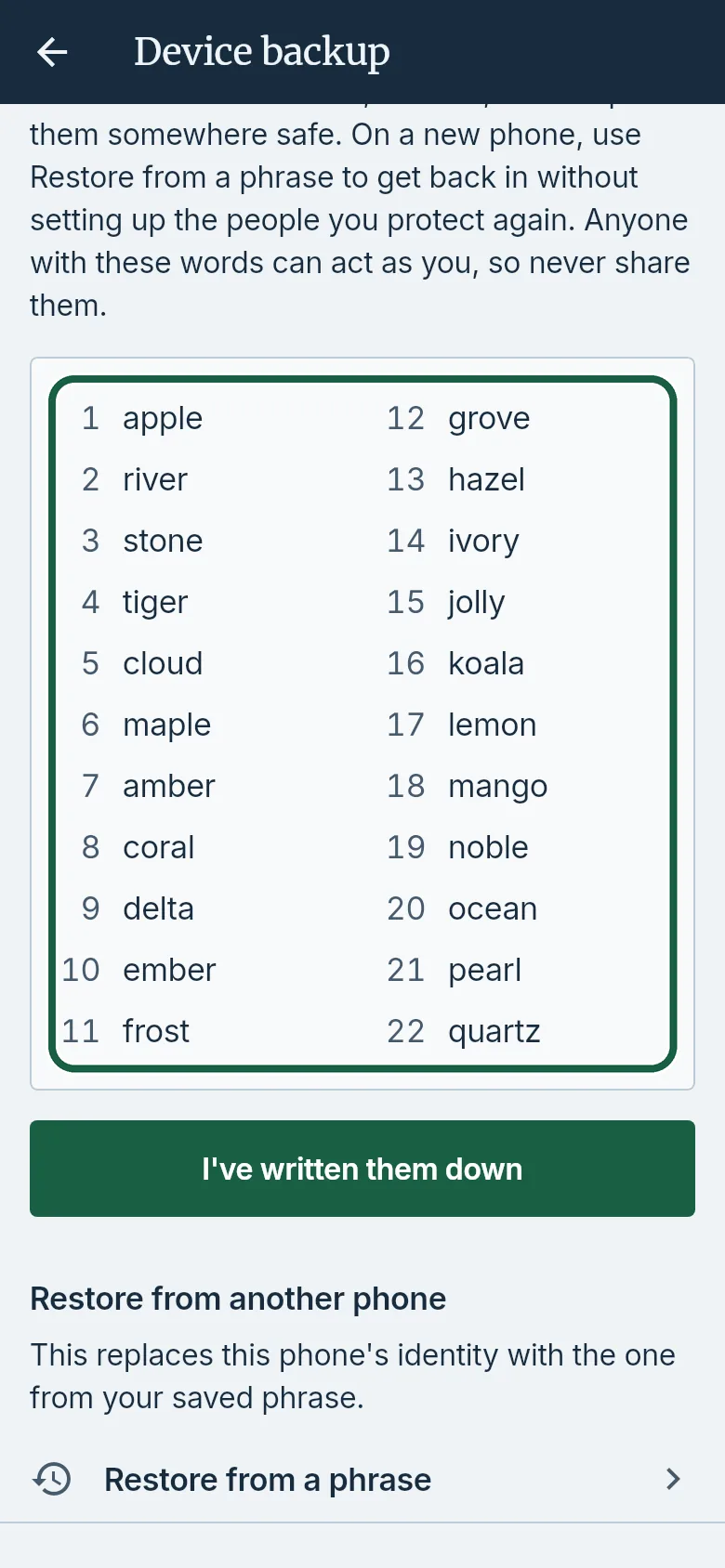
Guardian’s phone: Device backup, with the recovery phrase circled. The words shown are an example. - Tap I’ve written them down.
It worked whenYou have all the words, in order, somewhere safe.
Good to knowTo use them on a new phone, see Restore your Guardian phone from its recovery phrase.
-
Restore your Guardian phone from its recovery phrase
Before you startYou have the recovery phrase from your old phone, written in order.Guardian’s phone
- On the new phone, tap the Settings tab, then Device backup.
- If Confirm it’s you appears, confirm with your password, Google or Apple using the same Elder Guard account.
- Tap Restore from a phrase. If Confirm it’s you appears again, confirm with the same Elder Guard account. Type the words, then tap Restore.
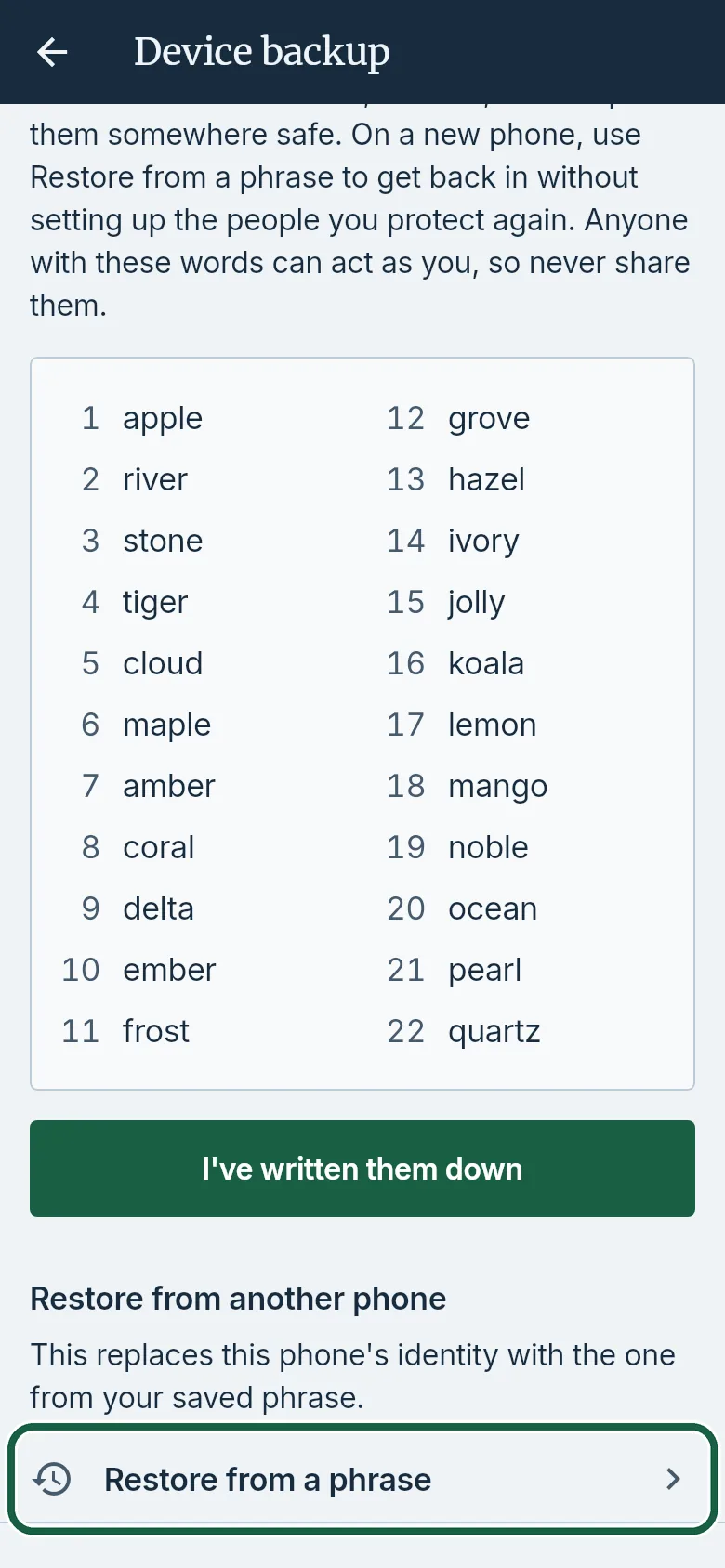
Guardian’s phone: Device backup, with Restore from a phrase circled.
It worked whenIt says “Device restored from the phrase.” and your Elders are back on People without setting them up again.
Good to knowThis replaces the new phone’s identity with the old one’s. Lost the words? An owner can remove you and add you again instead.
-
Delete your Guardian account
Before you startCancel your subscription first: deleting your account does not cancel it.Guardian’s phone
- Tap the Settings tab, then Delete account & data.
- Read what will be deleted, then select I understand this cannot be undone.
- Tap Delete my account and data.
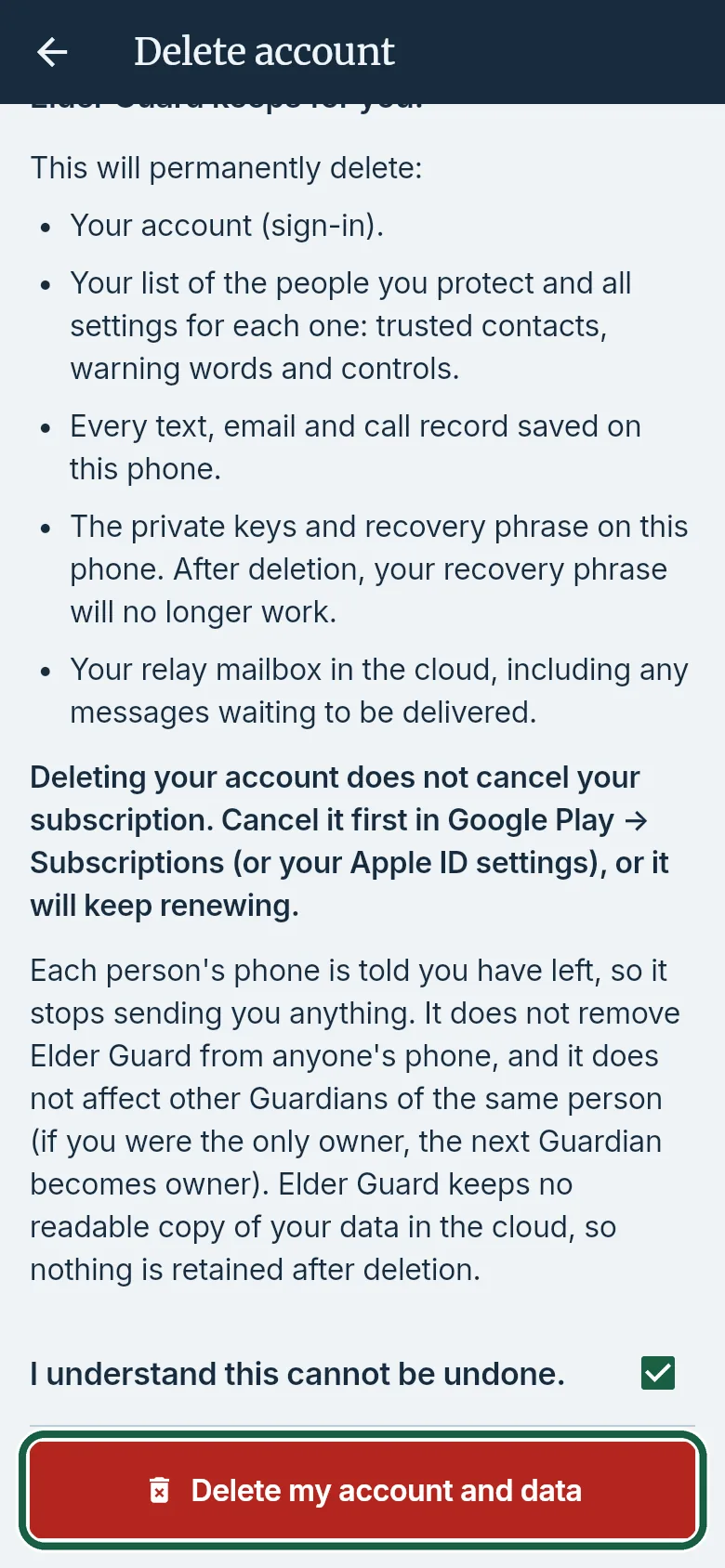
Guardian’s phone: Delete account, with Delete my account and data circled. - On Delete everything?, tap Delete.
- If Confirm it’s you appears, confirm with your password, Google or Apple using the same Elder Guard account.
It worked whenElder Guard returns to its sign-in screen.
Good to knowEach person’s phone is told you have left; other Guardians of the same person are not affected.